Detailed Guide for 5 "Money-Making" Tasks
Task 1: Launch EC2 Instance - $20 credit
Objective: Create and manage virtual machines on AWS cloud
Steps:
- Access EC2 Console
- Select task Launch an instance using EC2
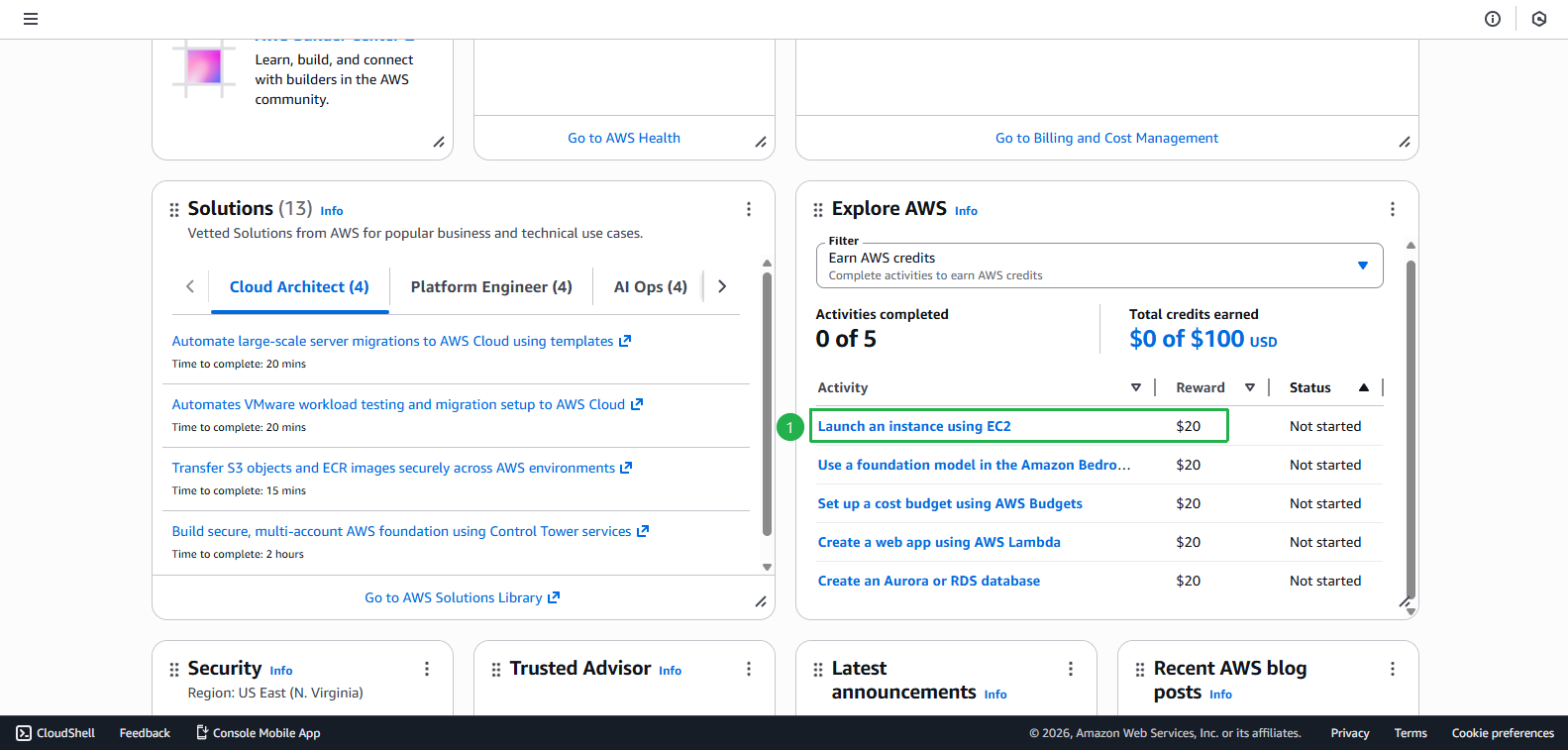
- Click Start activity
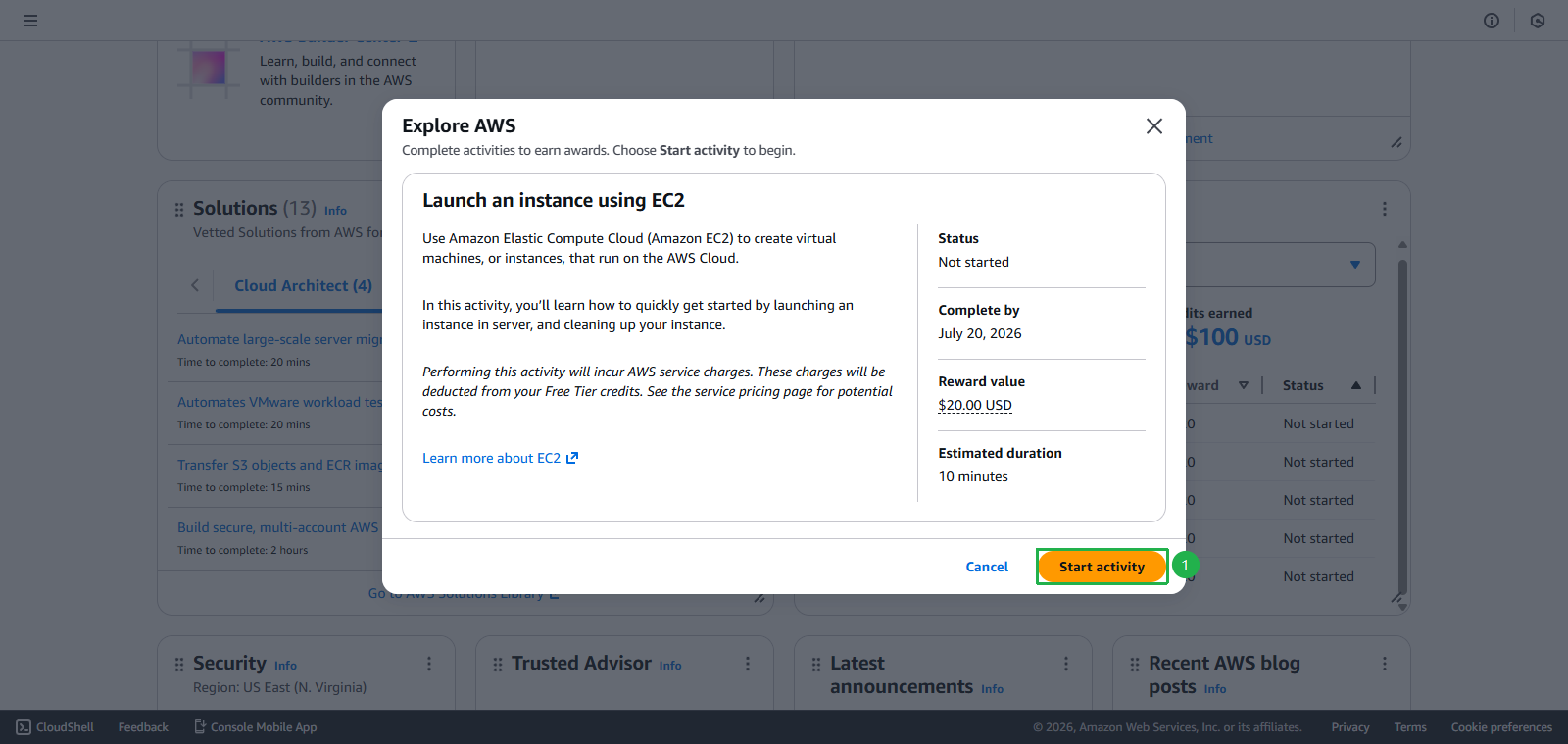
- Select task Launch an instance using EC2
- Create Instance
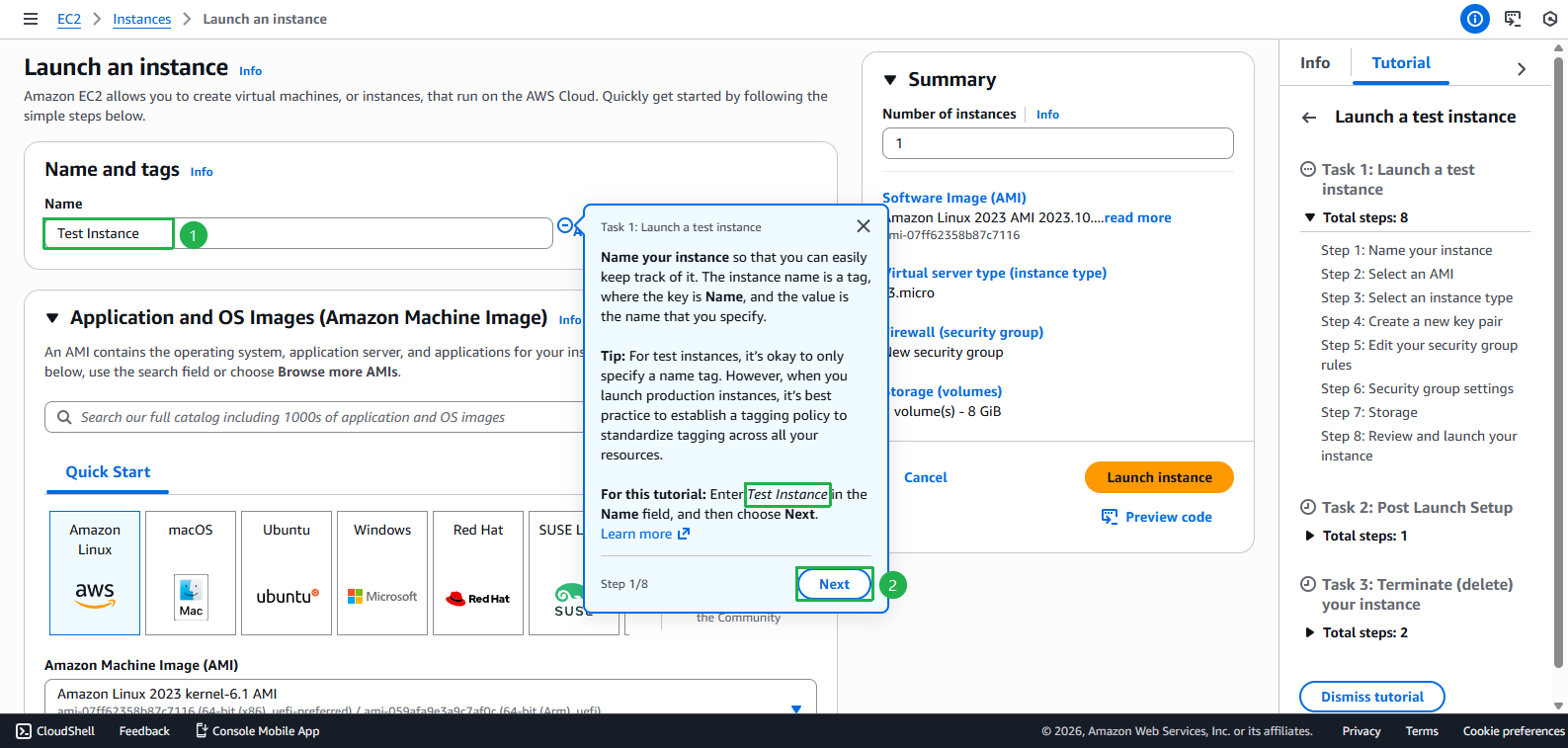
- Enter Instance name
Test Instance - Click Next
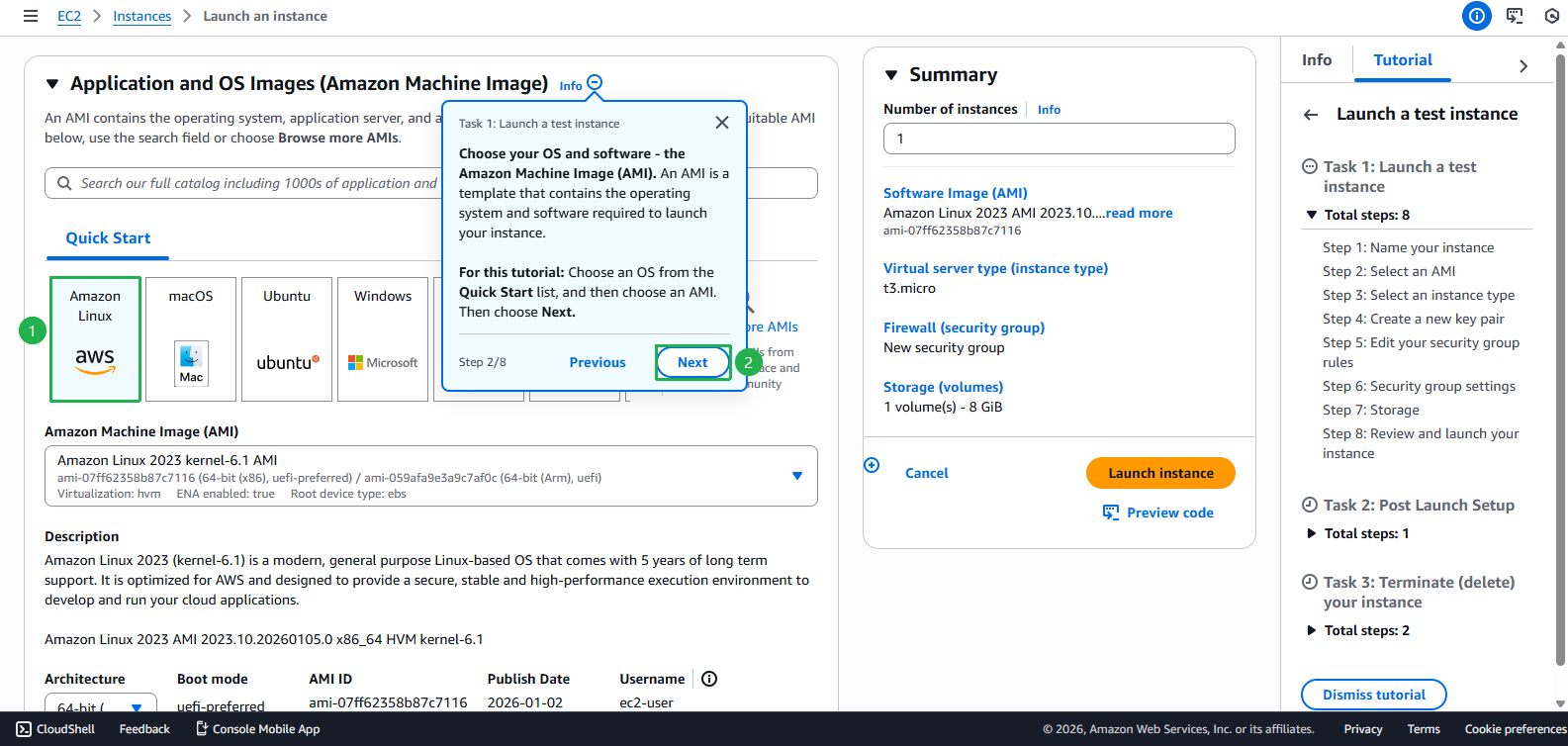
- Select AMI
- Click Next
- Select Hardware (But in this tutorial, we’ll keep the default Hardware)
- Click Next
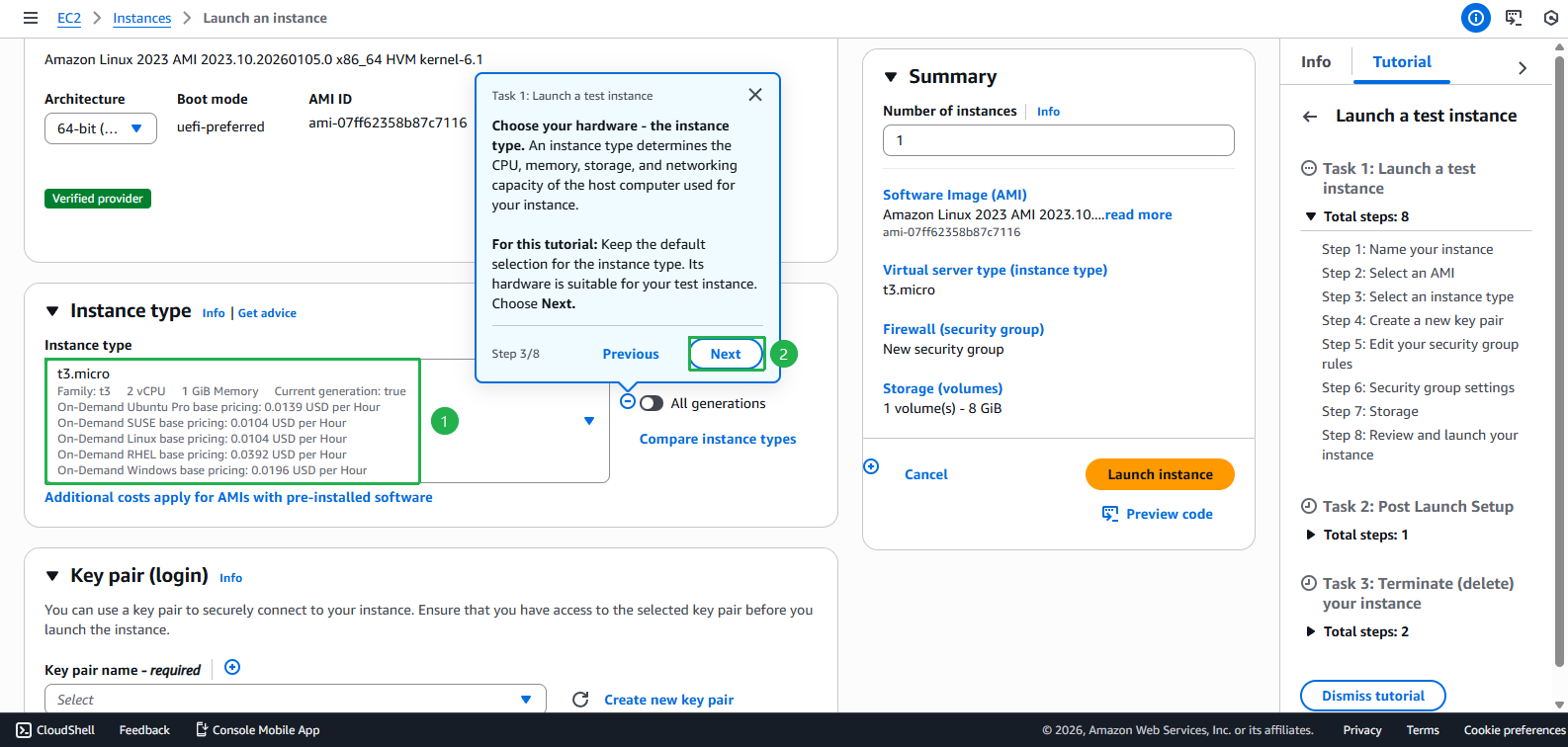
- Click Create new key pair
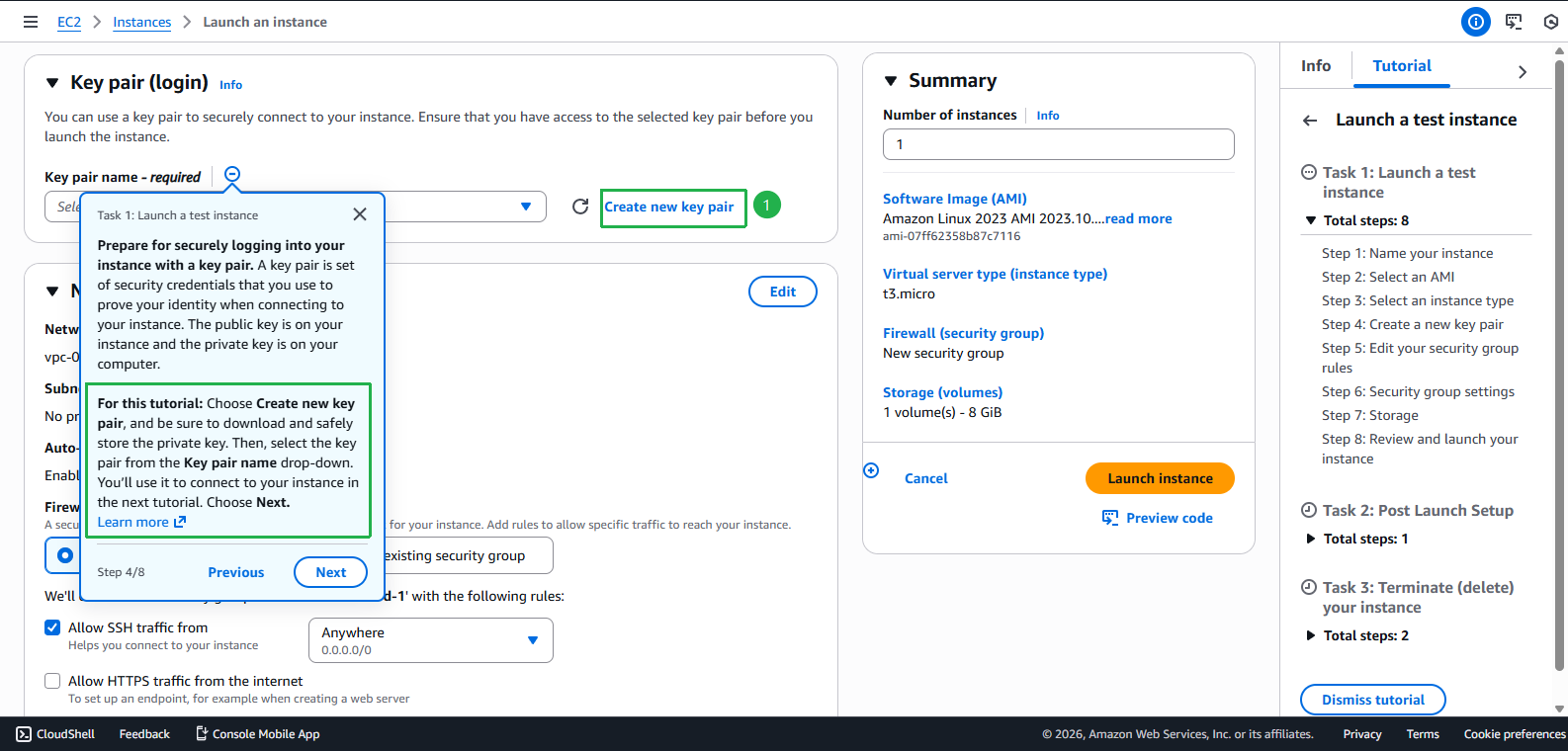
- Enter Key pair name
first-kp - Select RSA
- Select .pem
- Click Next
- Click Create key pair
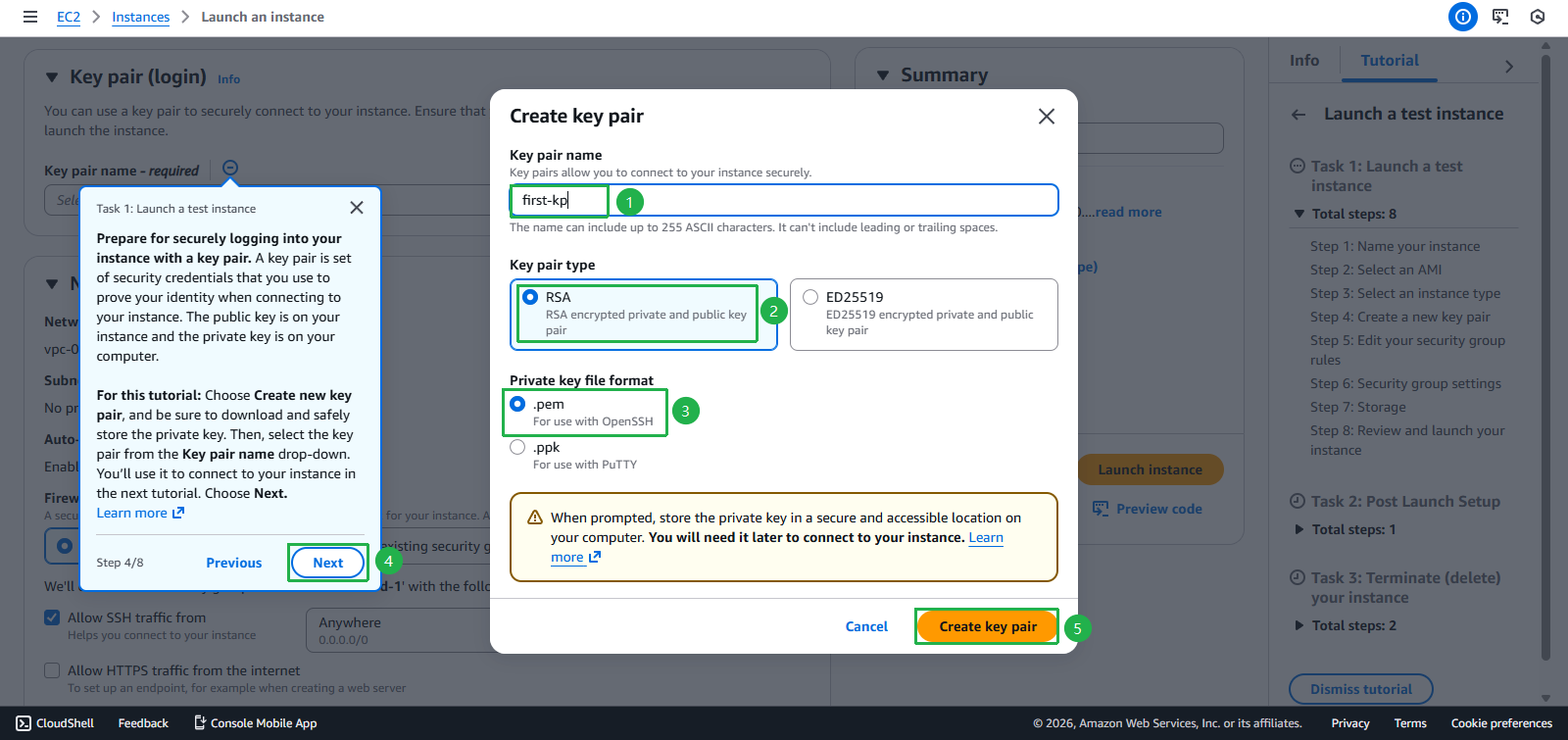
- Select Key pair just created
- Click Next
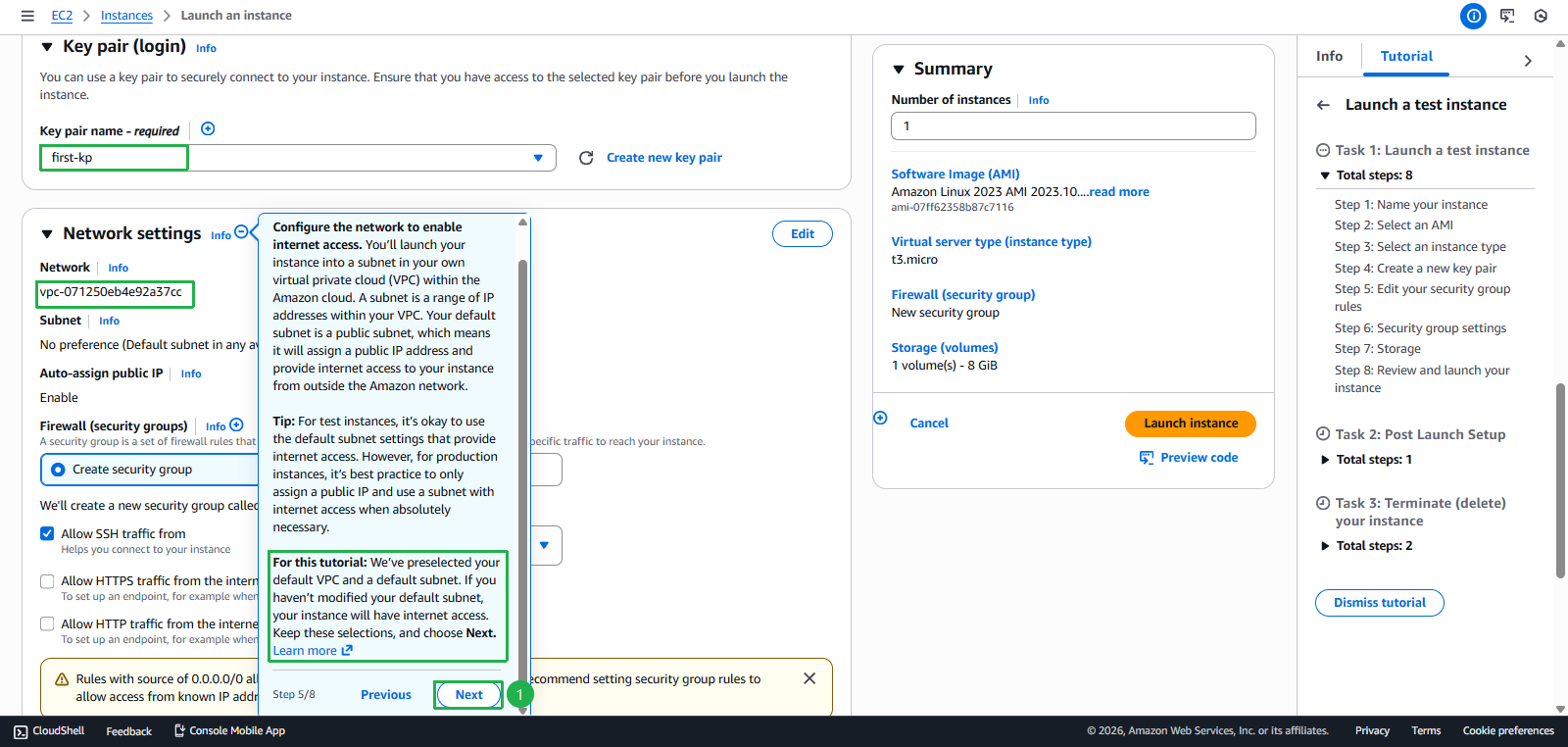
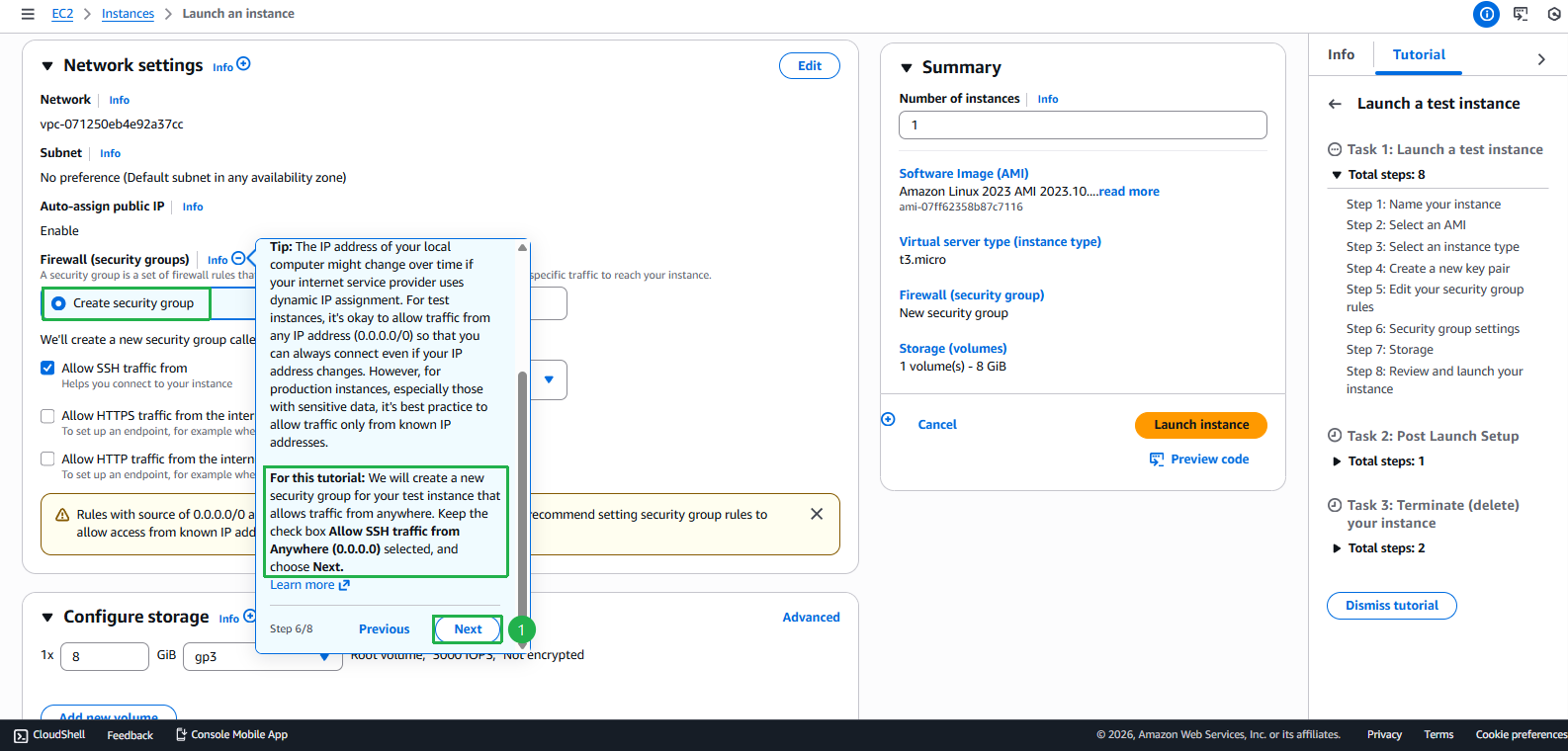
- Select Create security group
- Keep the default Checkboxes
- Click Next
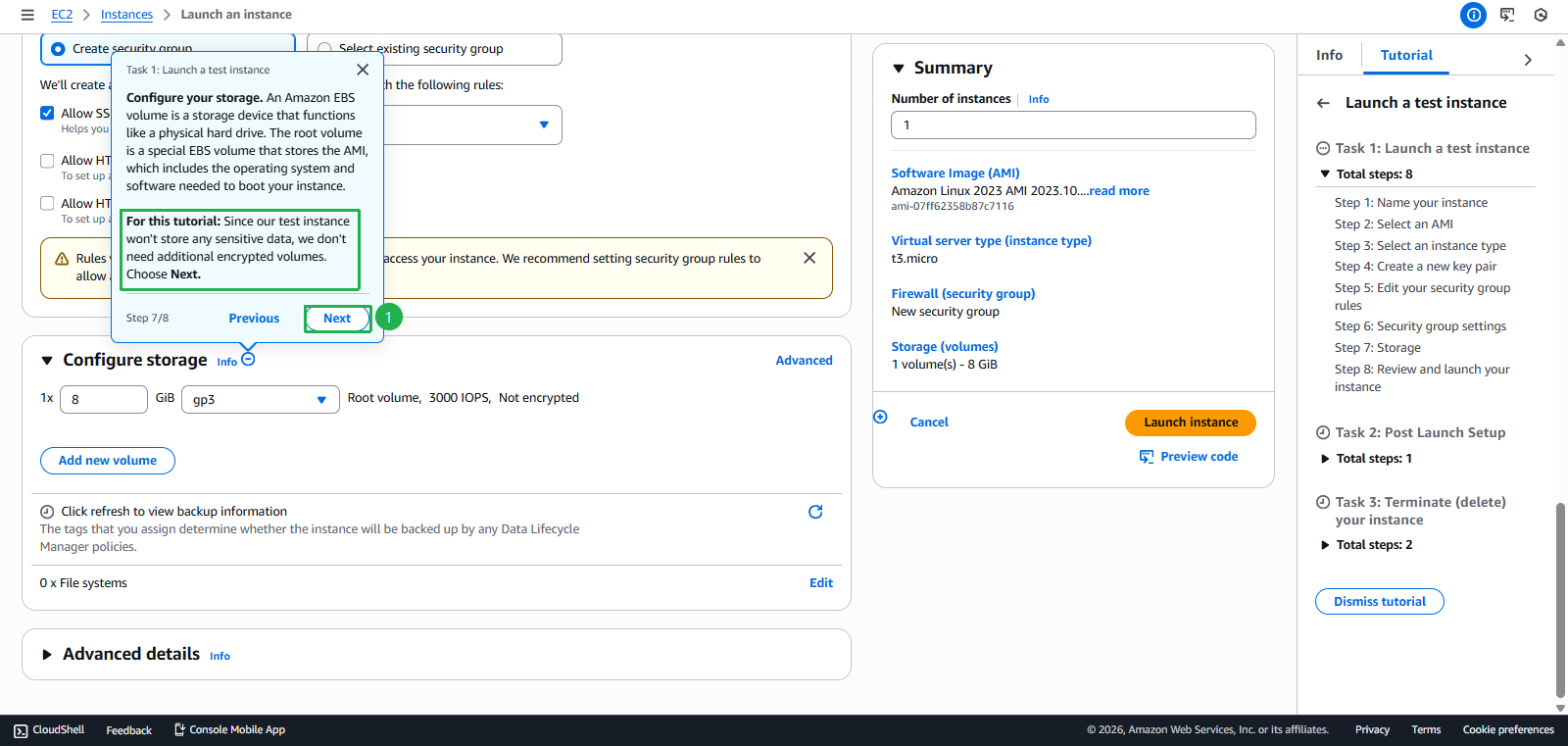
- Click Next
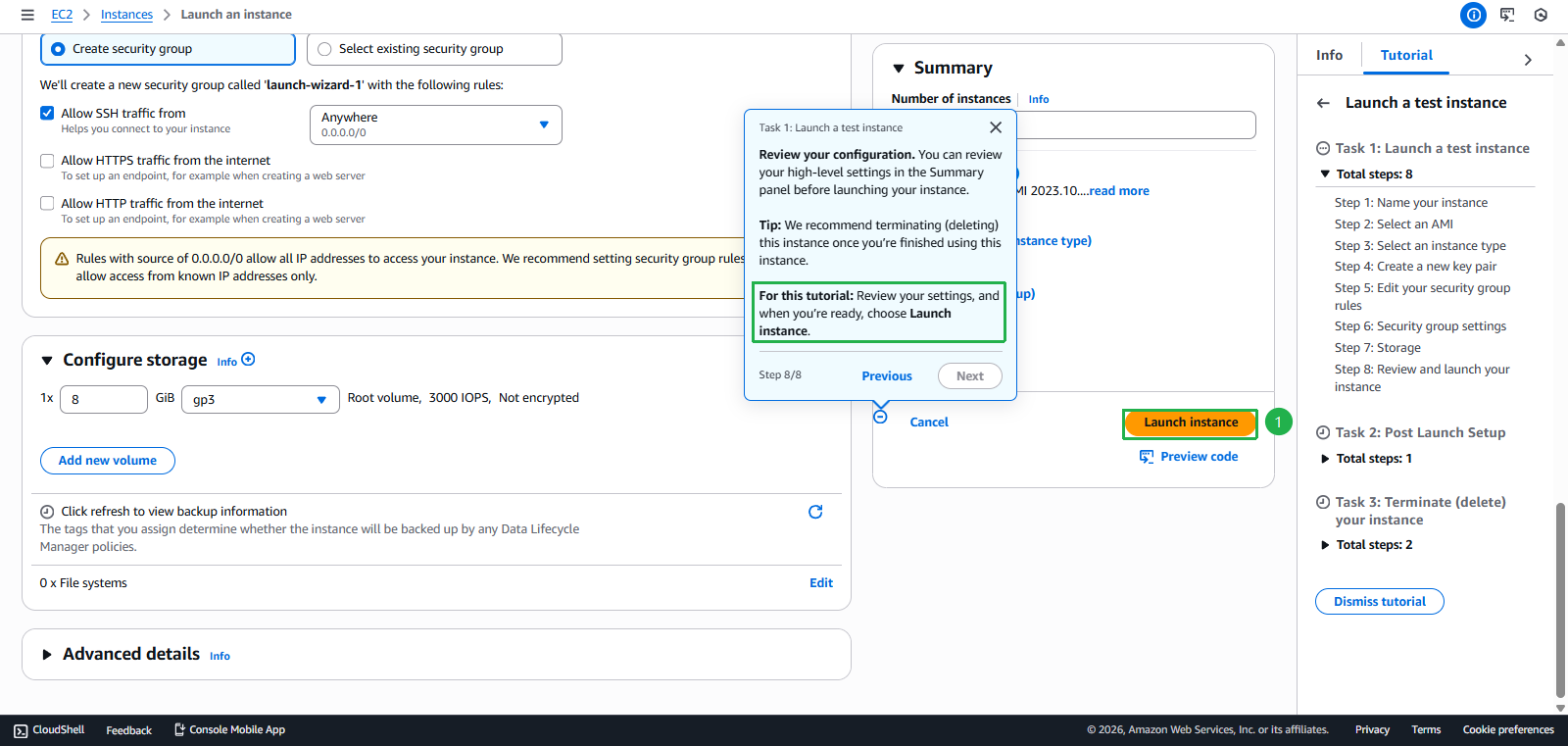
- Review các Settings và Select Launch Instance
- Enter Instance name
- Create EC2 Instance Successfully
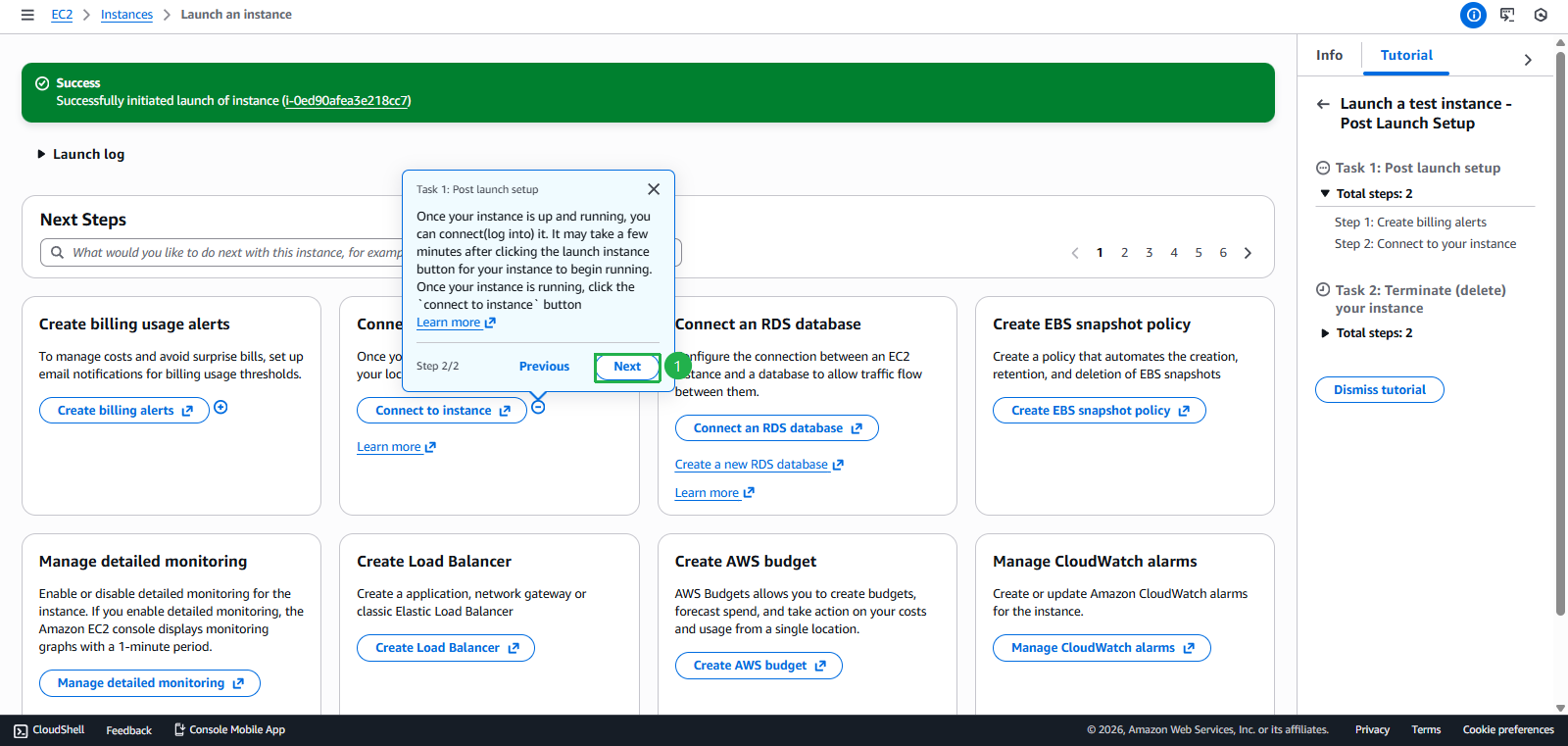
- Click Next
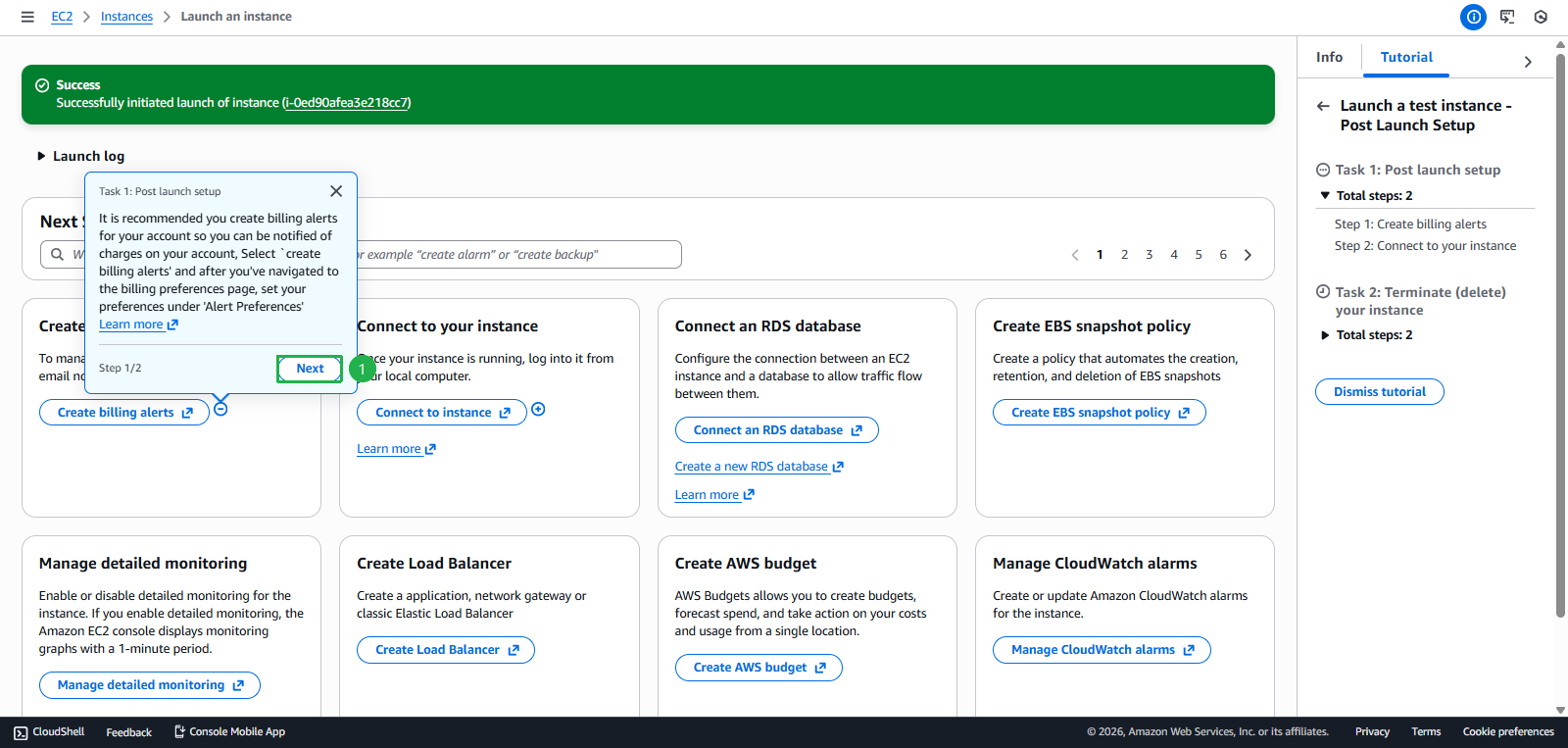
- Click Next
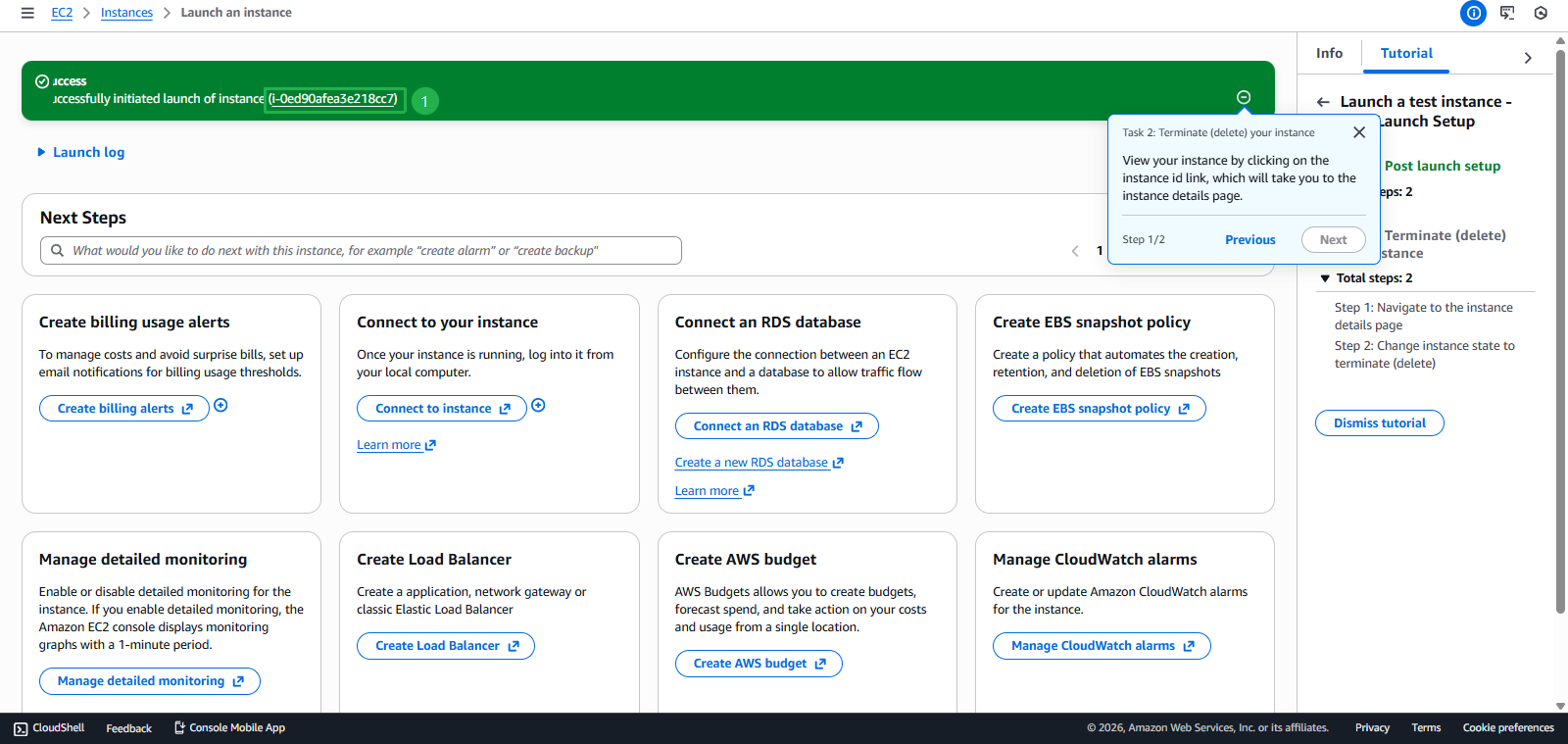
- Click Instance id trên thanh thông báo Create Instance Successfully
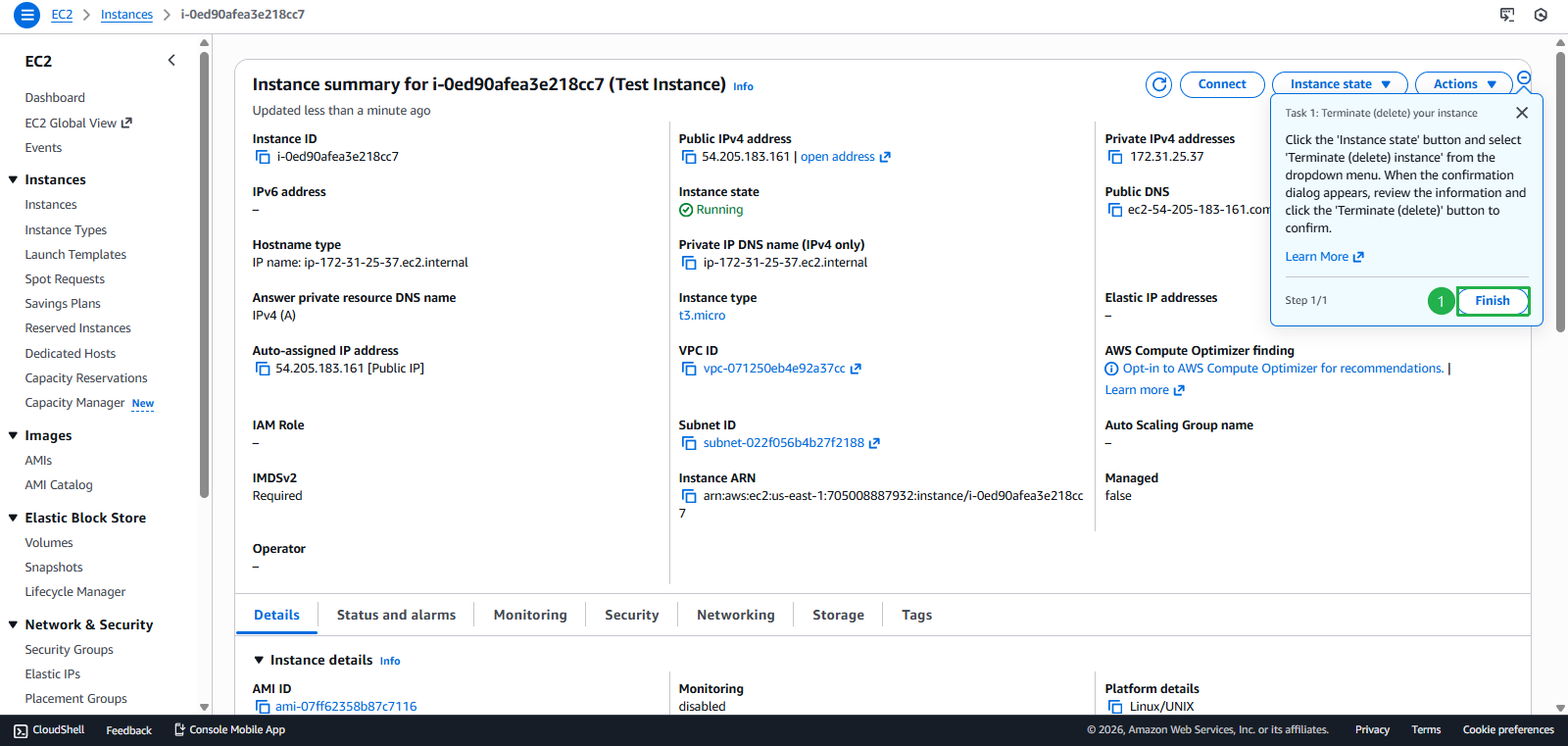
- Click Finish
- Click Next
- Clean Up
- Terminate instance sau khi hoàn thành
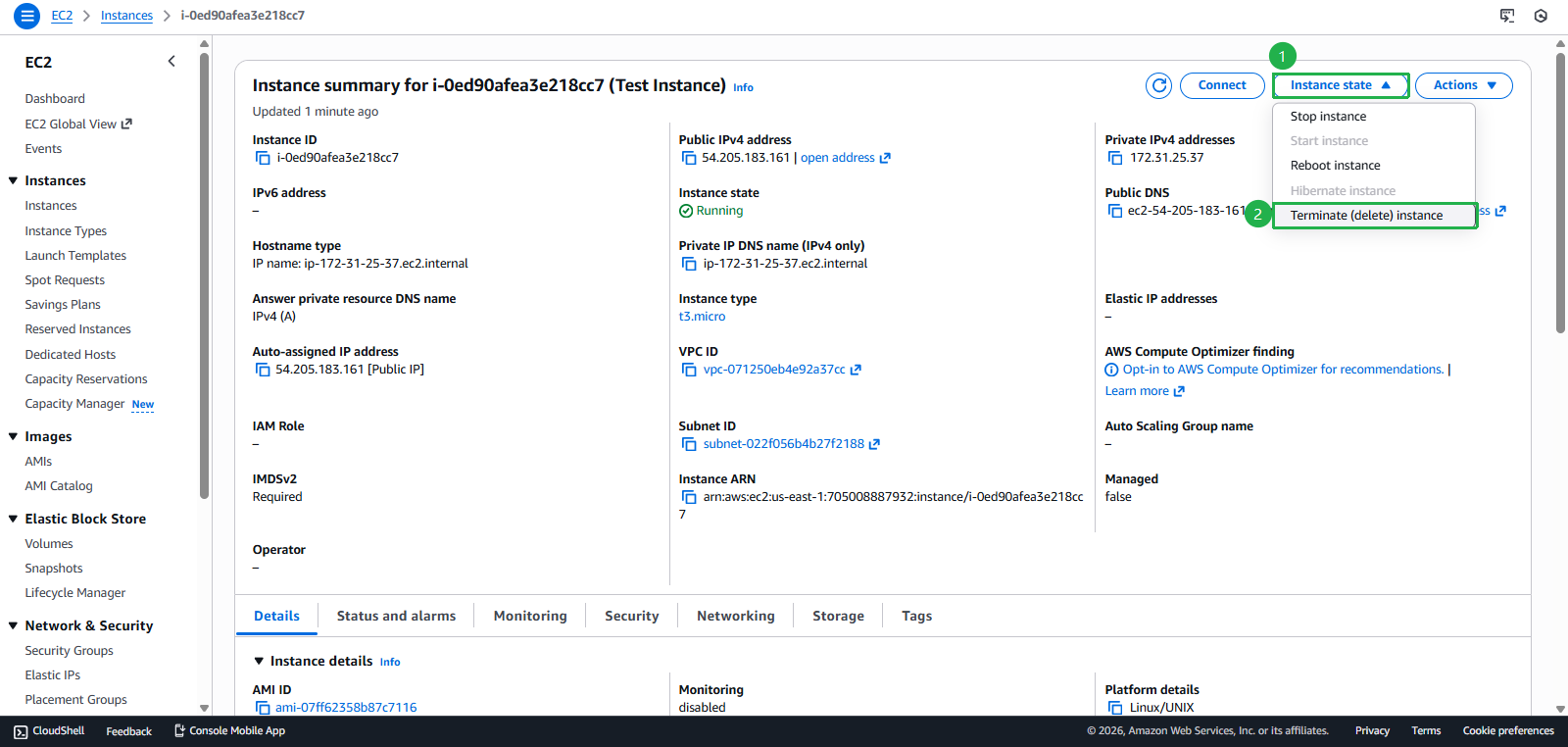
- Click Instance state
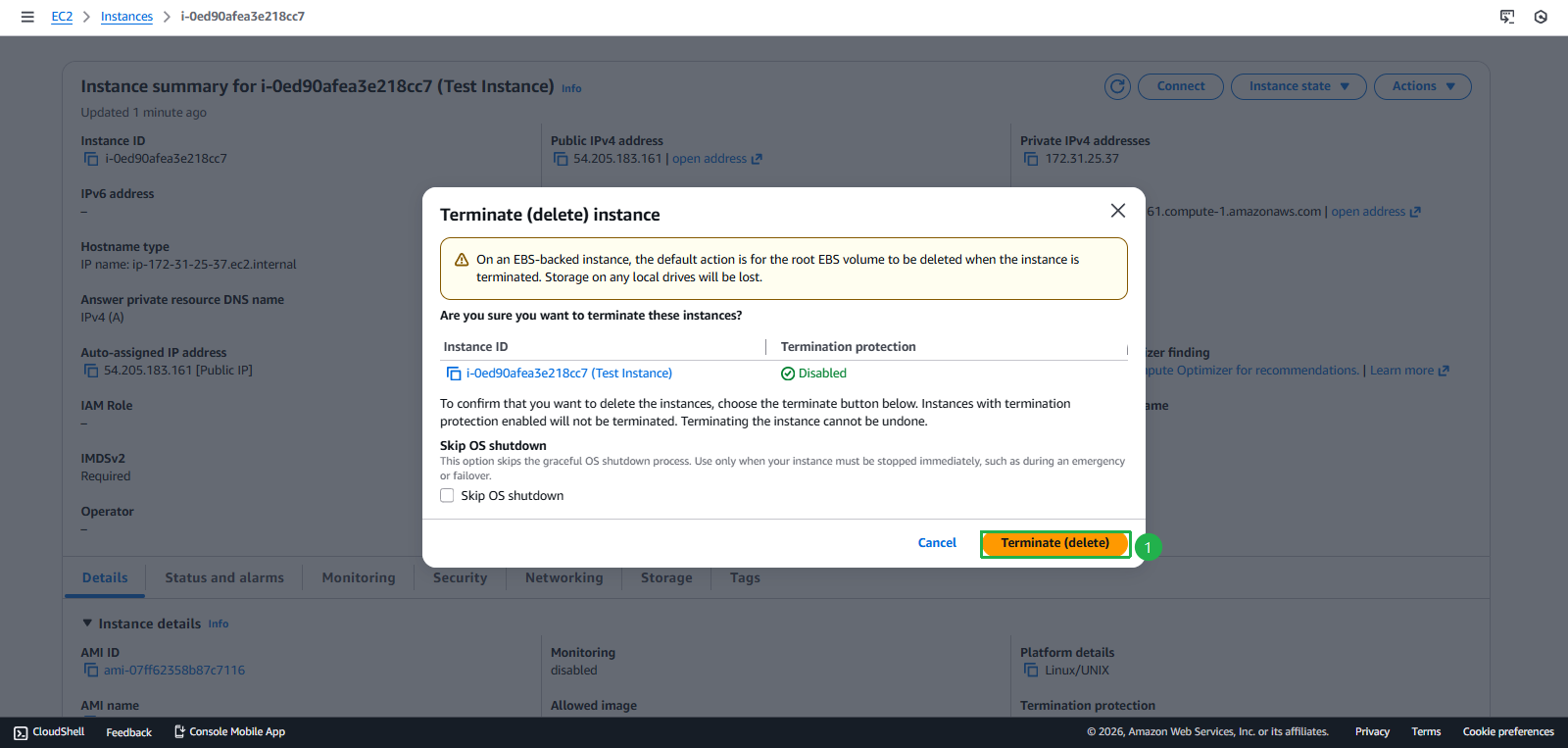
- Click Terminate (delete) instance
- Click Terminate (delete)
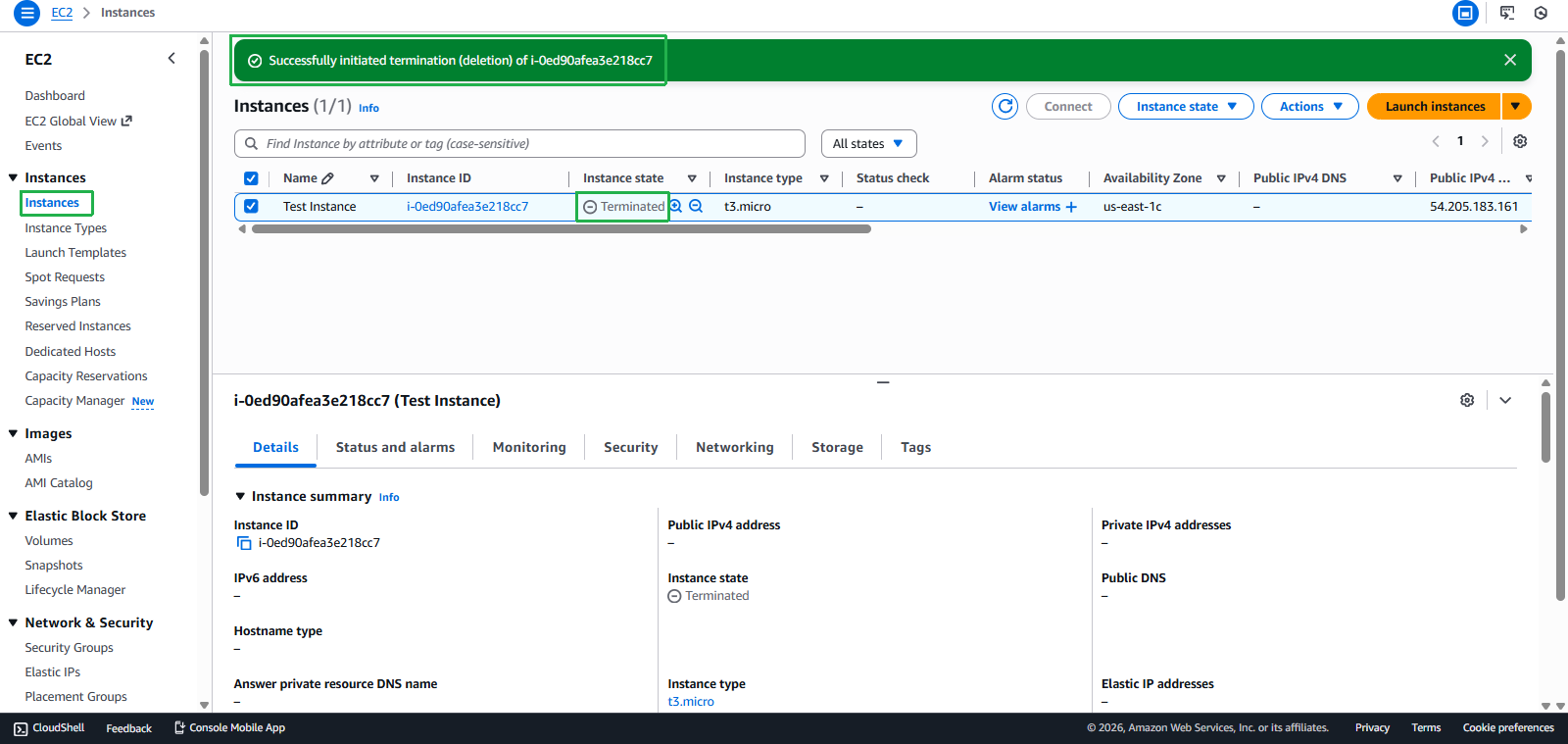
- Delete Successfully
Task 2: Amazon Bedrock Playground - $20 credit
Objective: Experience AI/ML with foundation models
Steps:
- Find the widget “Explore AWS” on AWS Console Home
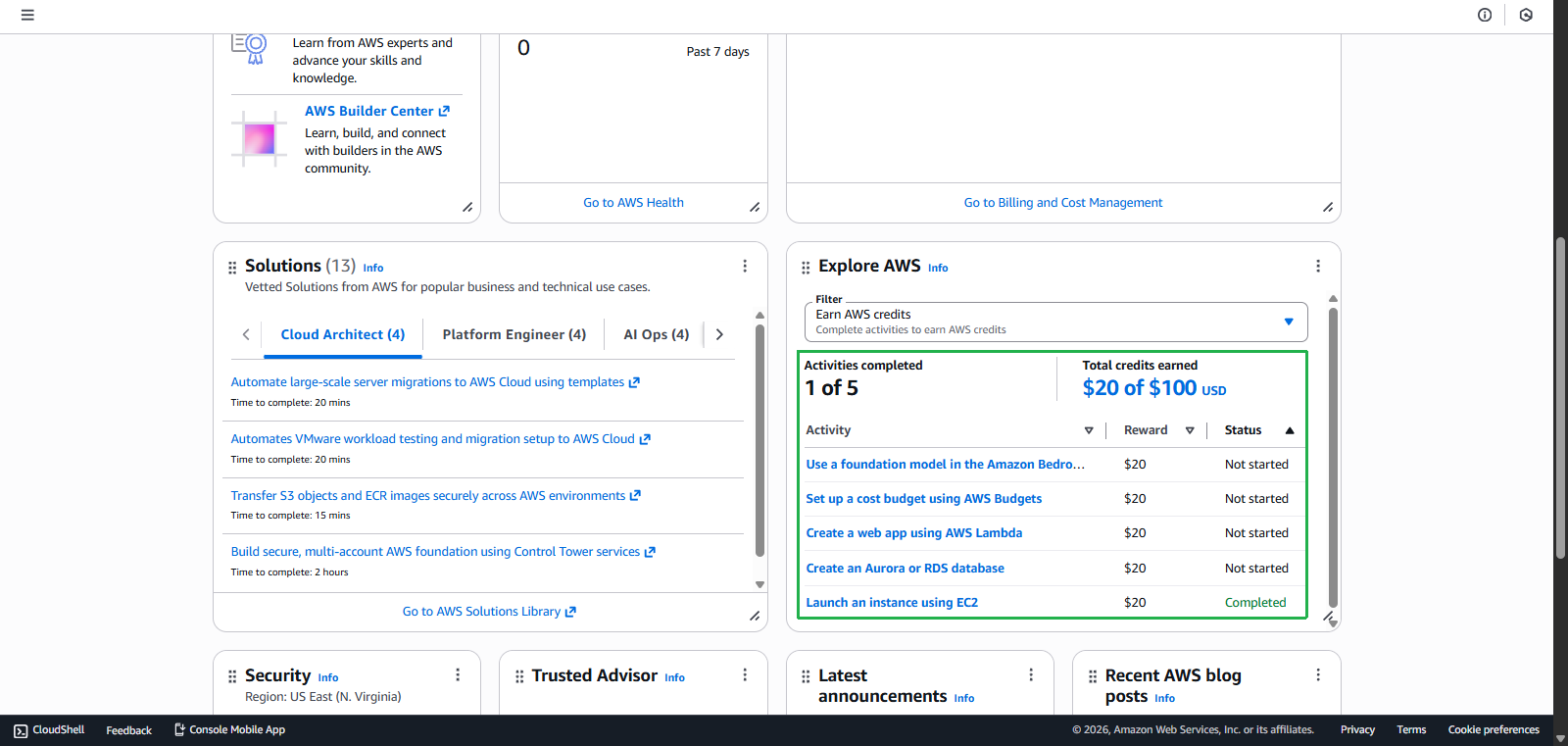
- Access Bedrock Console
- Select task Use a foundation model in the Amazon Bedrock
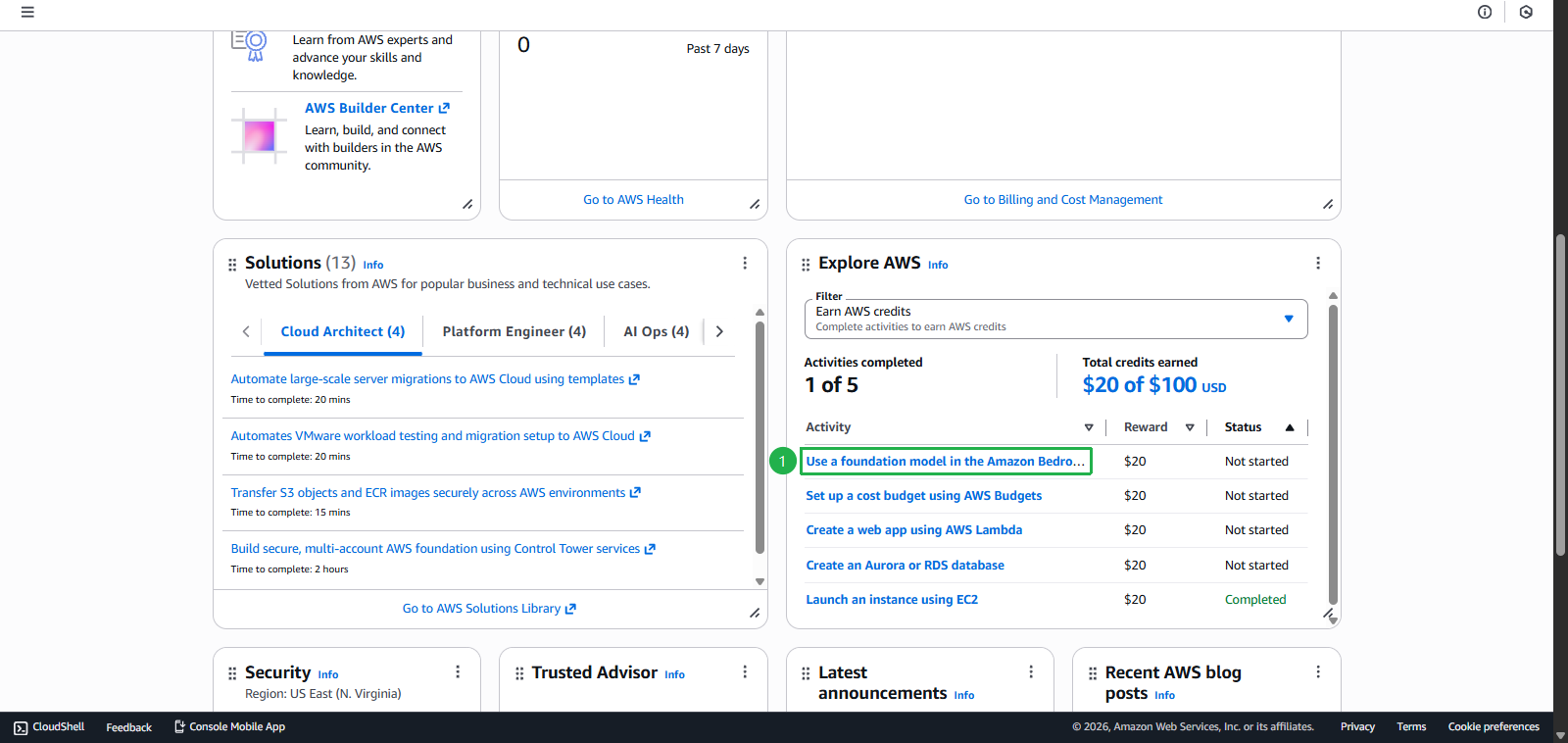
- Click Start activity
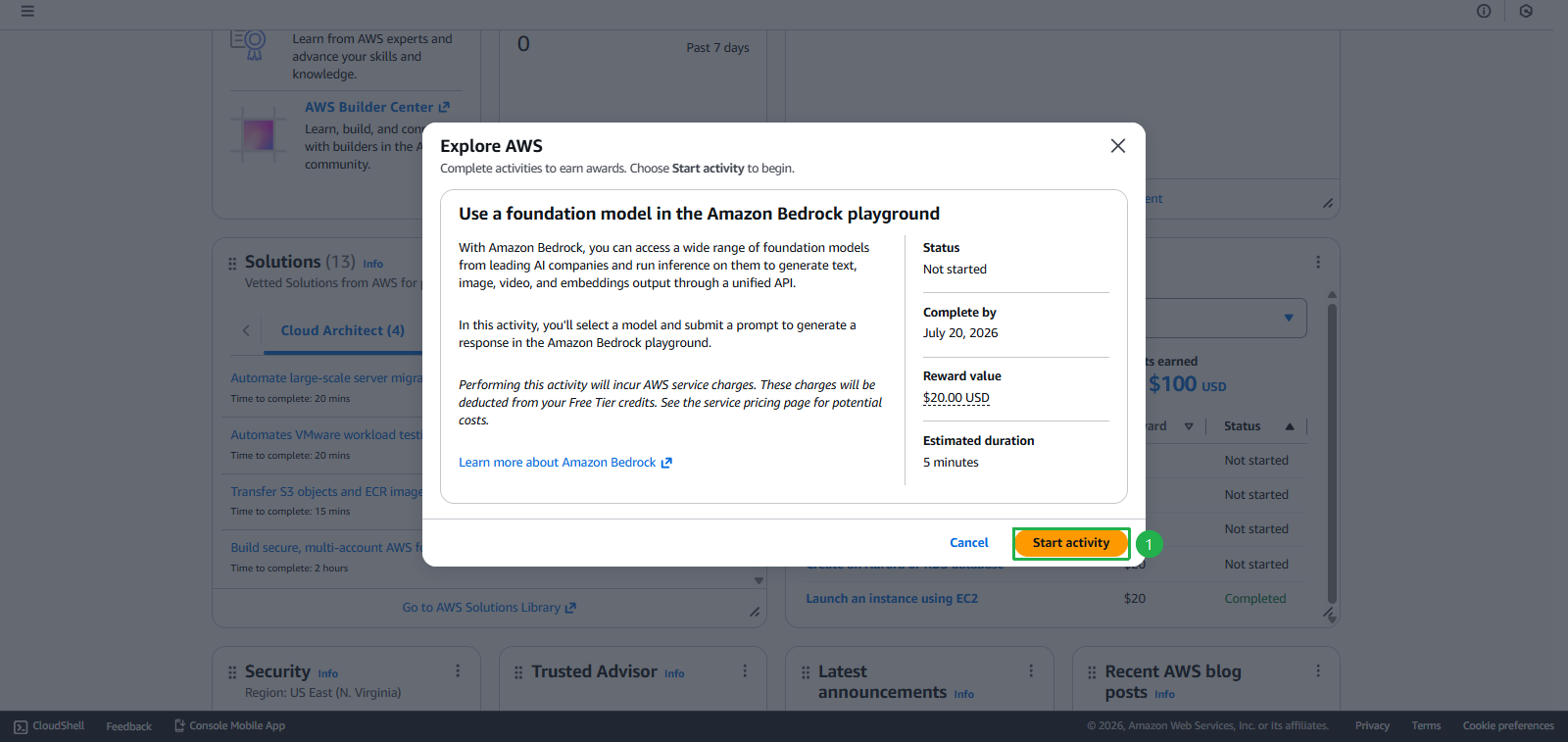
- Select task Use a foundation model in the Amazon Bedrock
- Select Model
- Click Select model
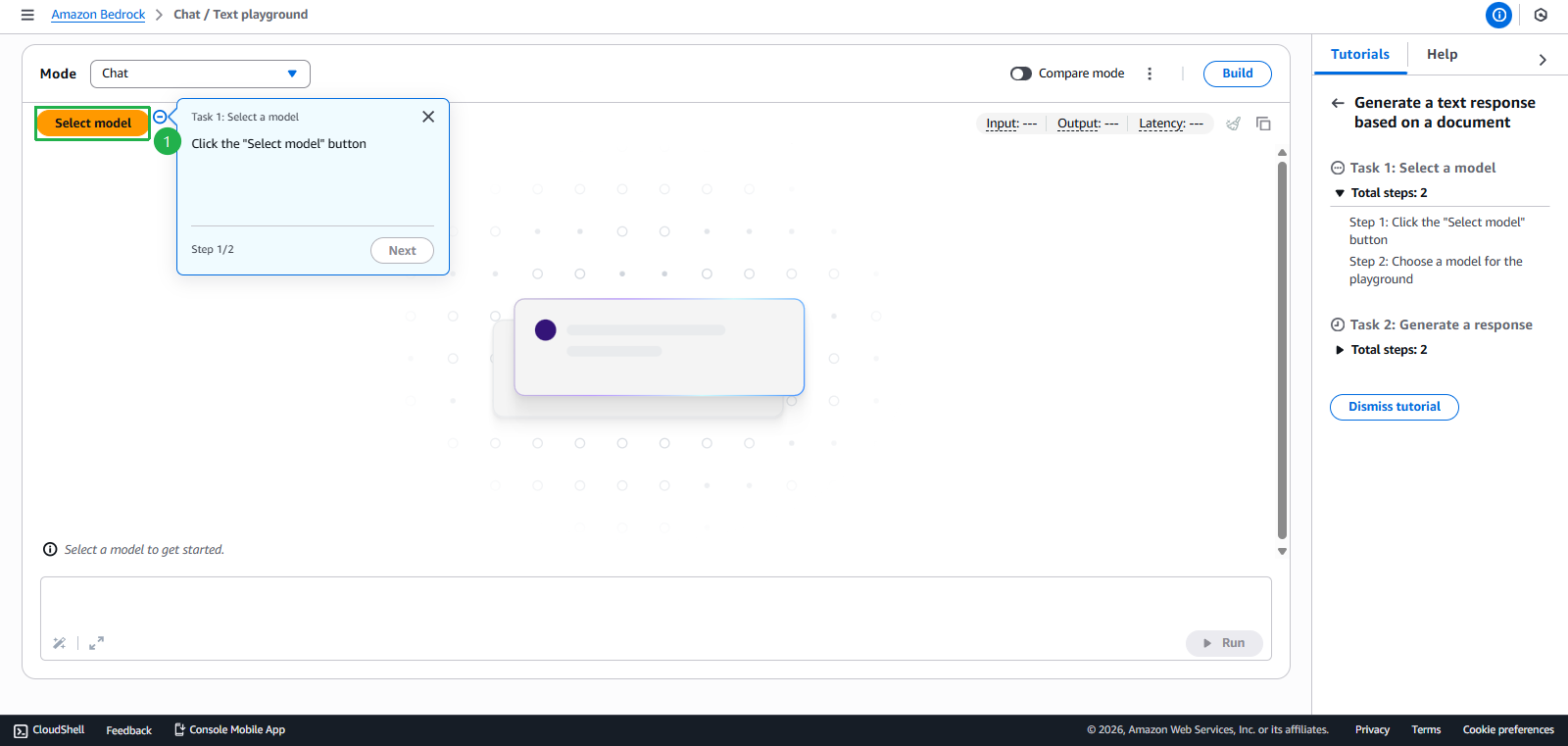
- Select Claude 3 Haiku
- Click Apply
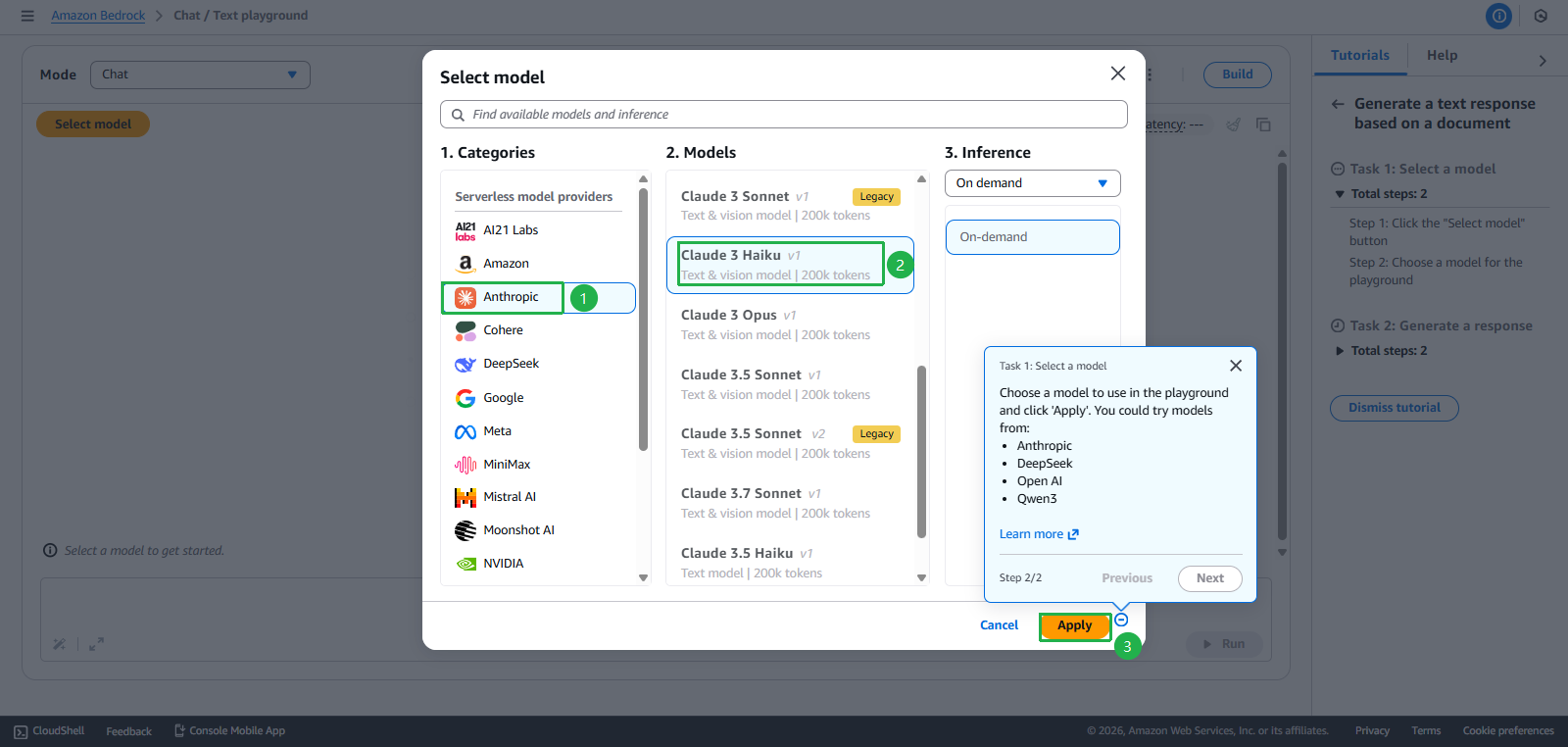
- Enter Complete valid information
- Enter content for Describe your use case
Development and Testing Environment: Evaluating various foundation models (Claude, Llama, Titan, etc.) to identify the best-fit solution for our web application requirements. This includes testing model performance, response quality, latency, and cost-effectiveness across different use cases. - Click Submit use case details
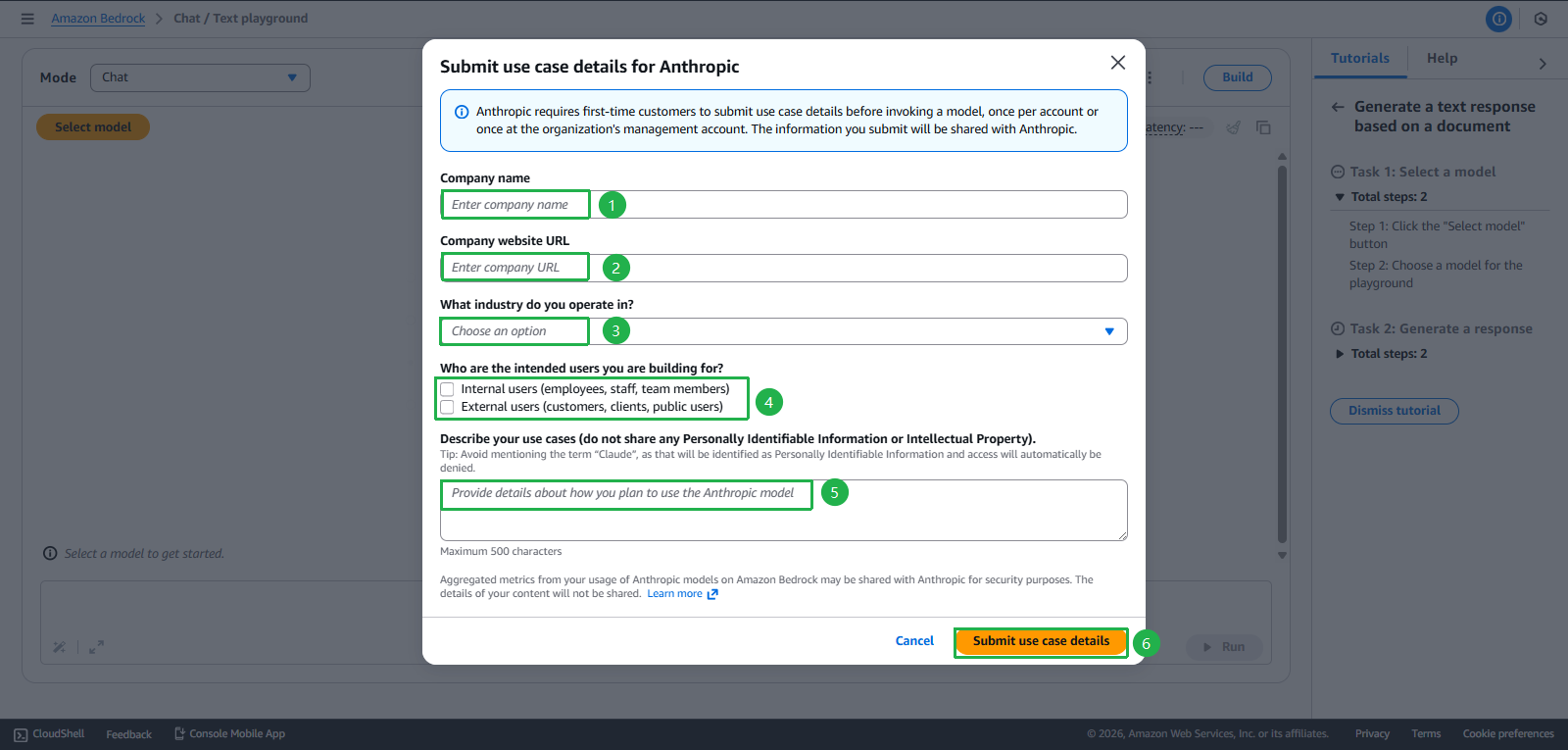
- Click Select model
- If no errors occur, continue to step Create Prompt
- However, if you encountered an error as shown below, proceed to Raise support to AWS with the following steps
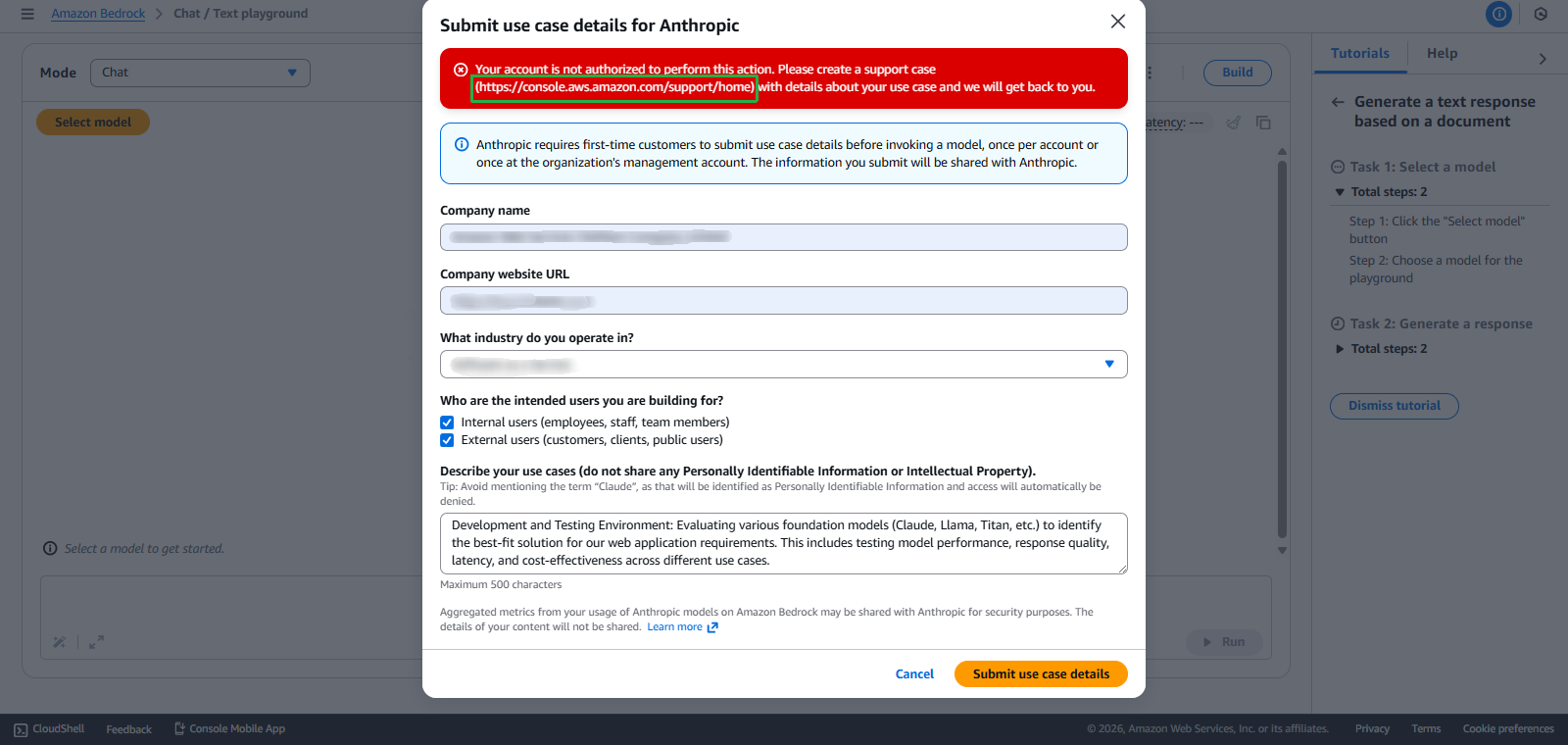
- Click Create case
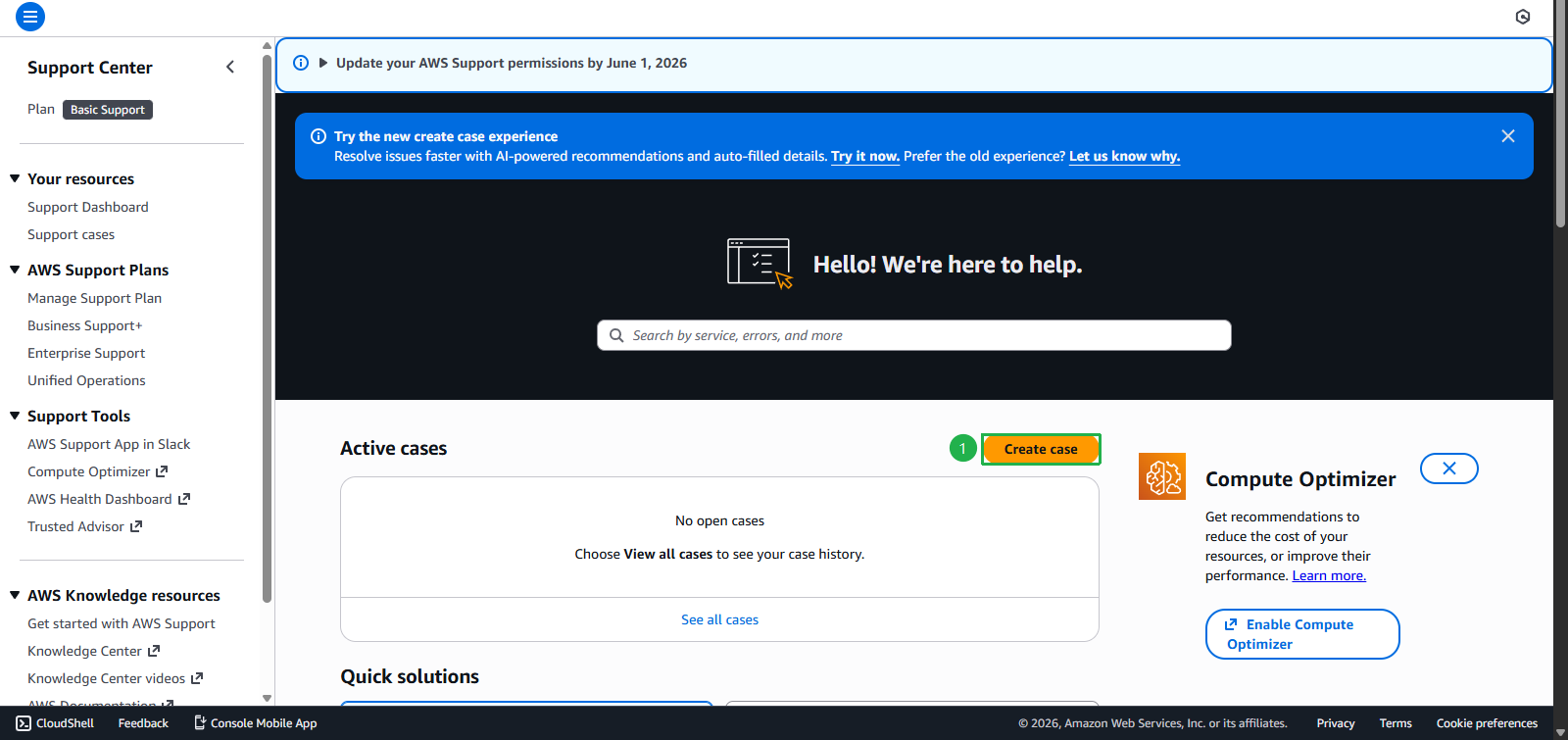
- Select Account and billing
- Service: Account Activation
- Category: Bedrock Allowlisting
- Severity: General question
- Click Next step
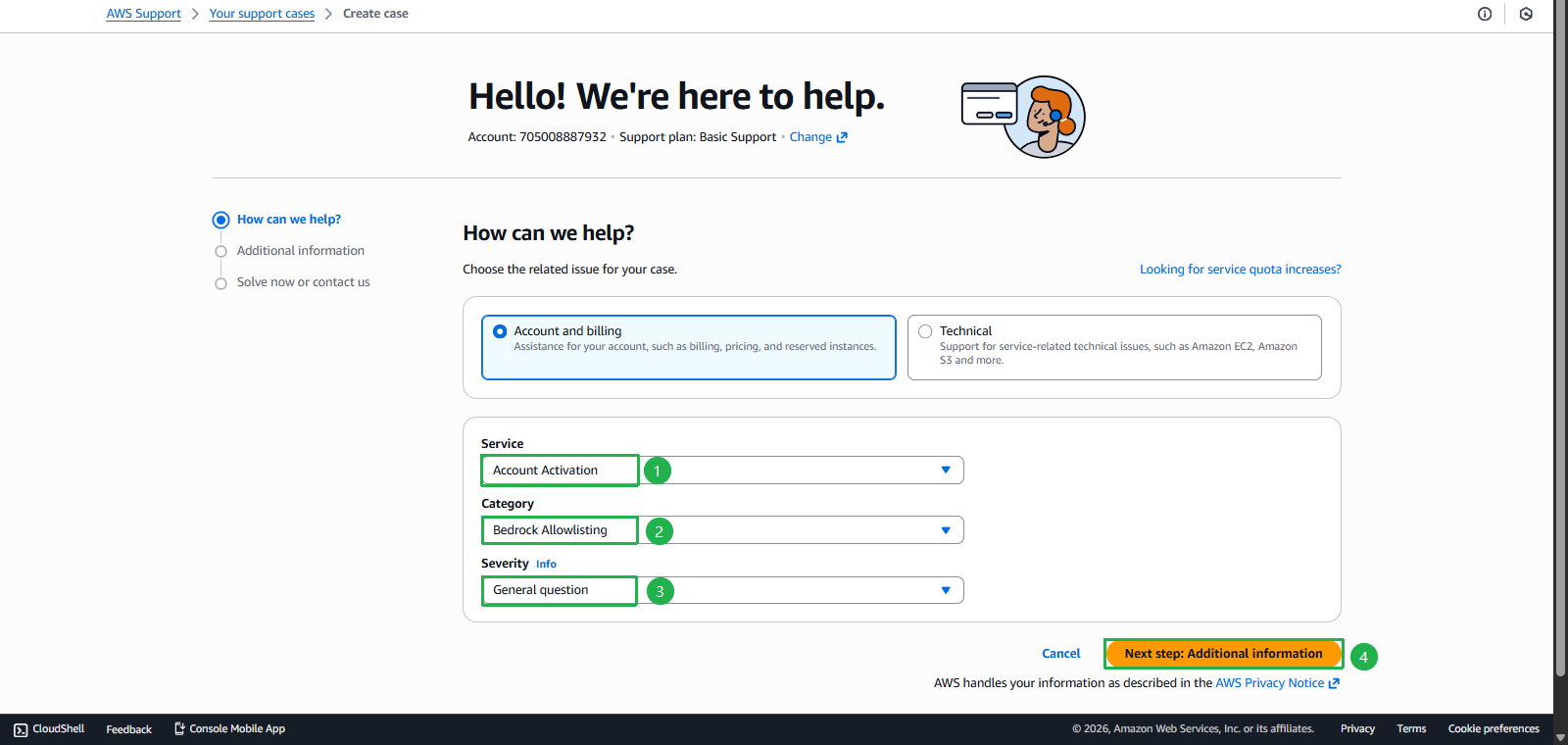
- Enter Subject:
Request approval for Anthropic Claude model access - Enter Description
I submitted my use case details for Anthropic Claude models through the Amazon Bedrock console, but I'm receiving an authorization error when trying to enable model access: "Your account is not authorized to perform this action." I have completed the use case submission form with details about my development and testing requirements for web application integration. Could you please review and approve access to Anthropic Claude models or another models for my account? Account ID: [Your AWS Account ID] Region: [your preferred region] Thank you. - Replace [Your AWS Account ID] with your Account ID
- Replace [your preferred region] with your desired Region
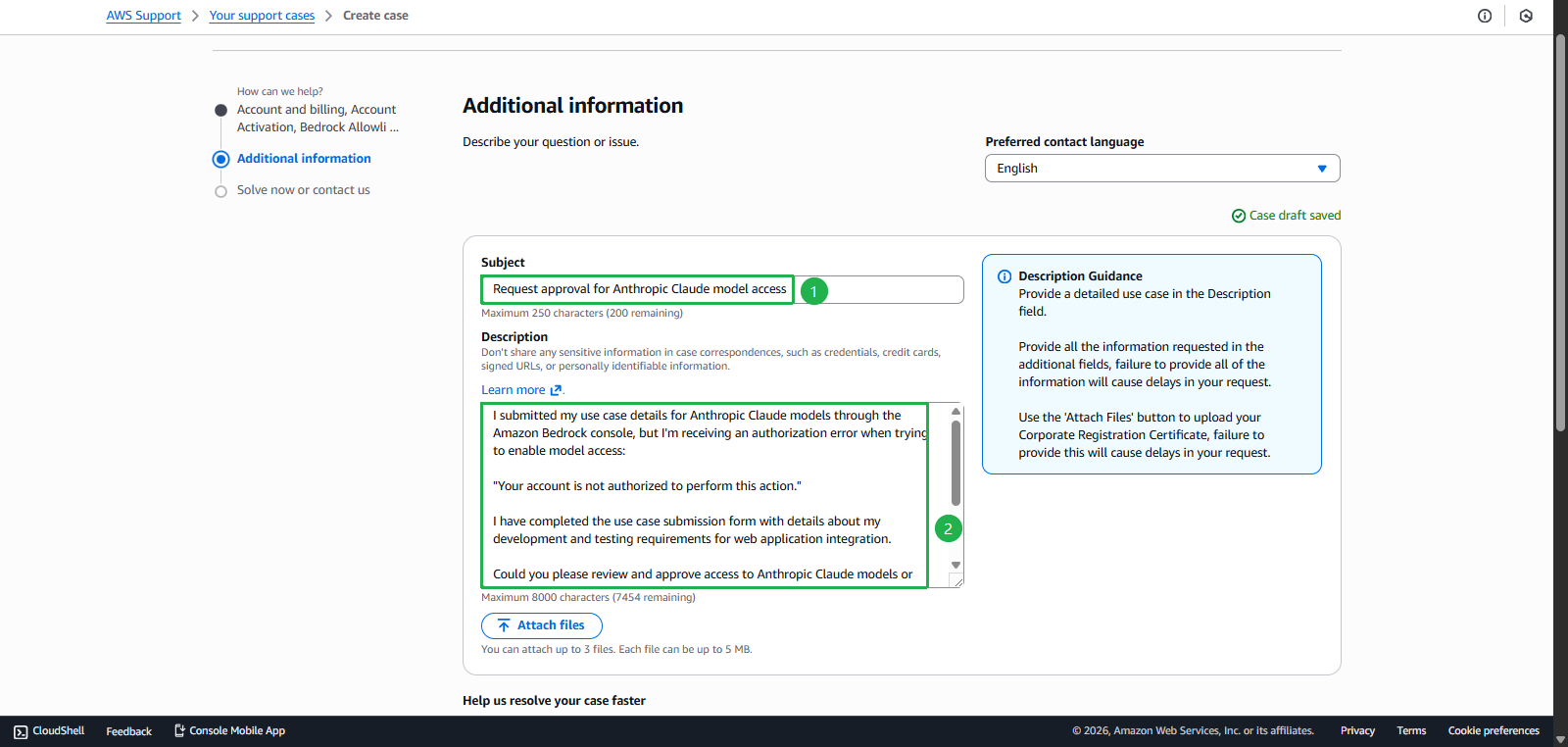
- Enter Complete valid information
- Click Next Step
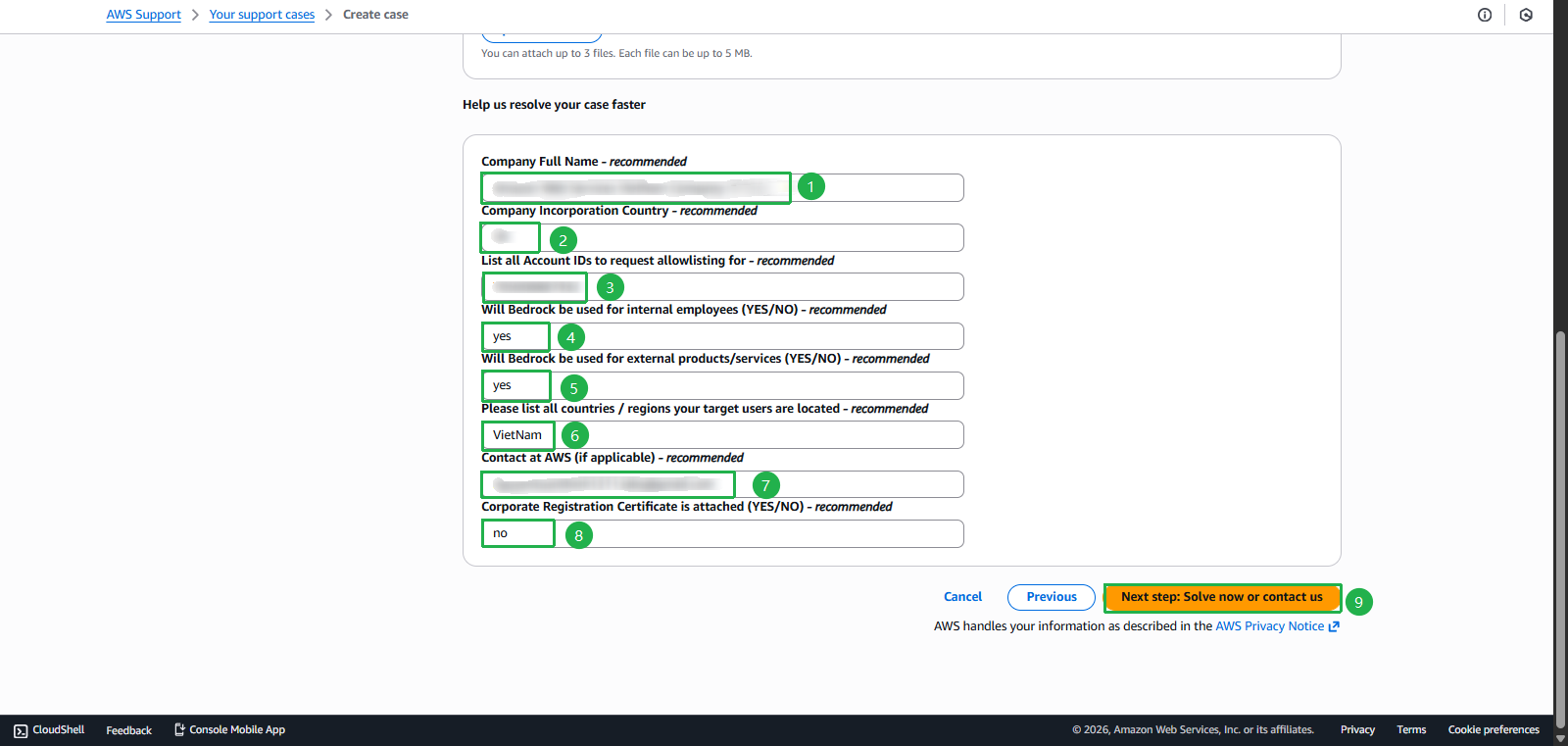
- Select Contact us
- Select Web
- Click Submit
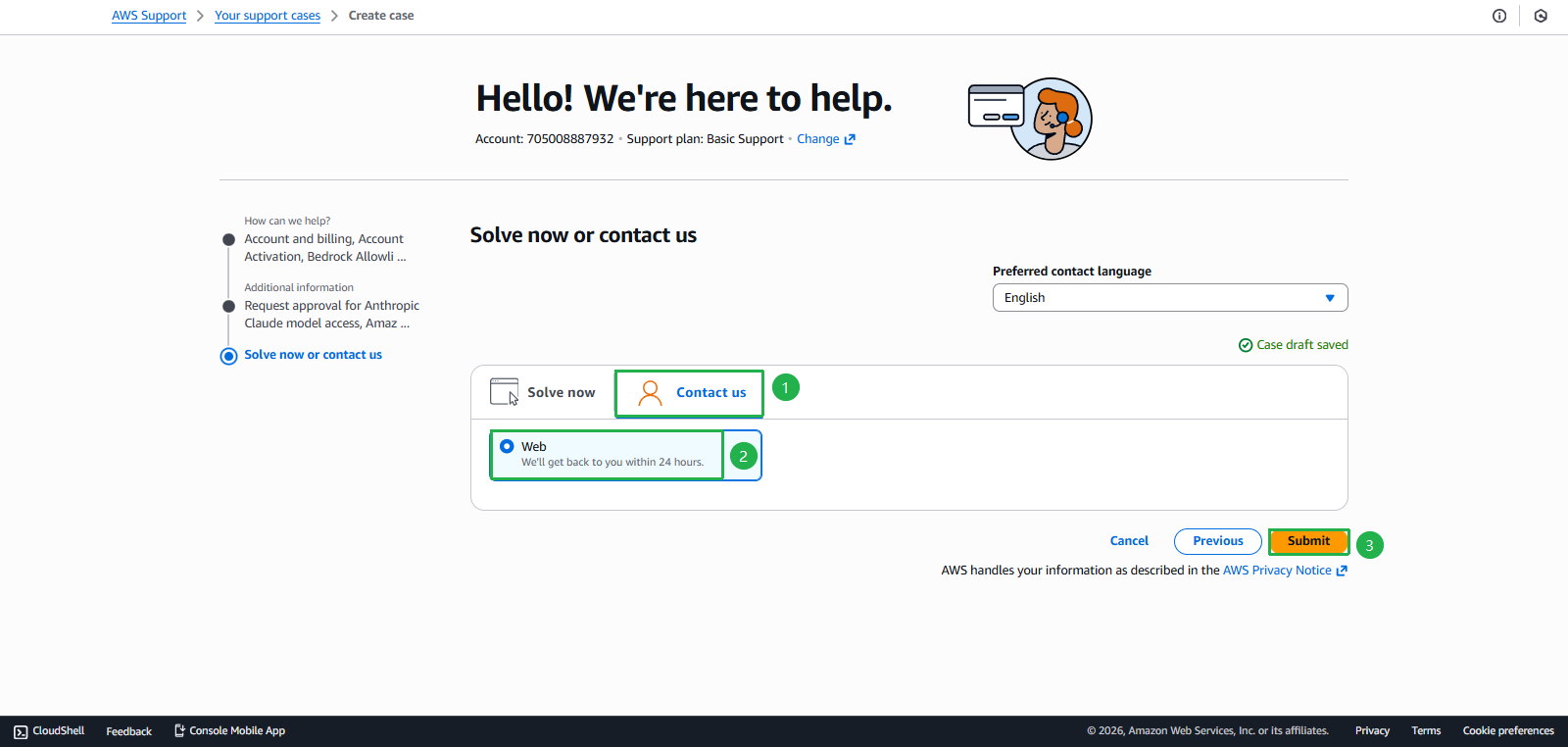
- Click Create case
- You have Raised support to AWS successfully. The support team will contact you within 24 hours. Meanwhile, we’ll continue with the remaining tasks:
5. Create Prompt
- If you have Applied or Received support successfully, let’s continue with the following steps
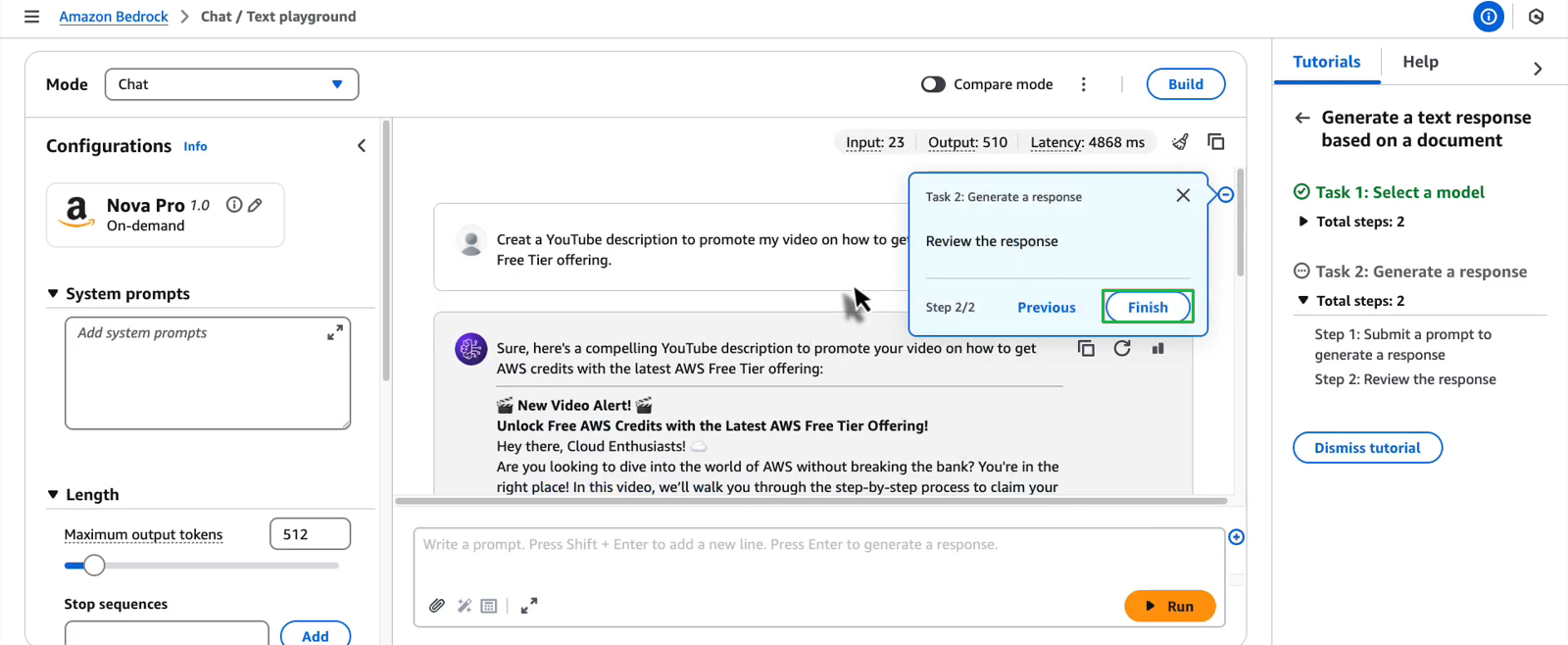
- Submit a prompt
- Click Run
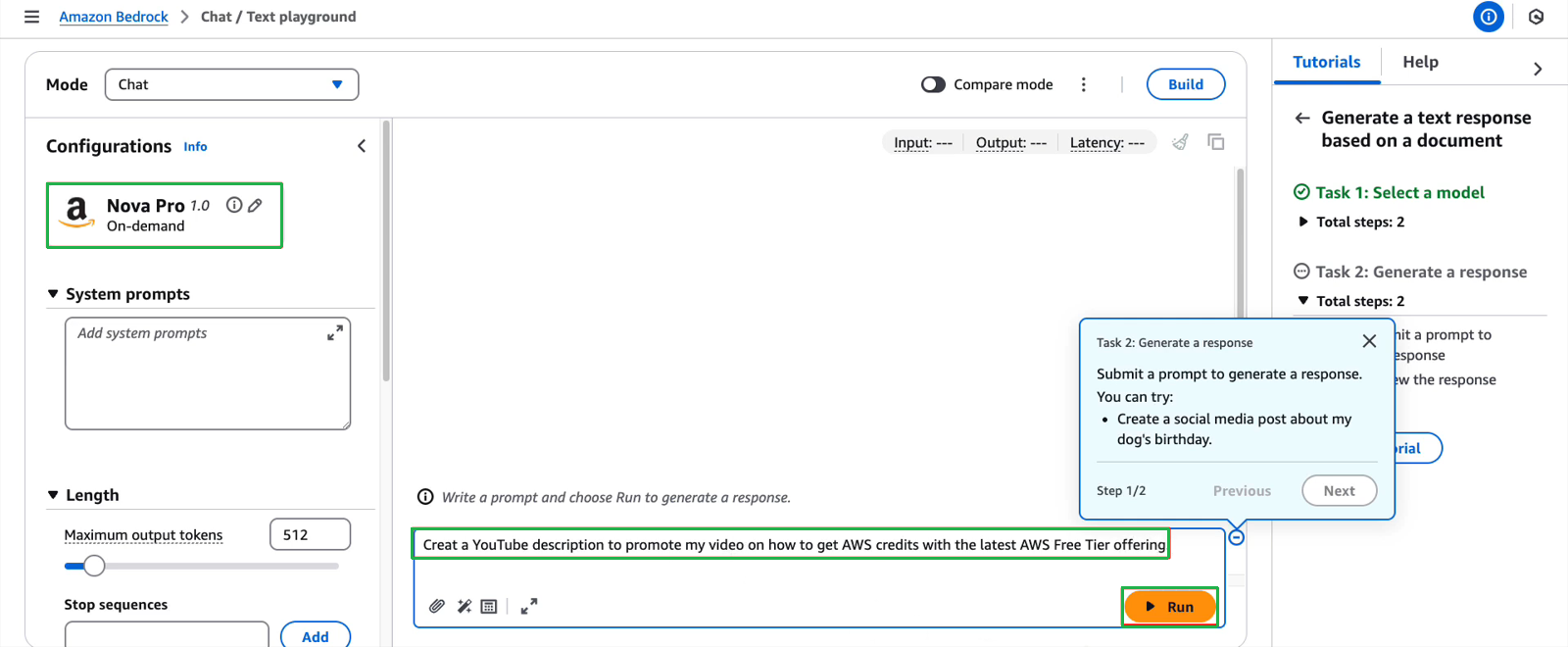
- Click Next
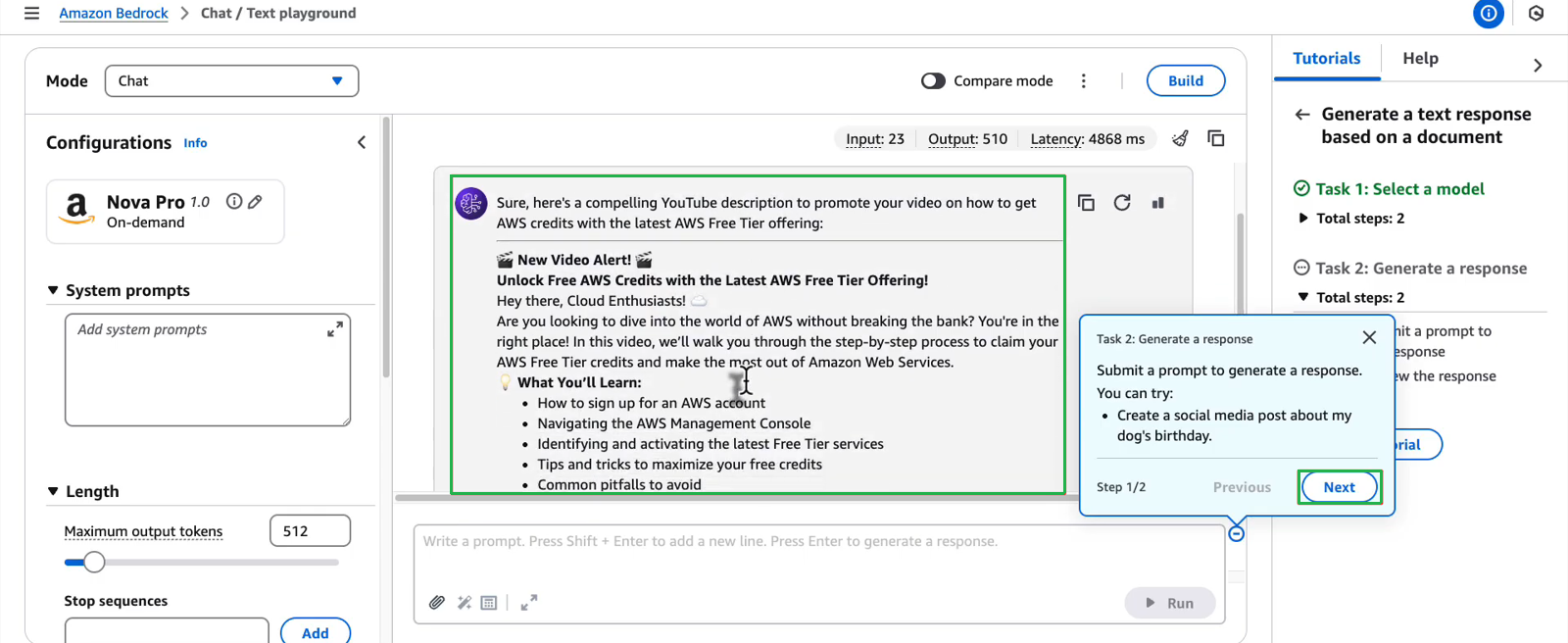
- Review The response and Click Finish
Task 3: Set up AWS Budgets - $20 credit
Objective: Set up cost monitoring and alerts
Steps:
- Find the widget “Explore AWS” on AWS Console Home
- Access Budgets Console
- Select task Set up a cost budget using AWS Budgets
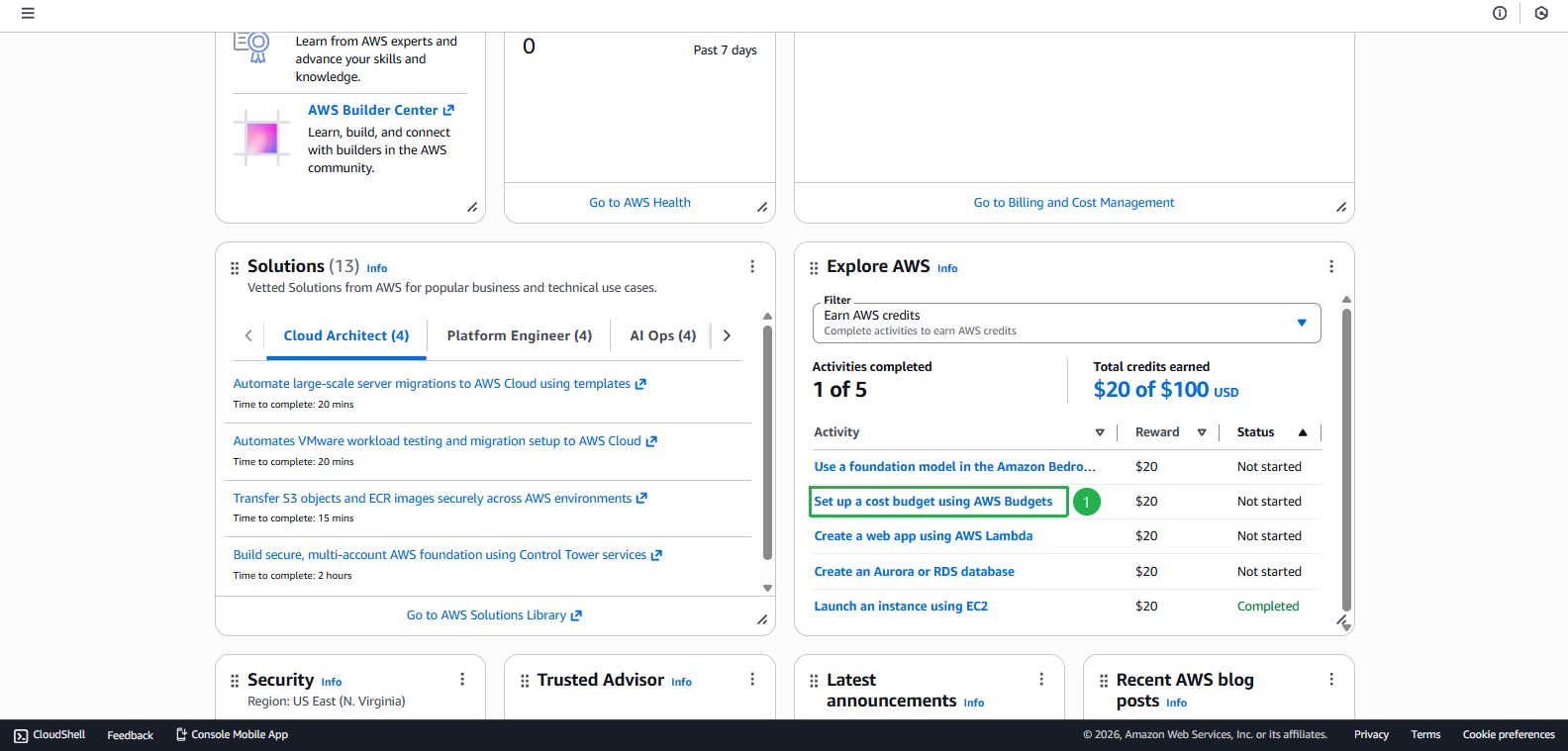
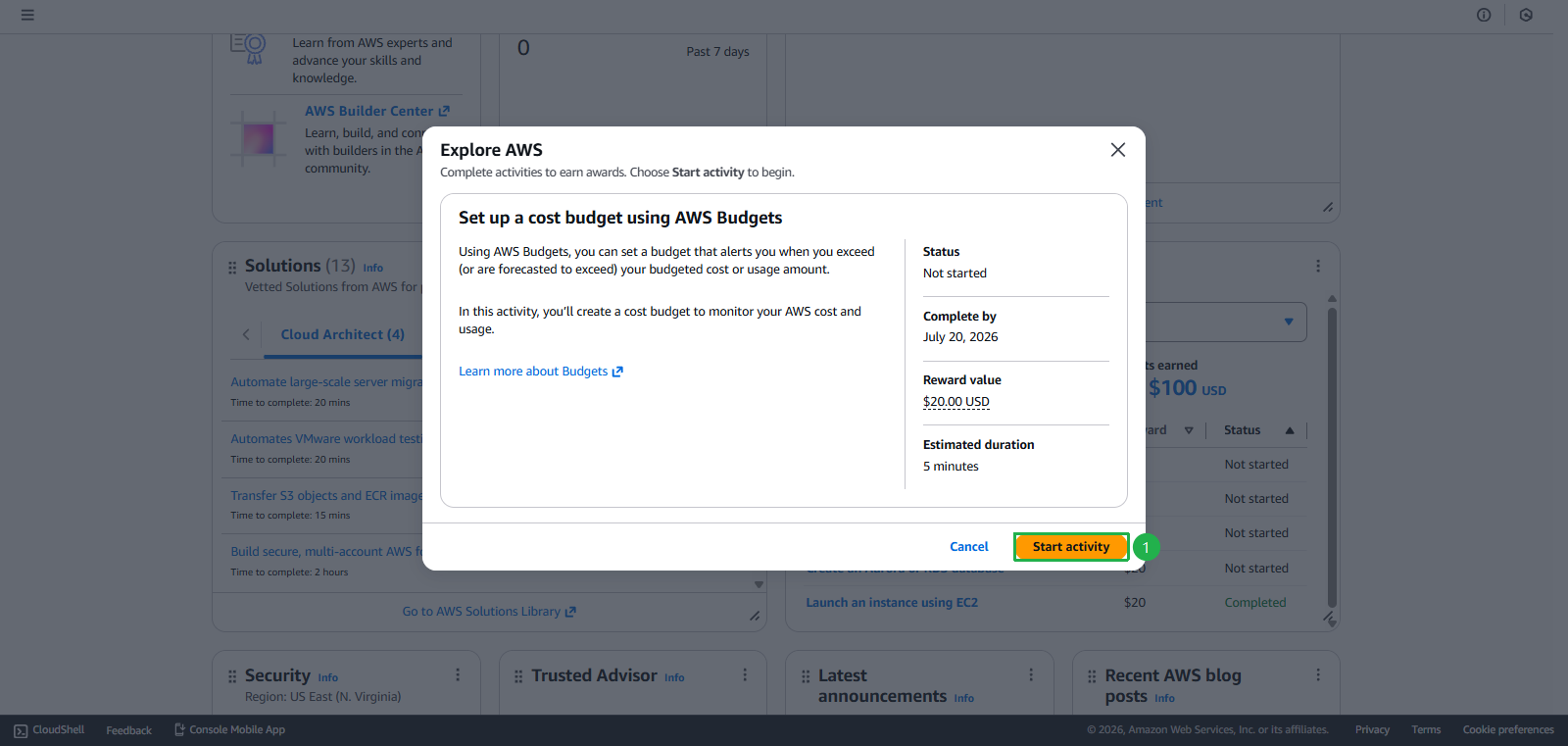
- Click Start activity
- Click Next
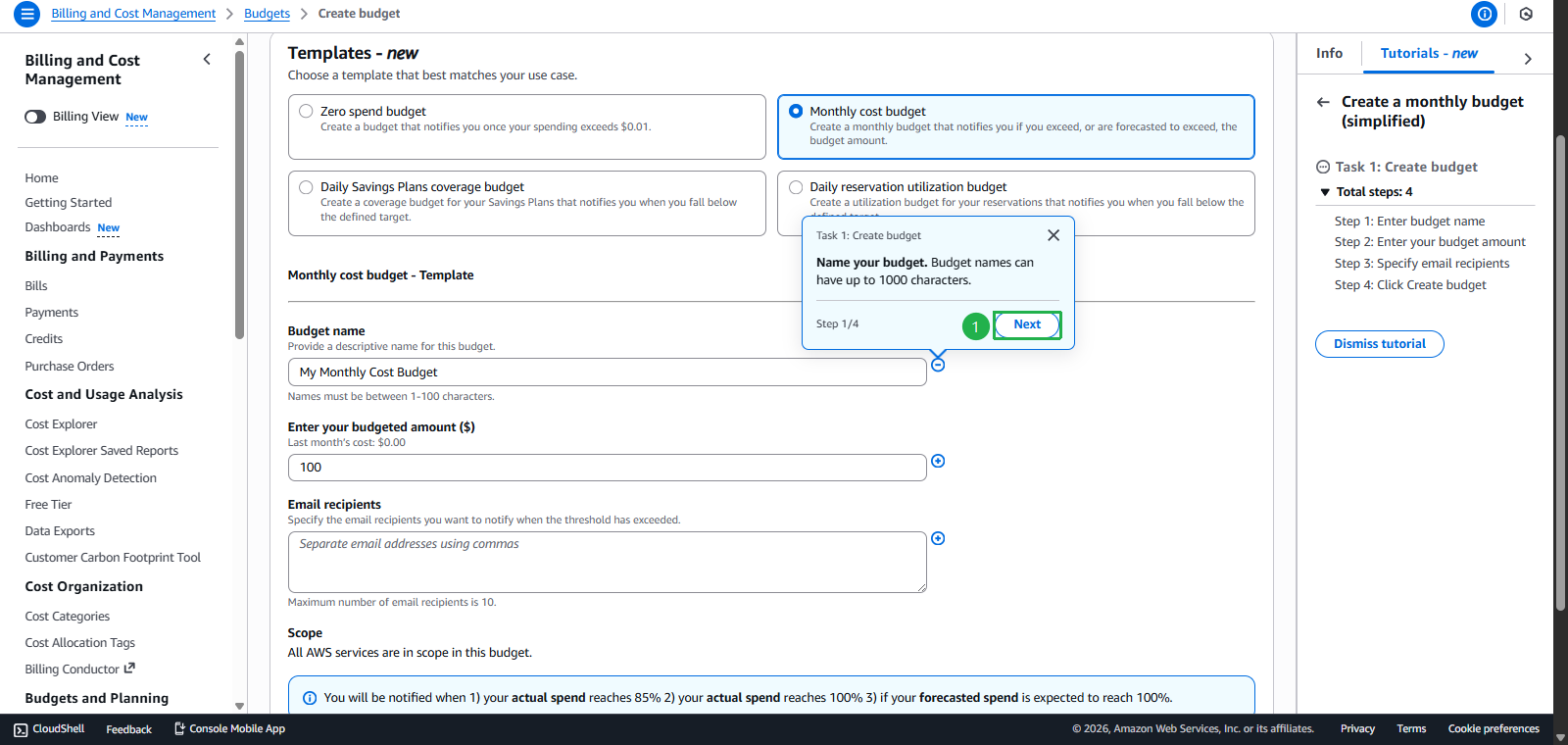
- Click Next
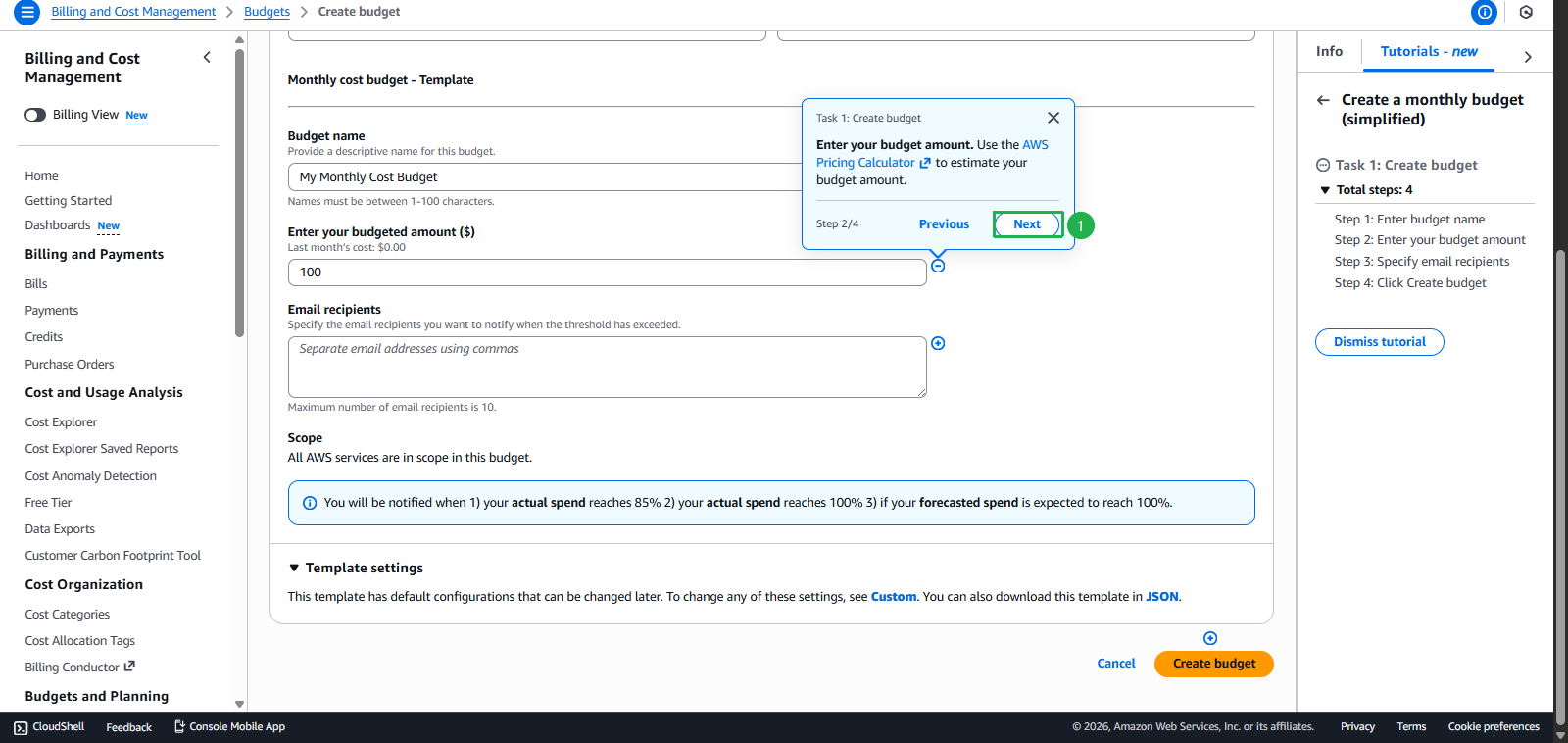
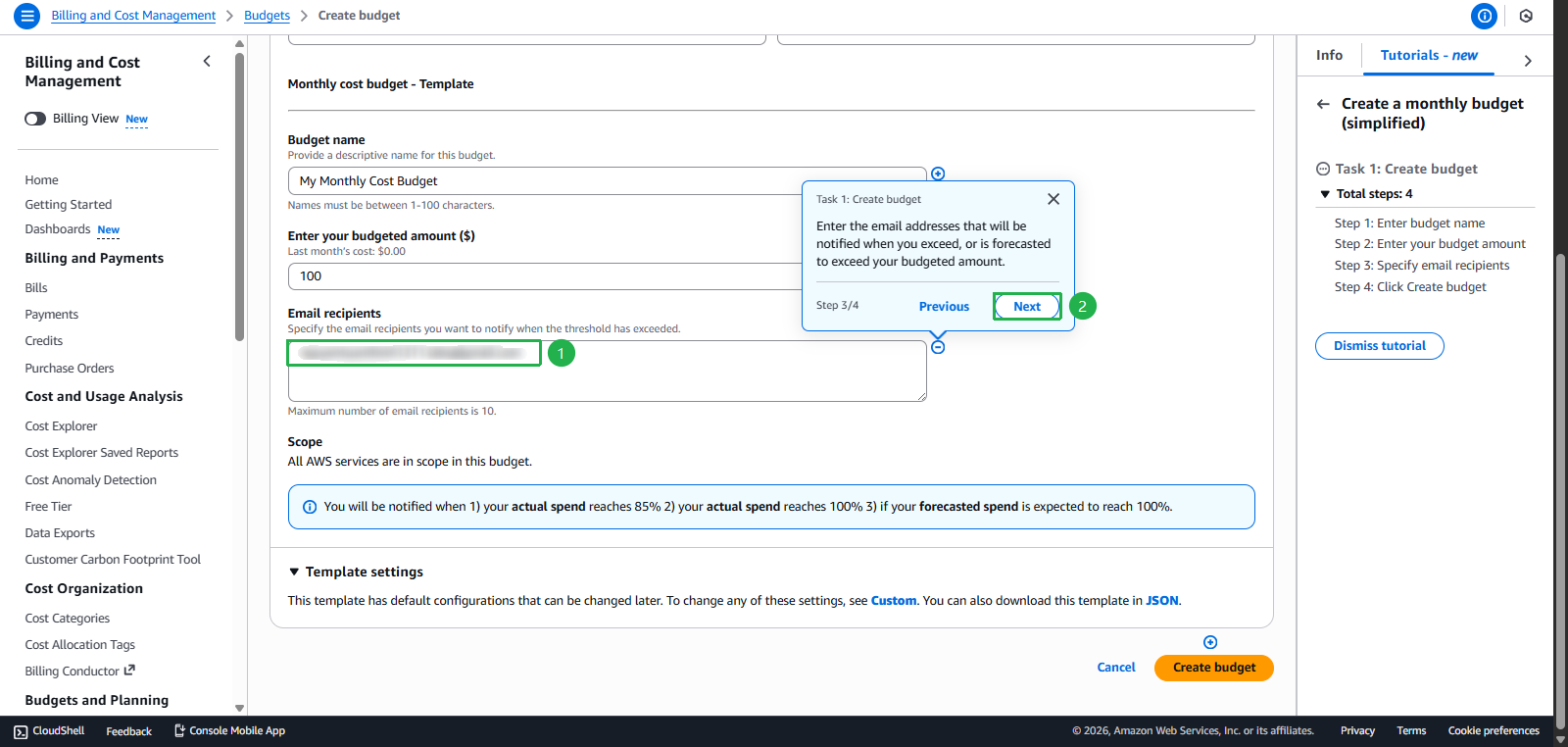
- Enter Email to receive notifications
- Click Next
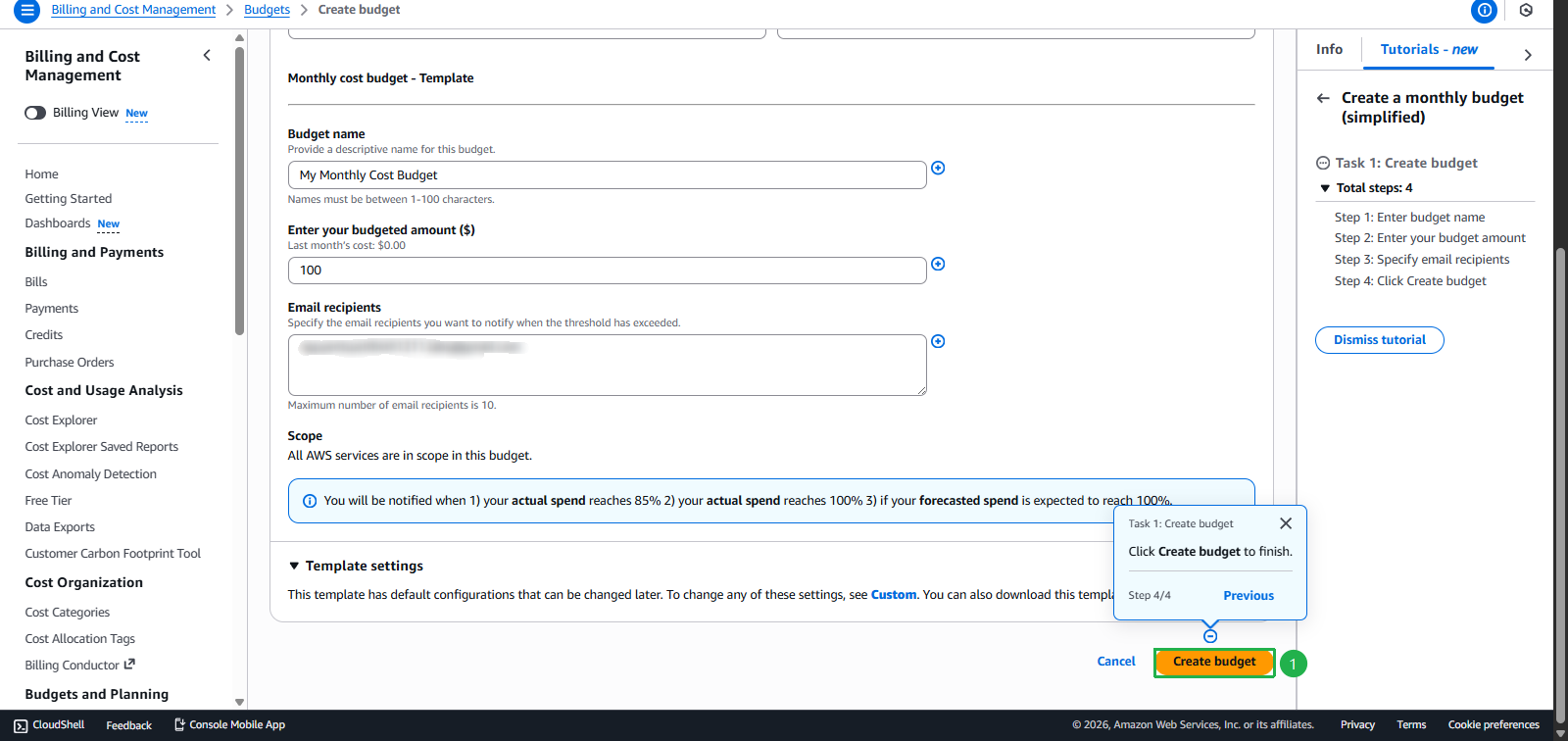
- Click Create budget
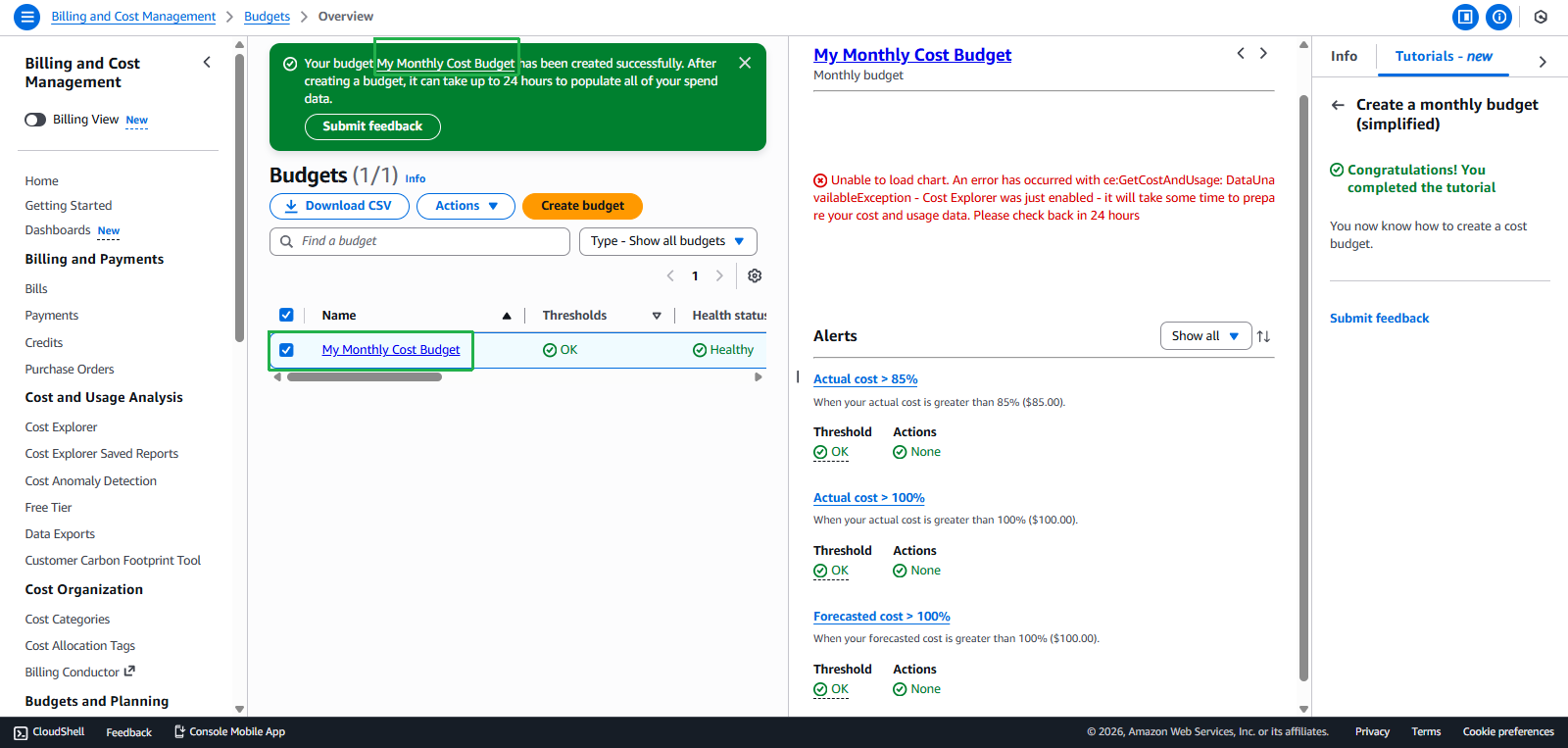
- Select task Set up a cost budget using AWS Budgets
- Budget created successfully
Task 4: Create Lambda Web App - $20 credit
Objective: Build serverless web application
Steps:
- Find the widget “Explore AWS” on AWS Console Home
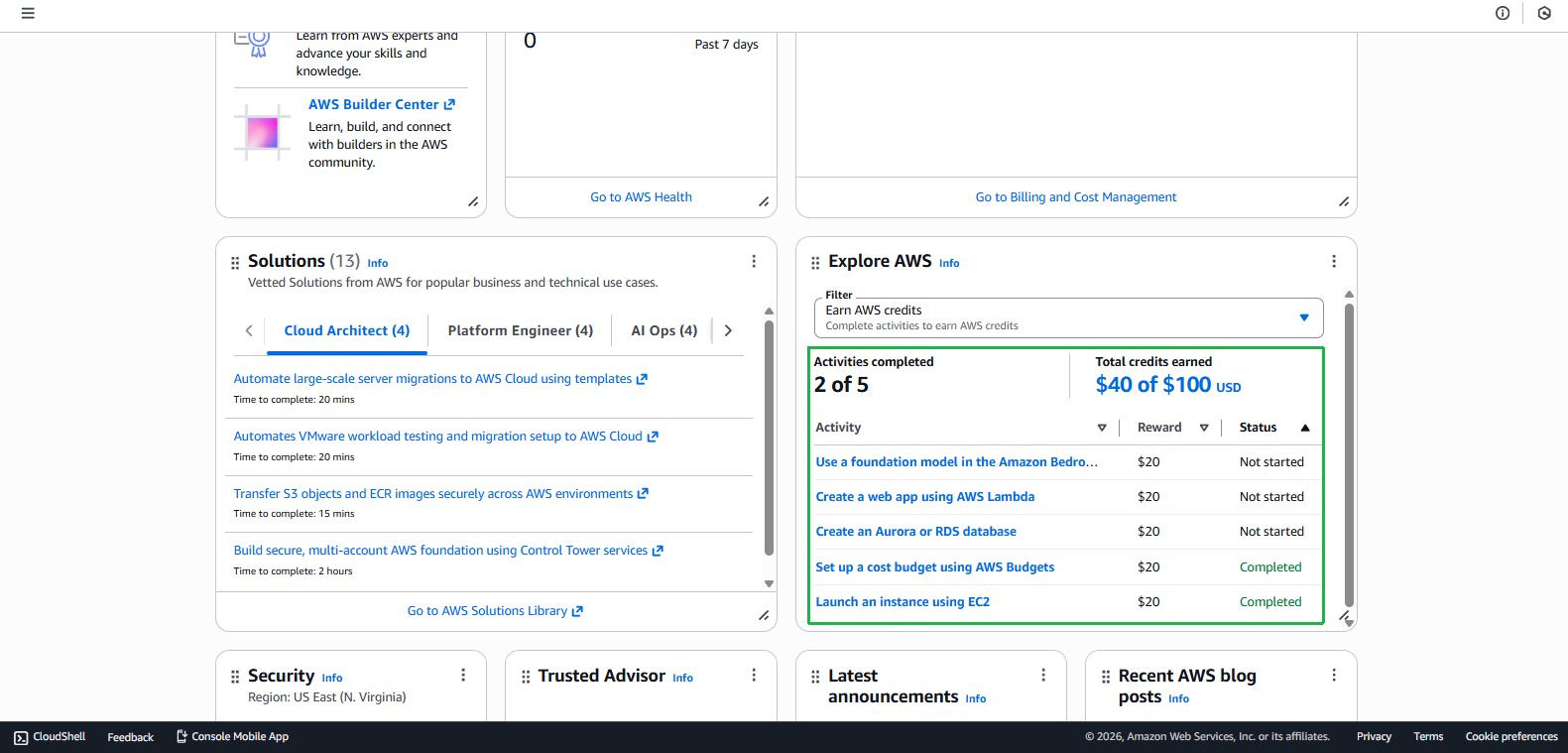
- Access Lambda Console
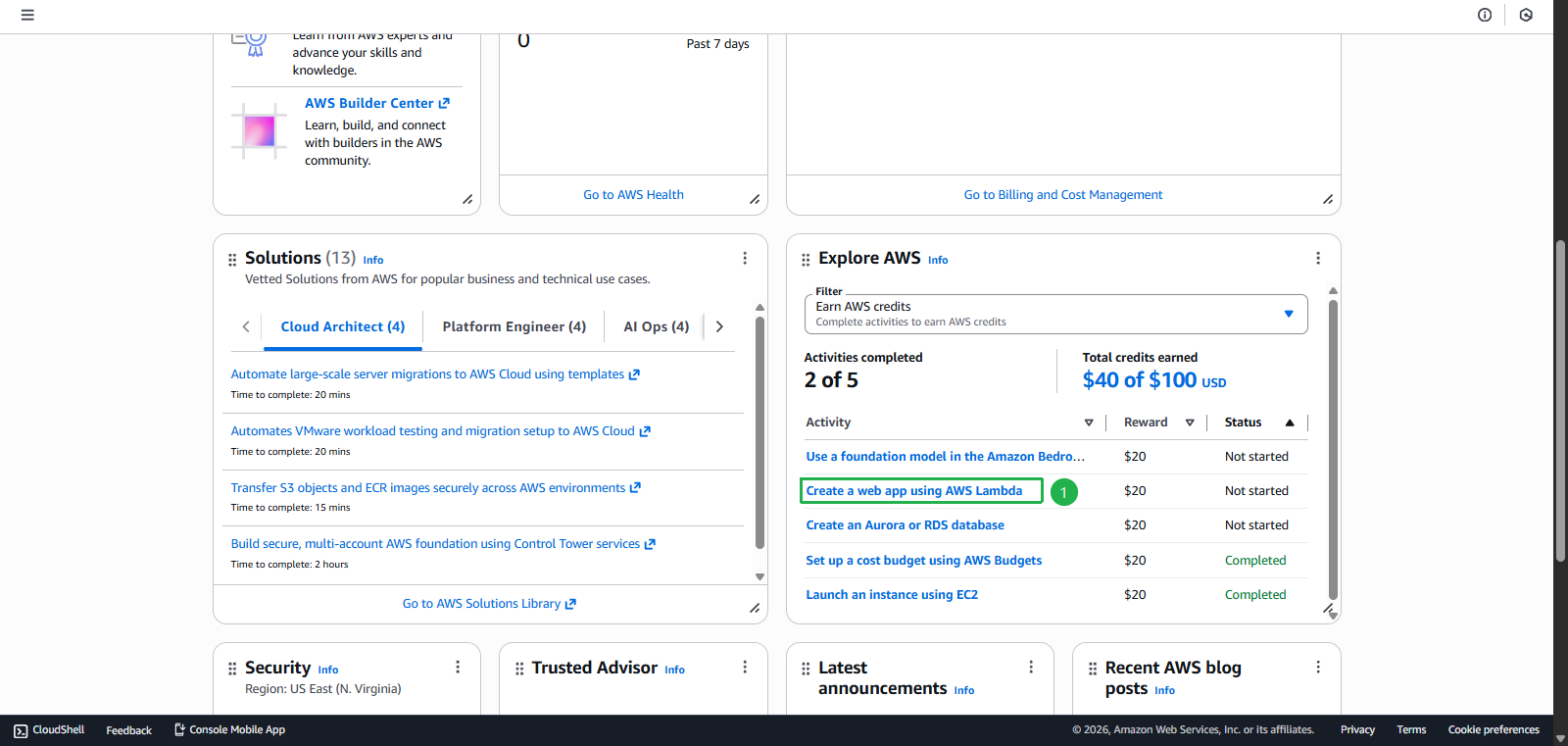
- Select task Create a web app using AWS Lambda
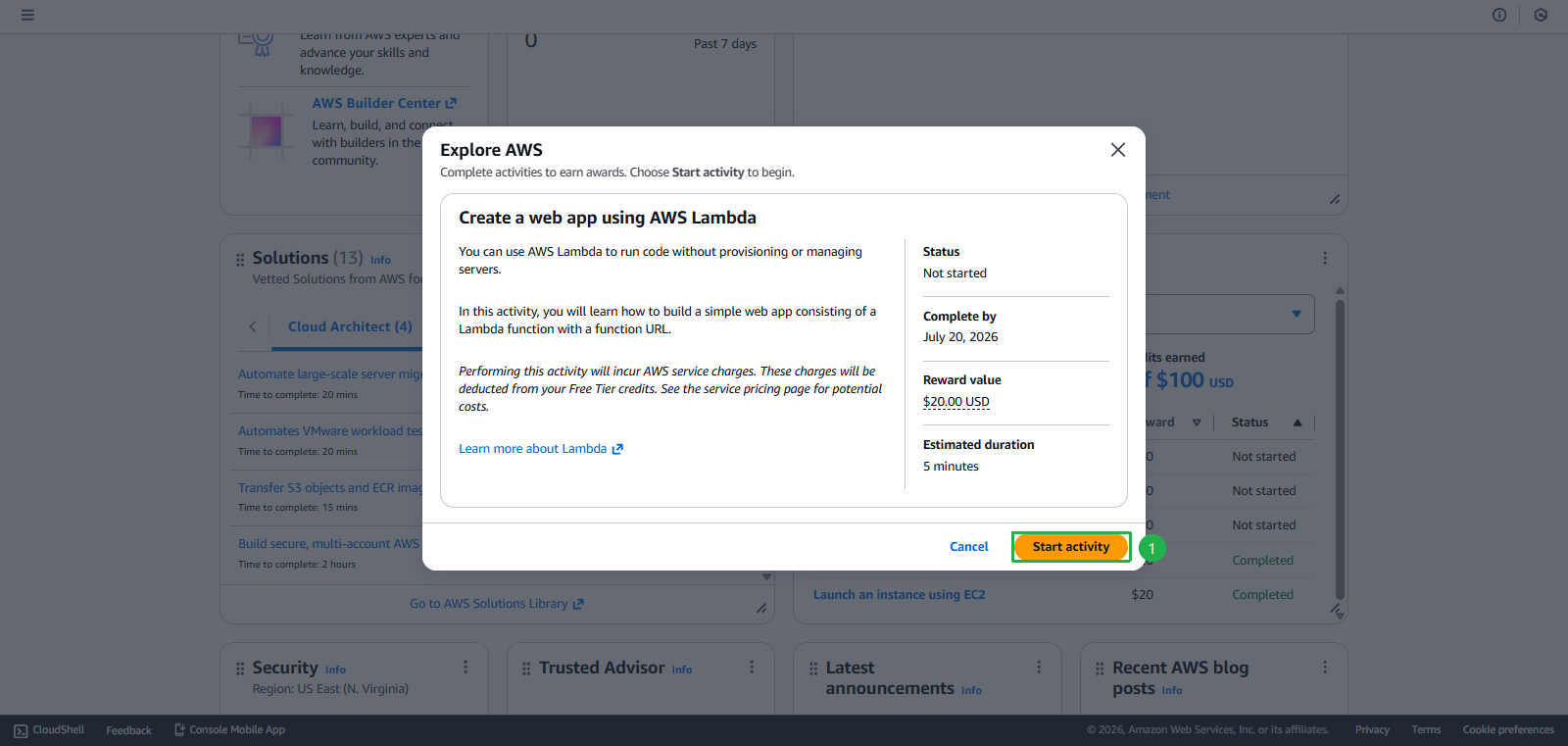
- Click Start activity
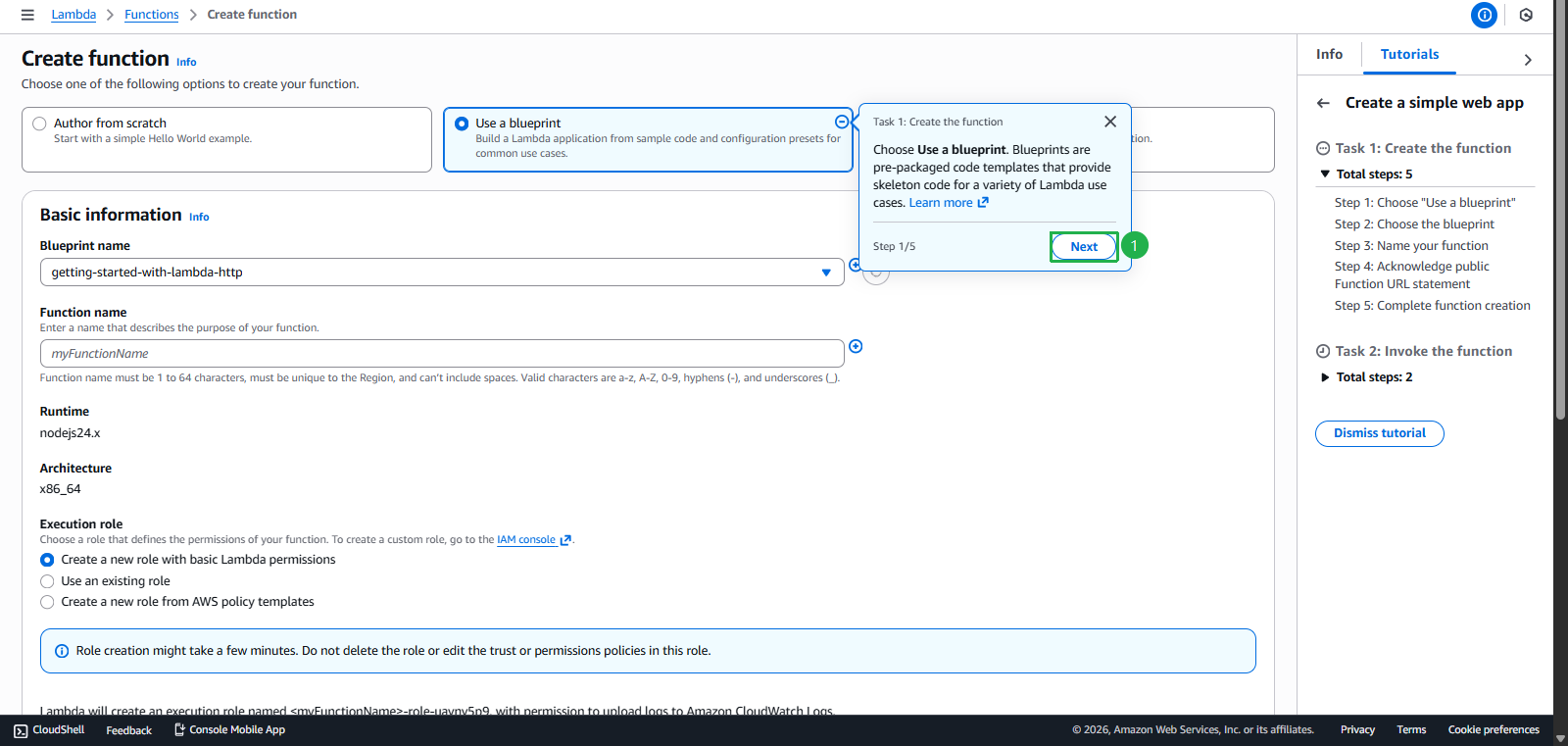
- Select Use a blueprint
- Click Next
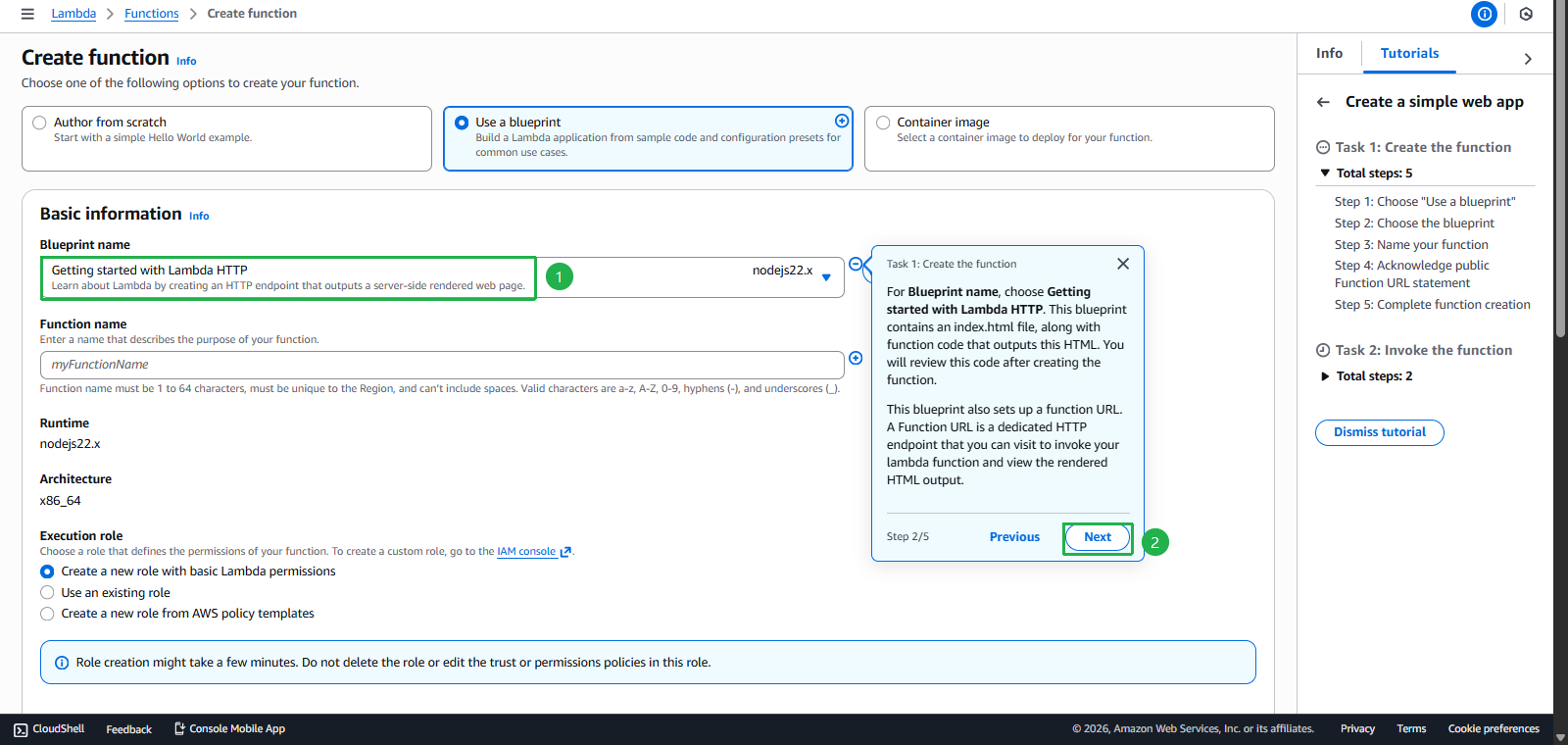
- Select Getting started with Lambda HTTP
- Click Next
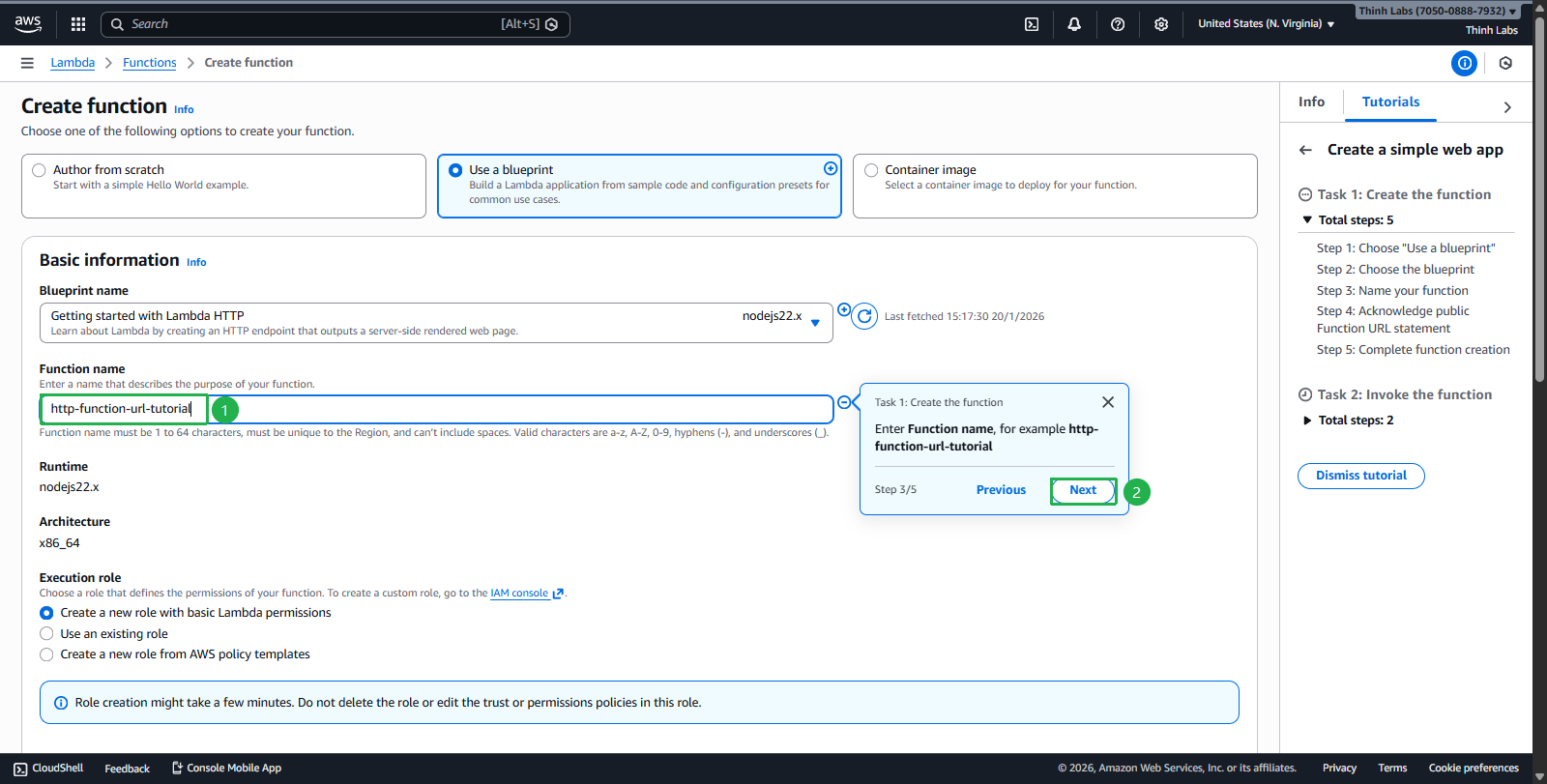
- Enter
http-function-url-tutorial - Click Next
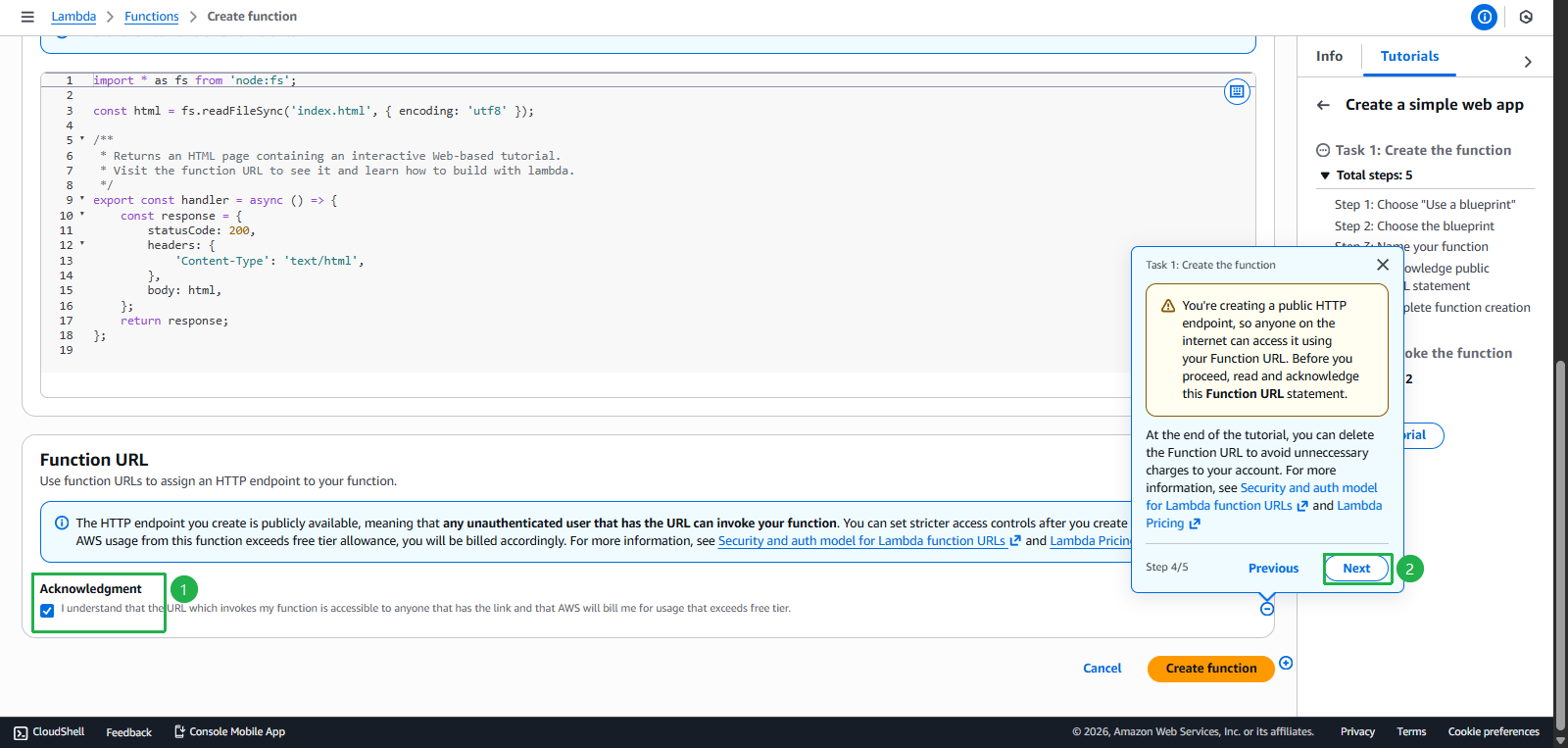
- Select Checkbox Acknowledgment
- Click Next
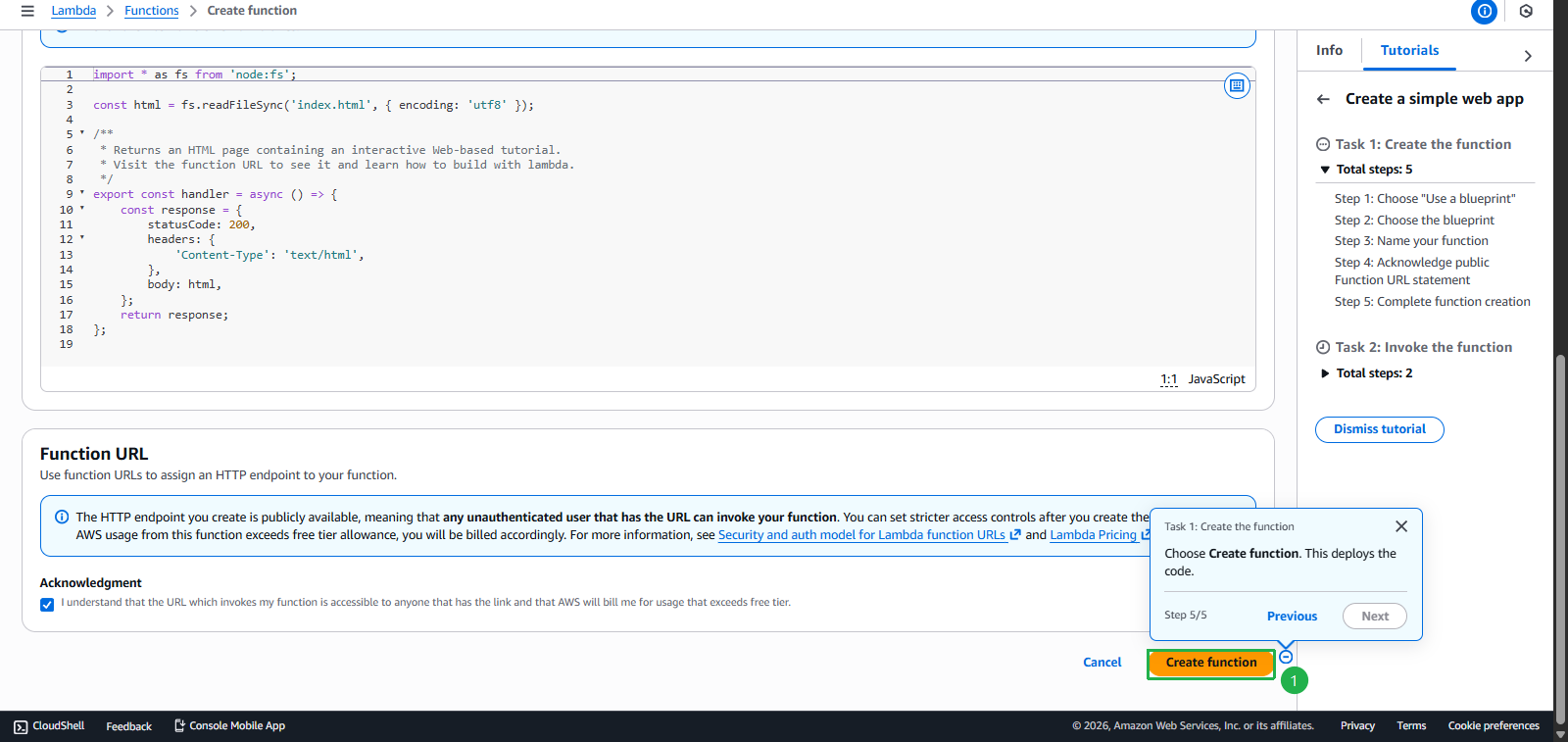
- Click Create function
- Select task Create a web app using AWS Lambda
- Create function Successfully
- Click Next
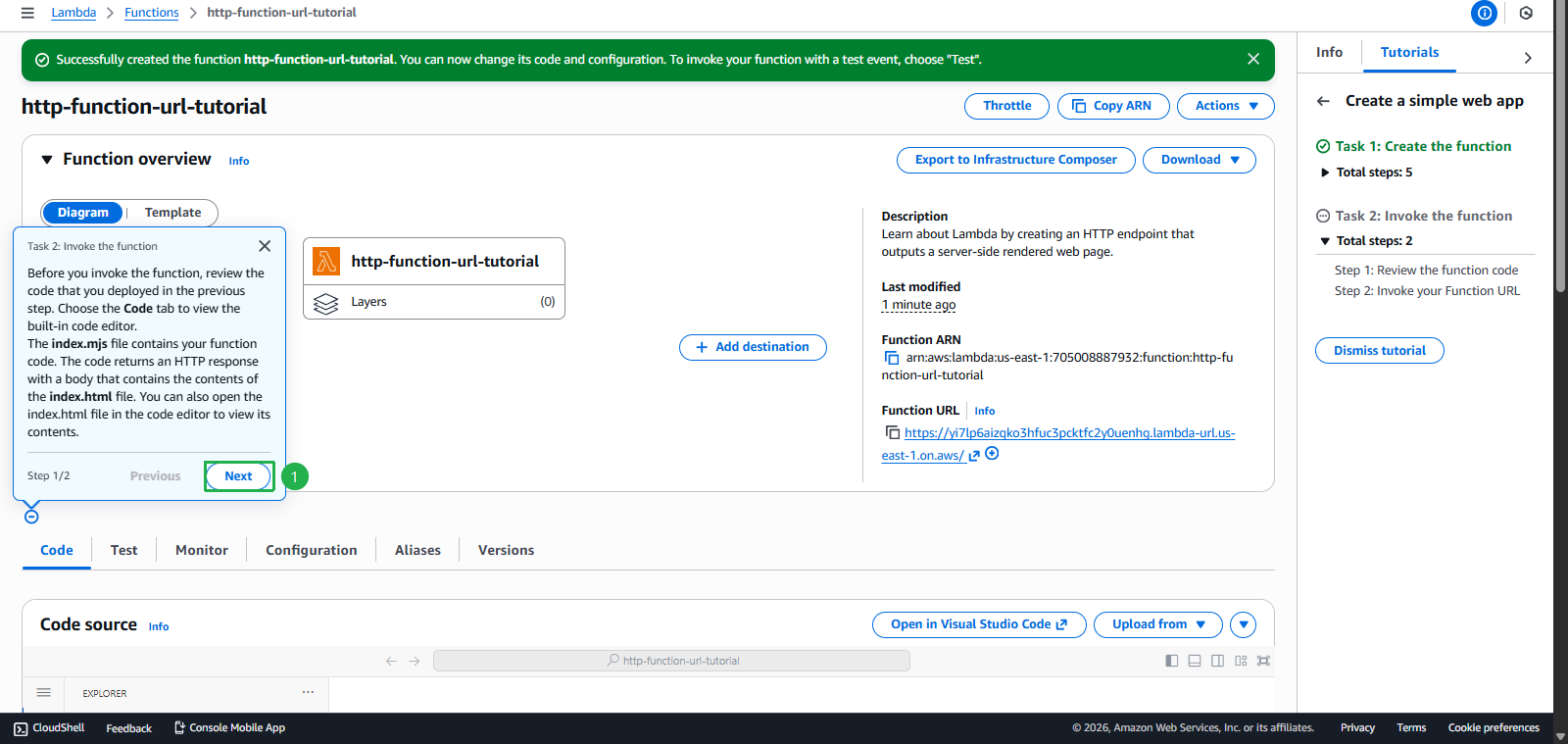
- Click Finish
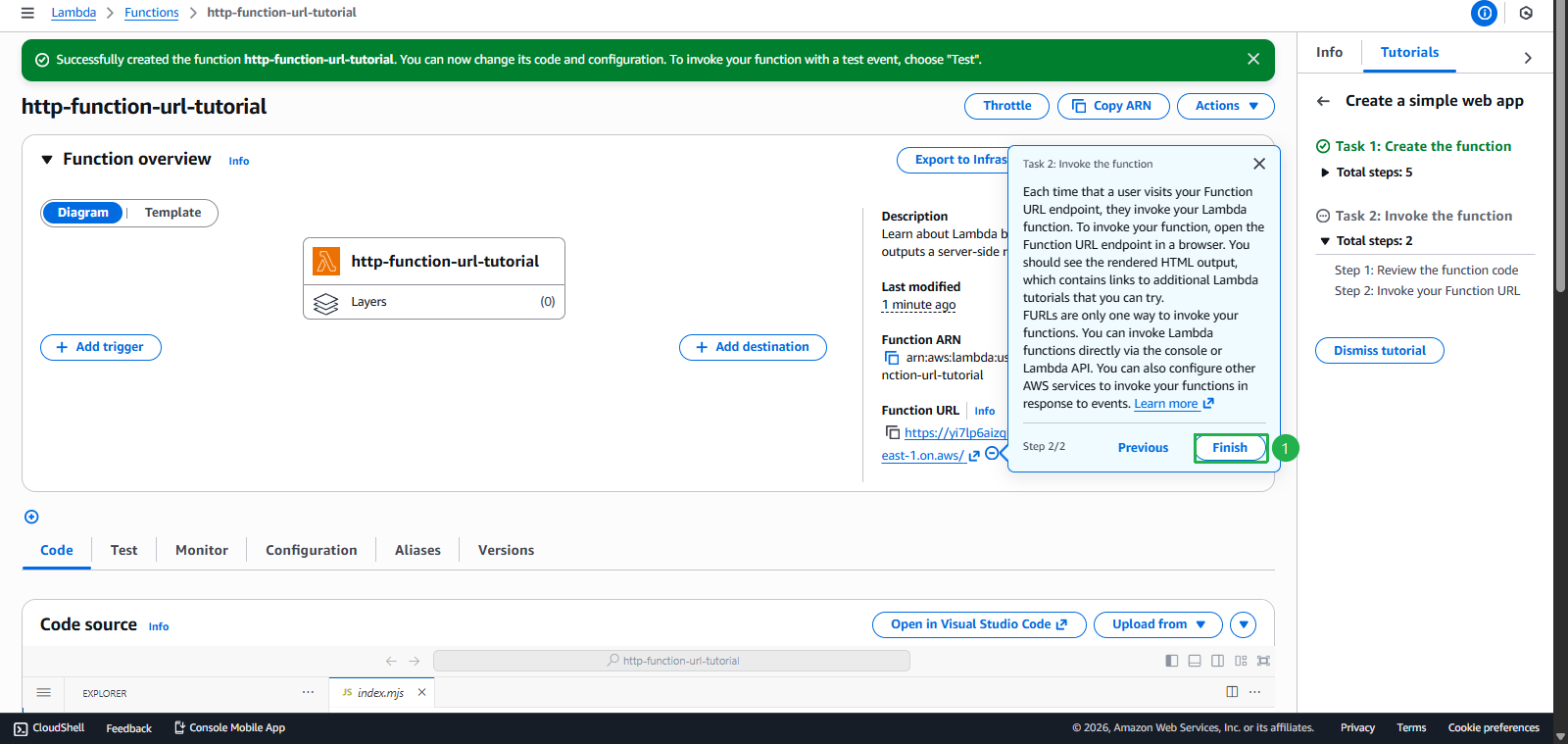
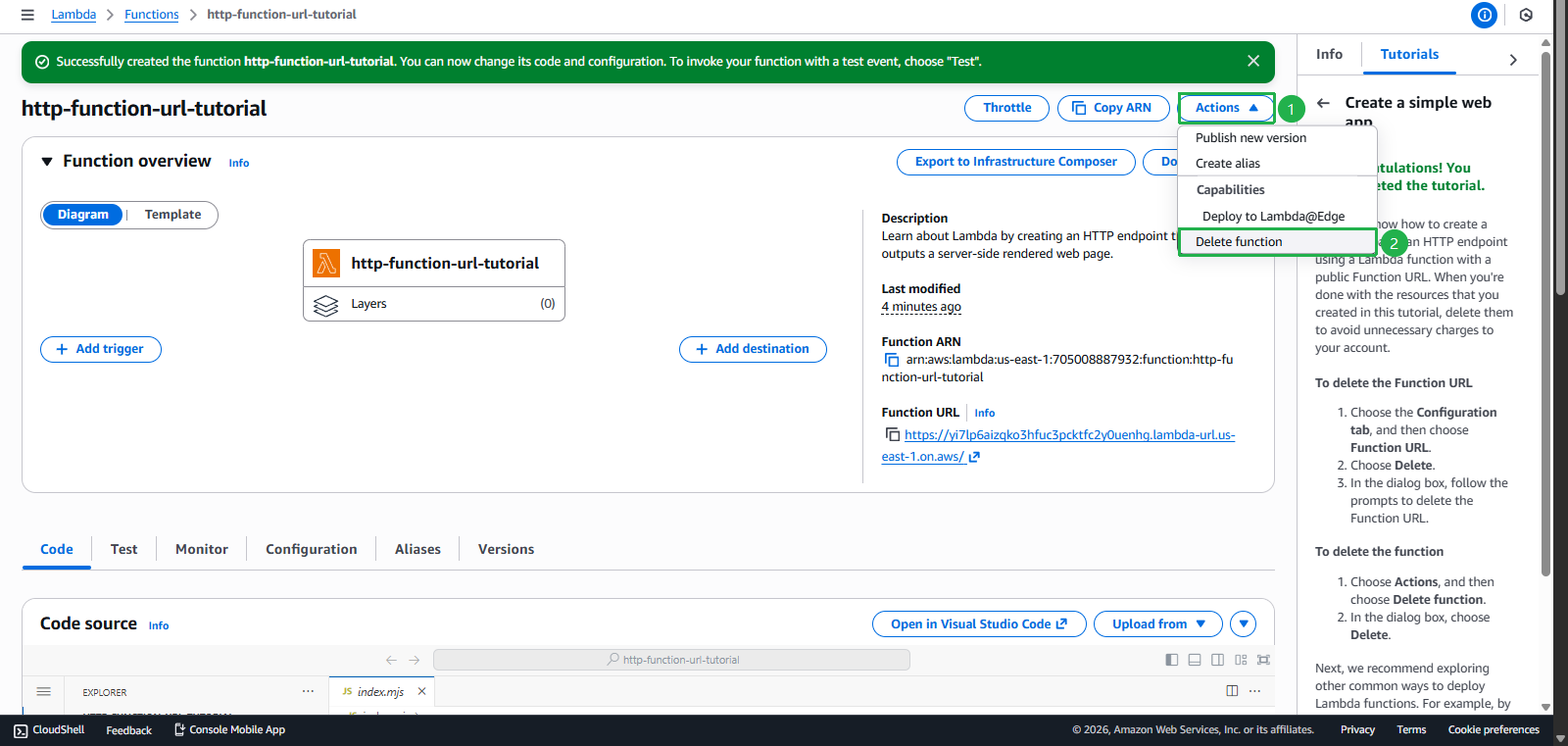
- Click Actions
- Click Delete function
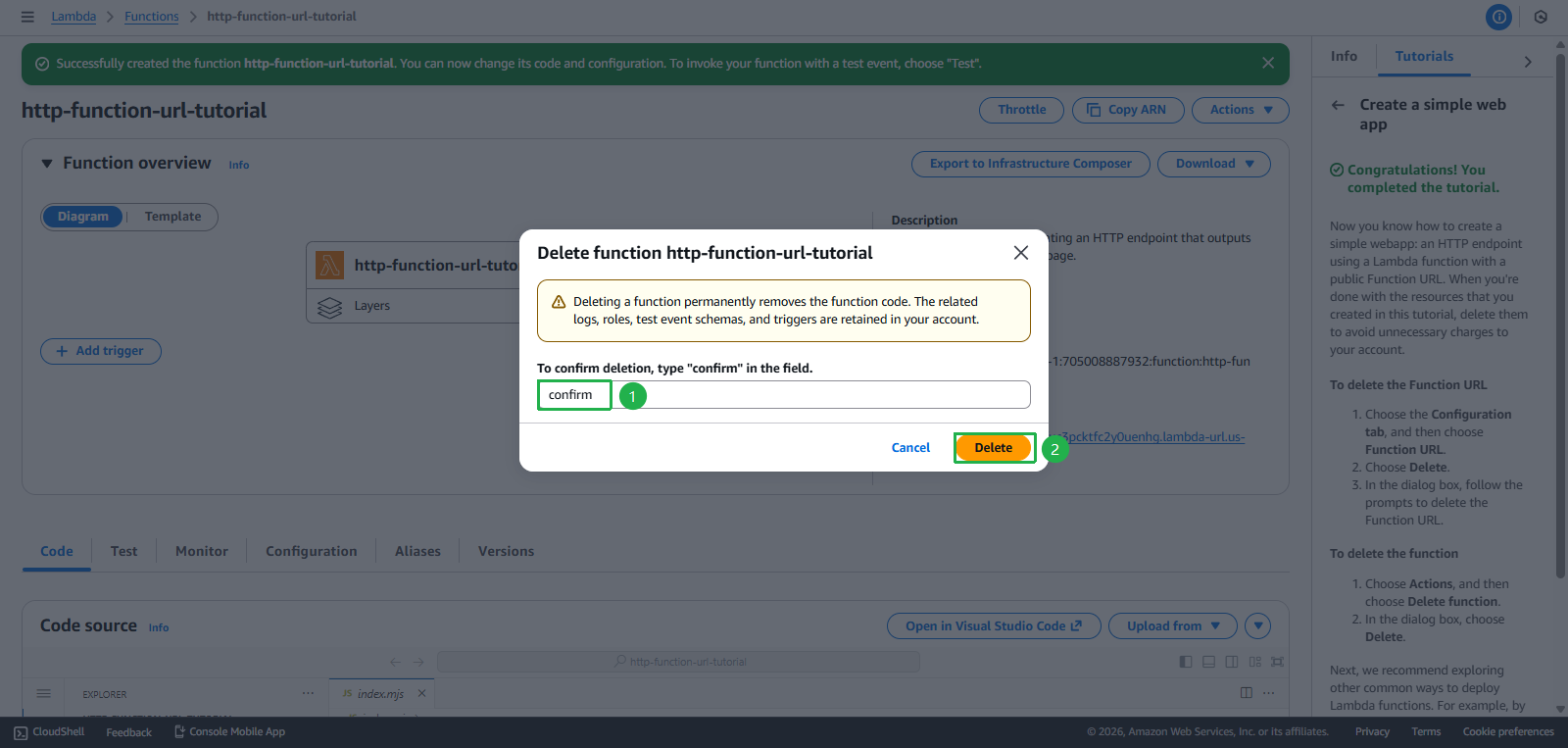
- Enter
confirm - Click Delete
- Click Next
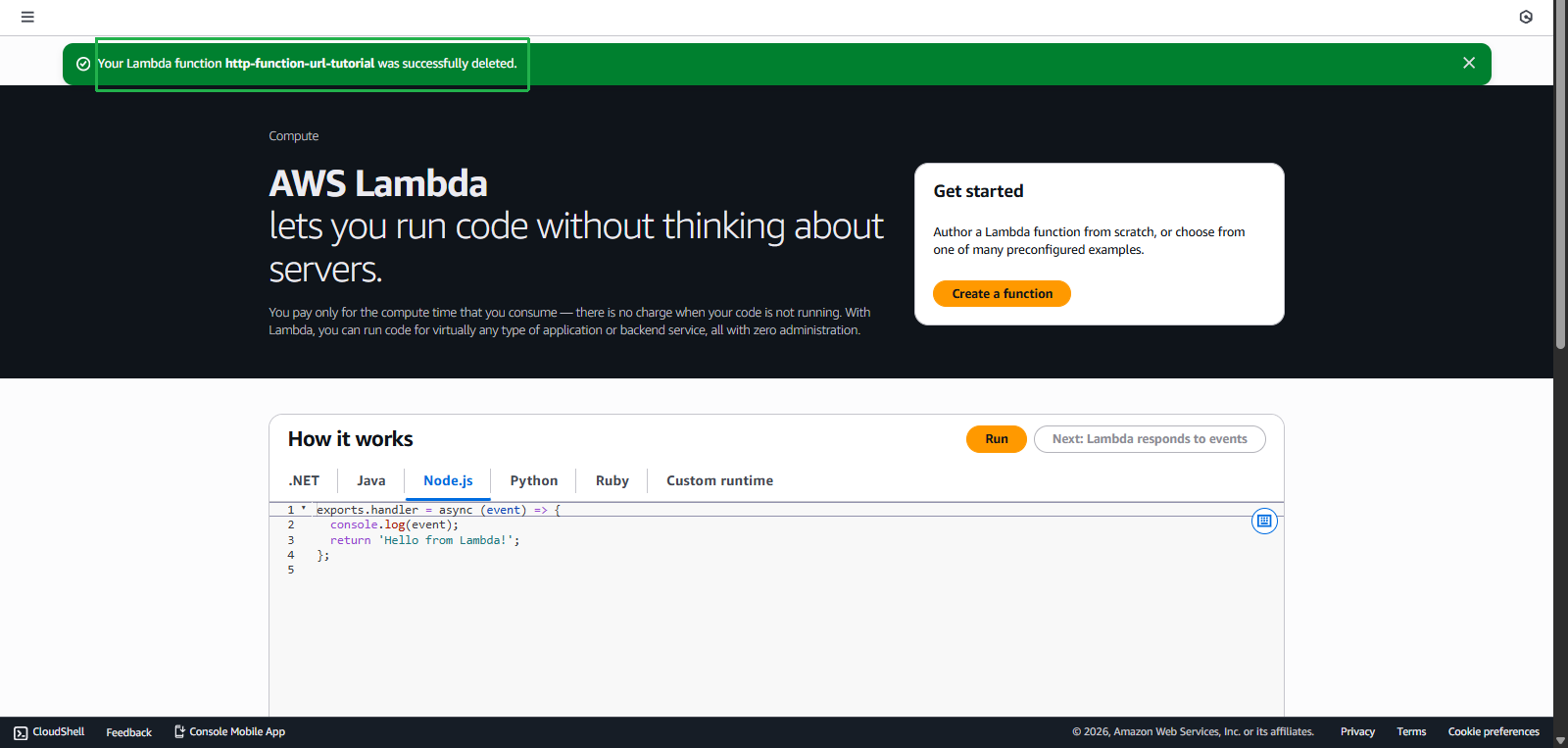
- Delete Successfully
Task 5: Create RDS Database - $20 credit
Objective: Set up managed relational database
Steps:
- Find the widget “Explore AWS” on AWS Console Home
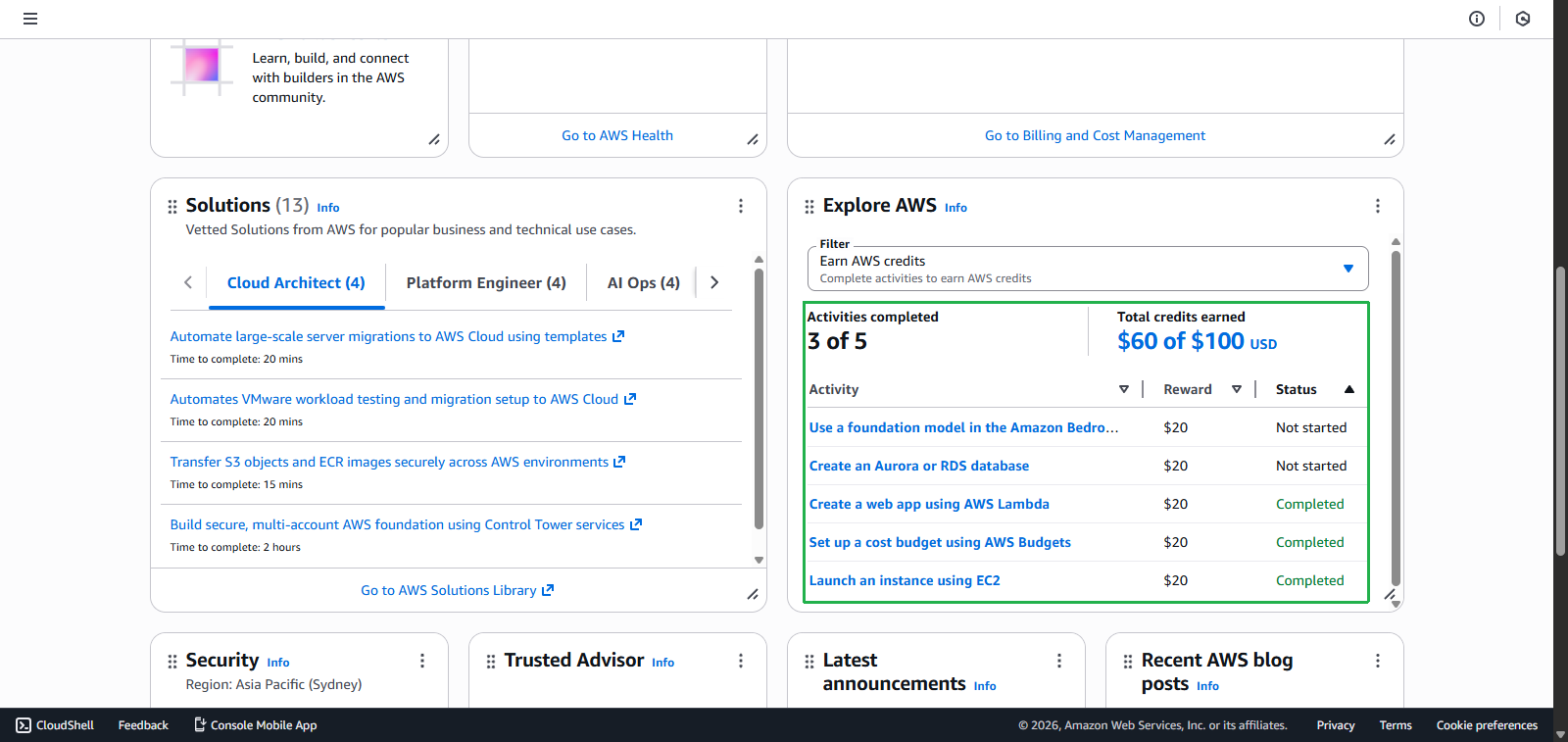
- Access RDS Console
- Select task Create an Amazon RDS Database
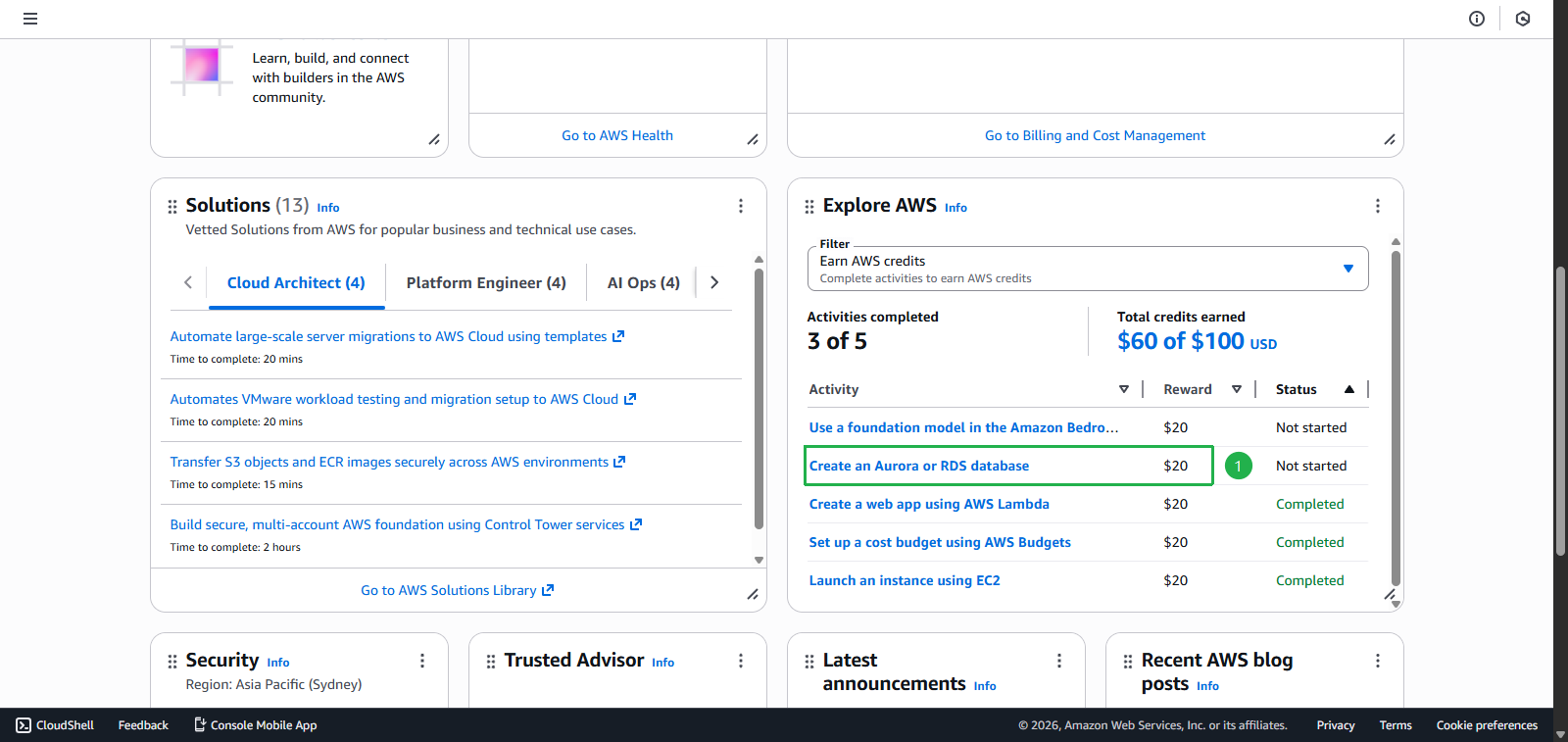
- Click Start activity
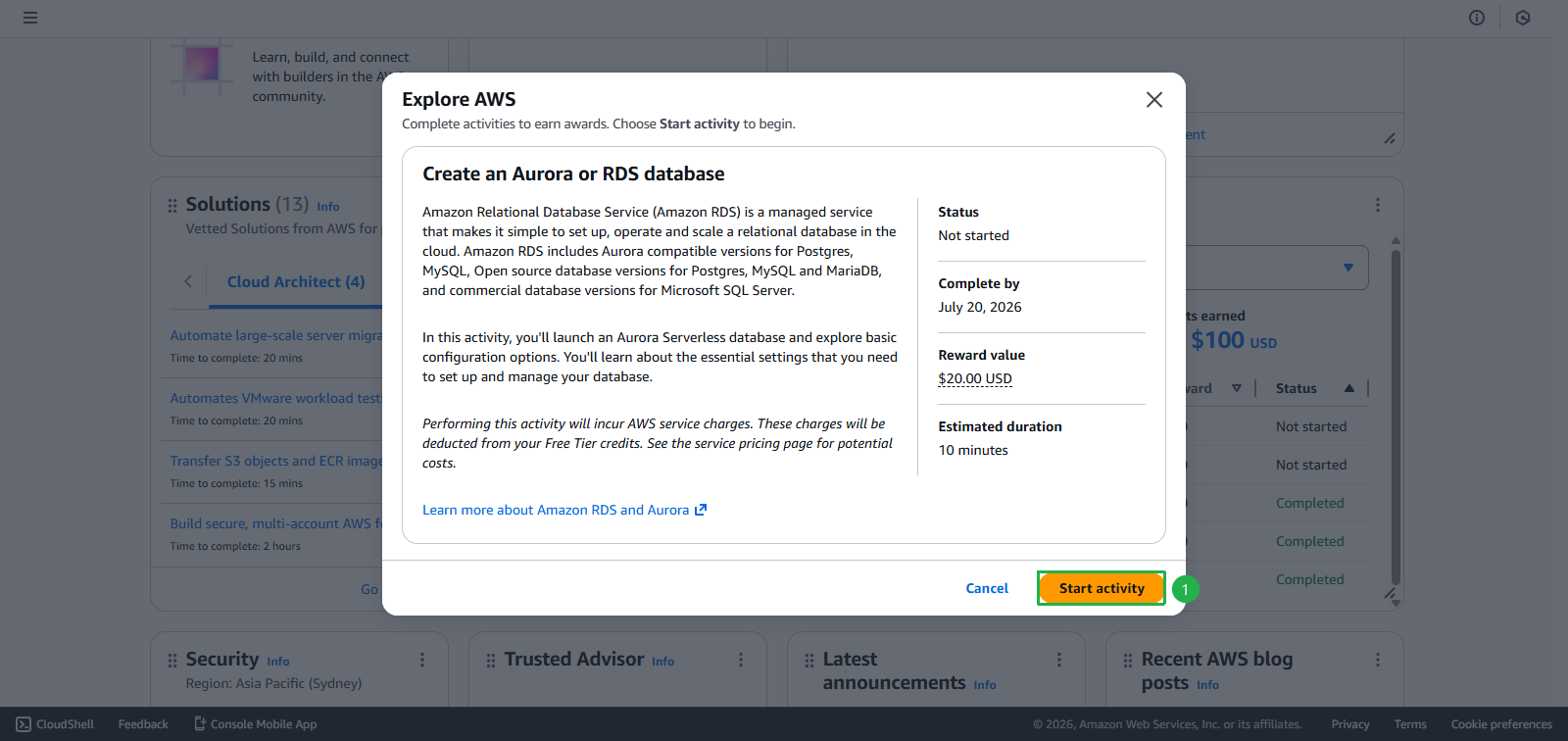
- Select task Create an Amazon RDS Database
- Create database
- Select Easy create
- Click Next
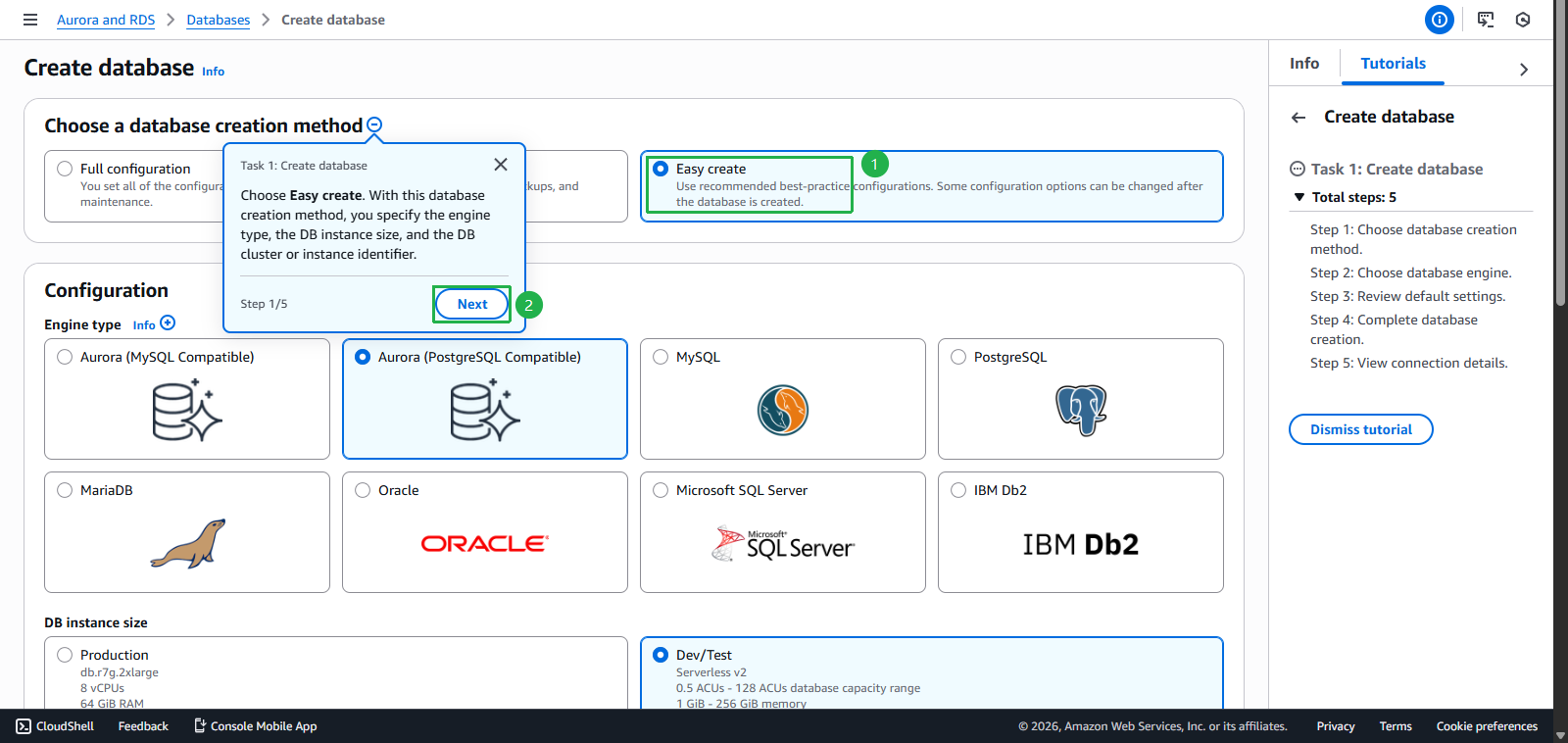
- Select Aurora (PostgreSQL Compatible)
- Click Next
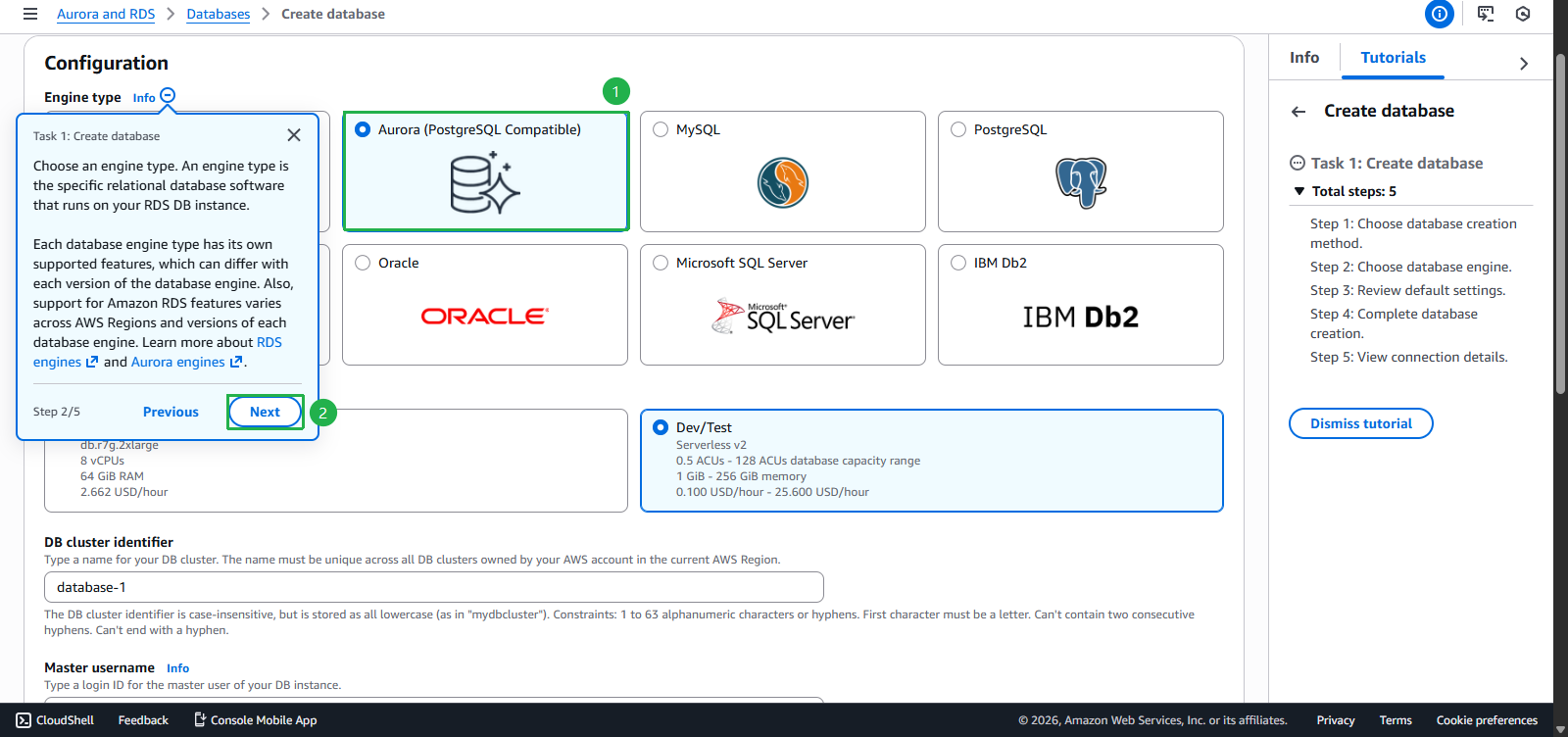
- Click Next
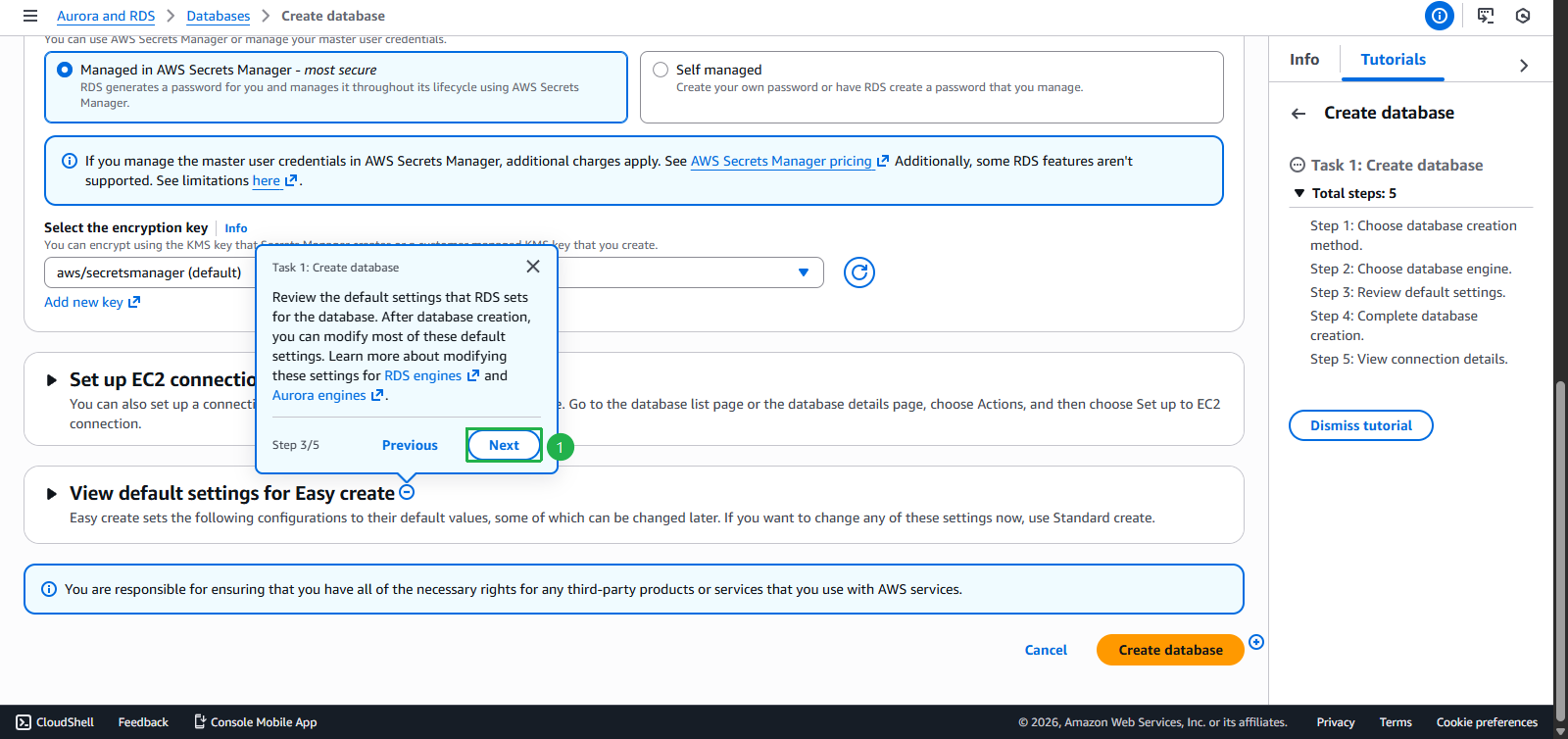
- Click Create database
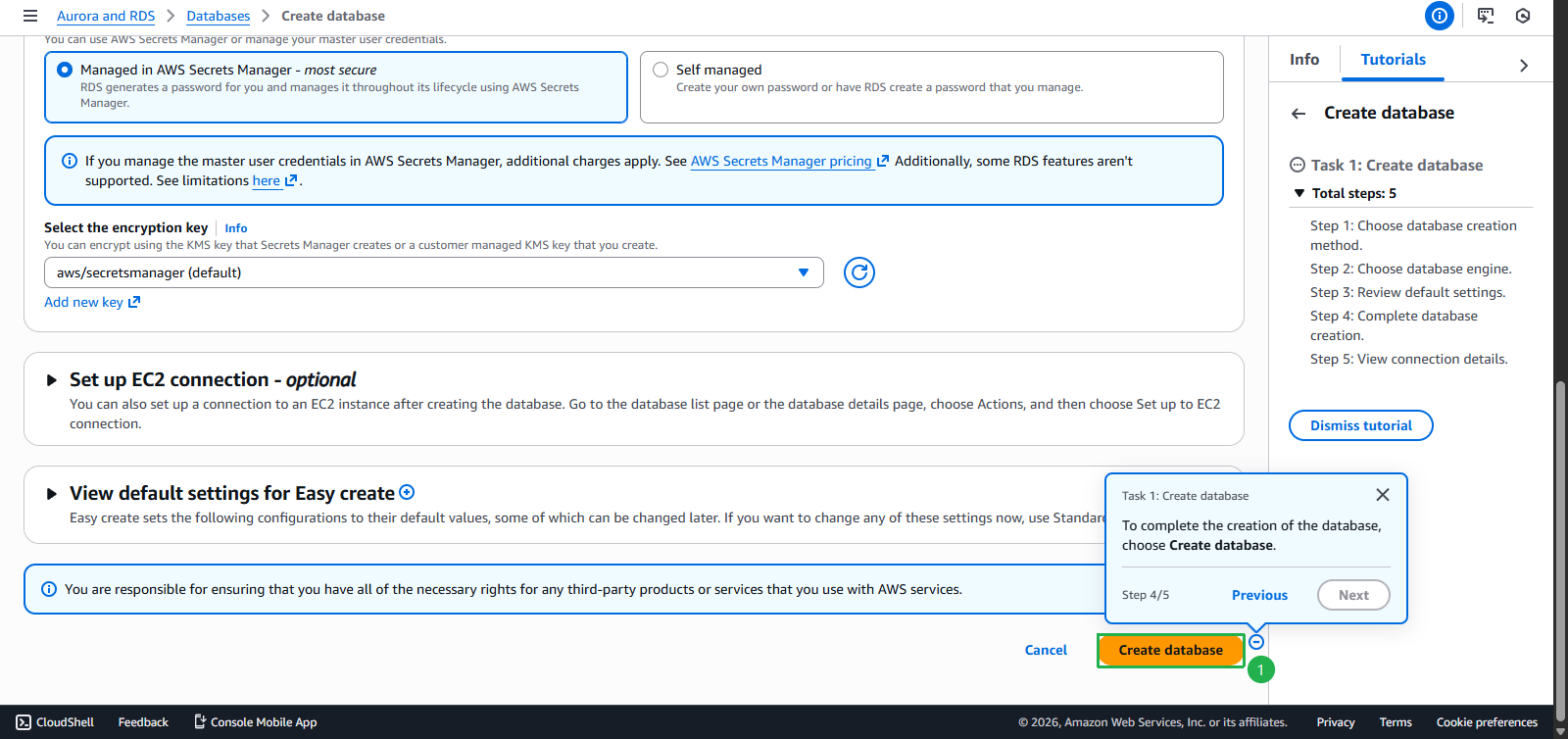
- Click Finish
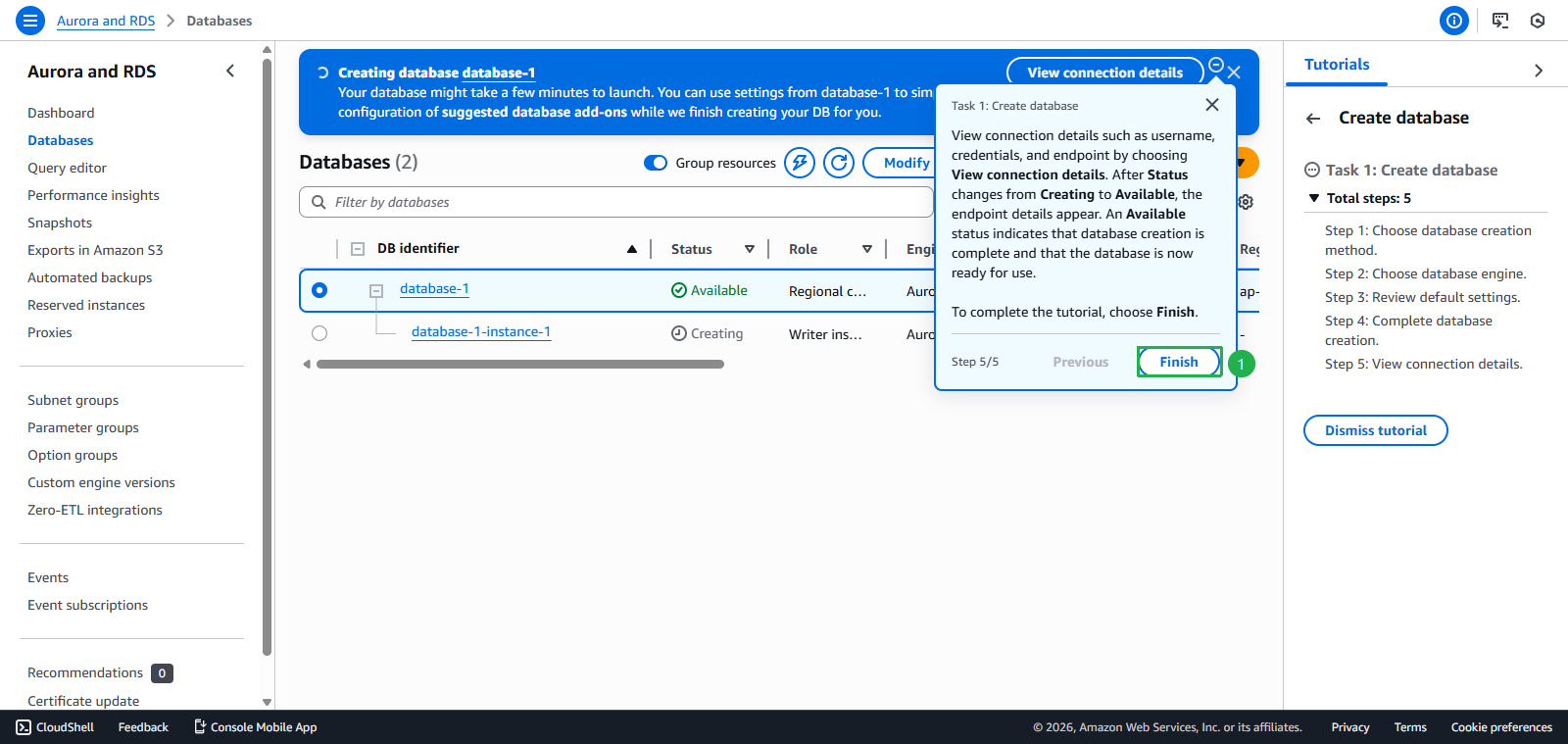
- Wait for all Database to change to Available
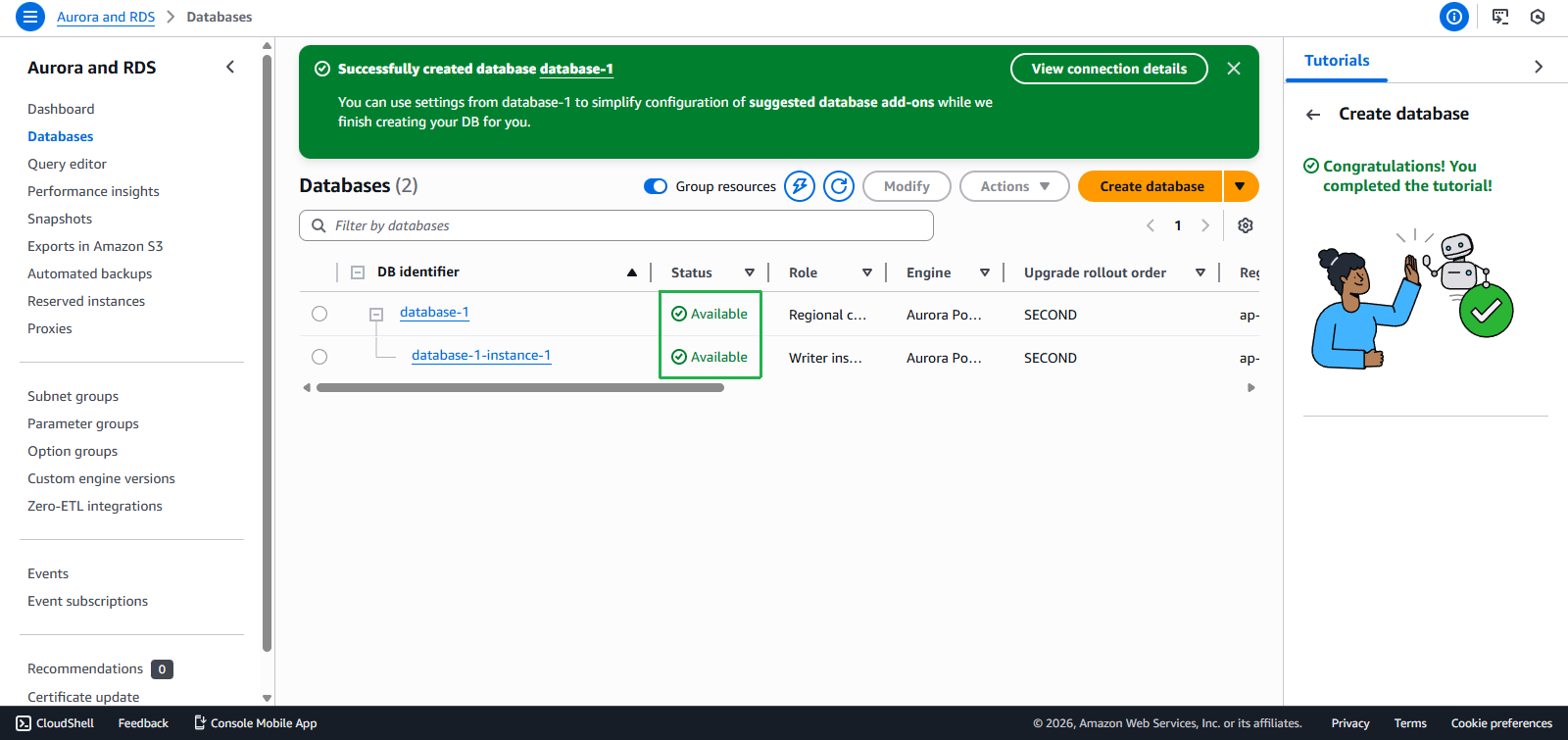
- Clean up
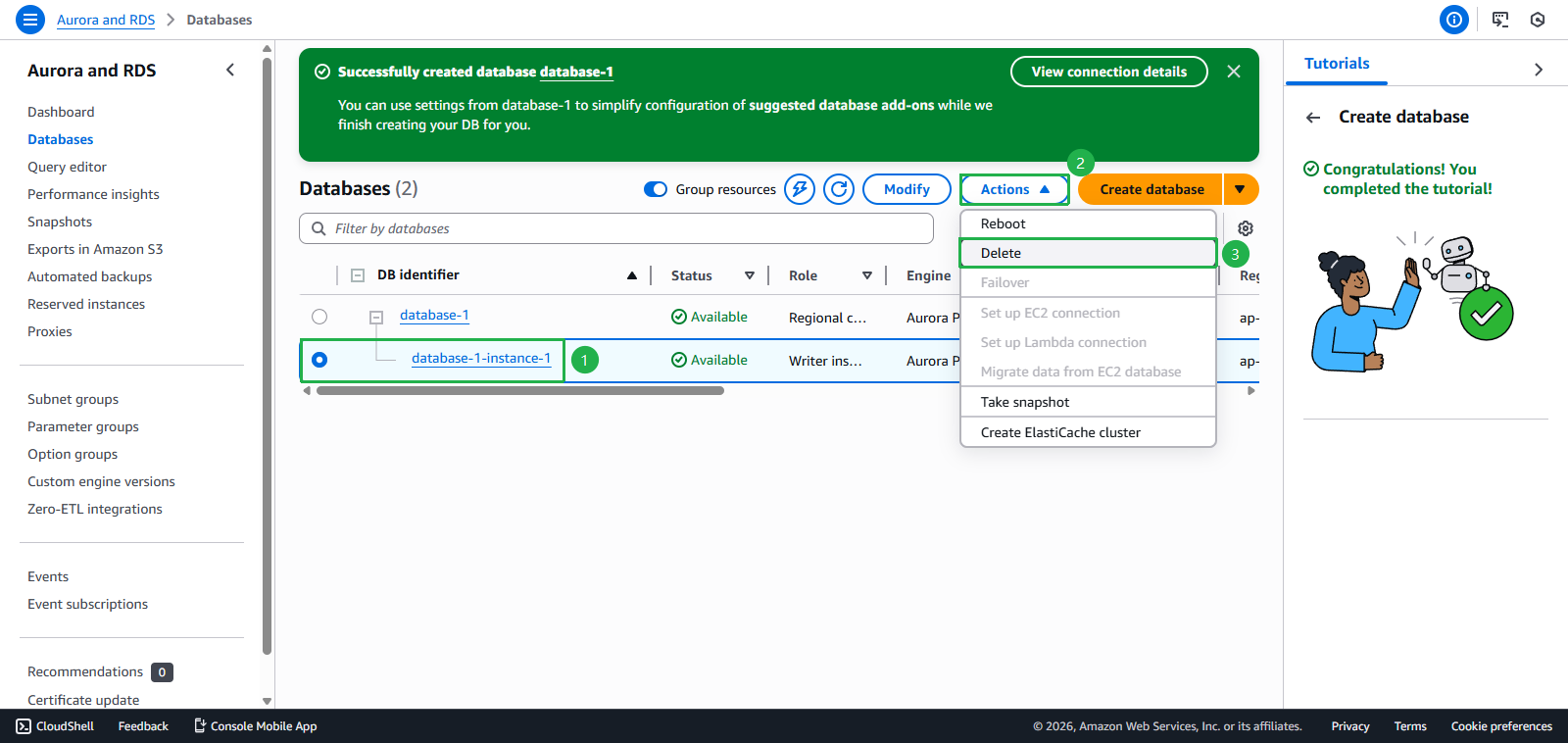
- Select database-1-instance-1
- Click Actions
- Click Delete
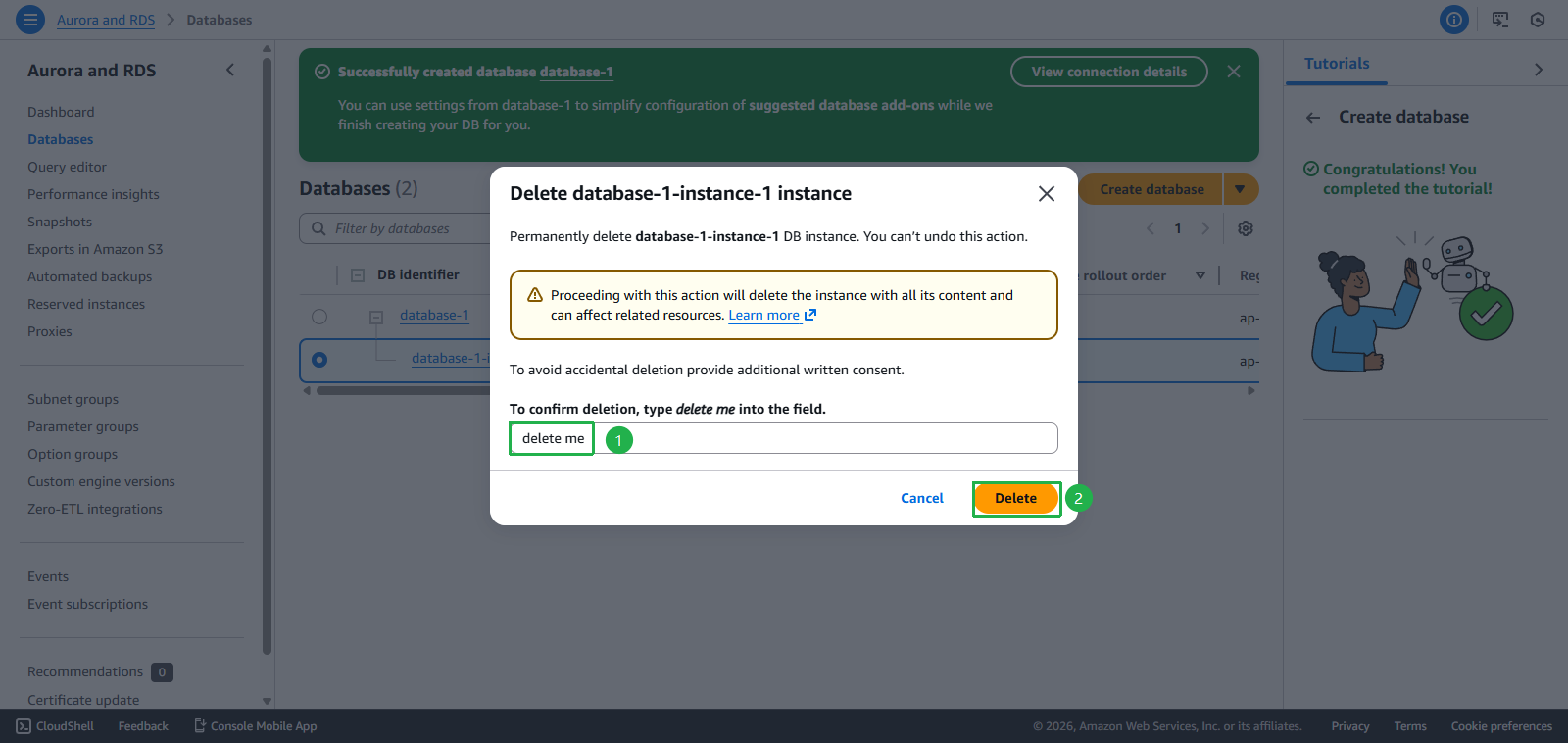
- Enter
delete me - Click Delete
- Select database-1
- Click Actions
- Click Delete
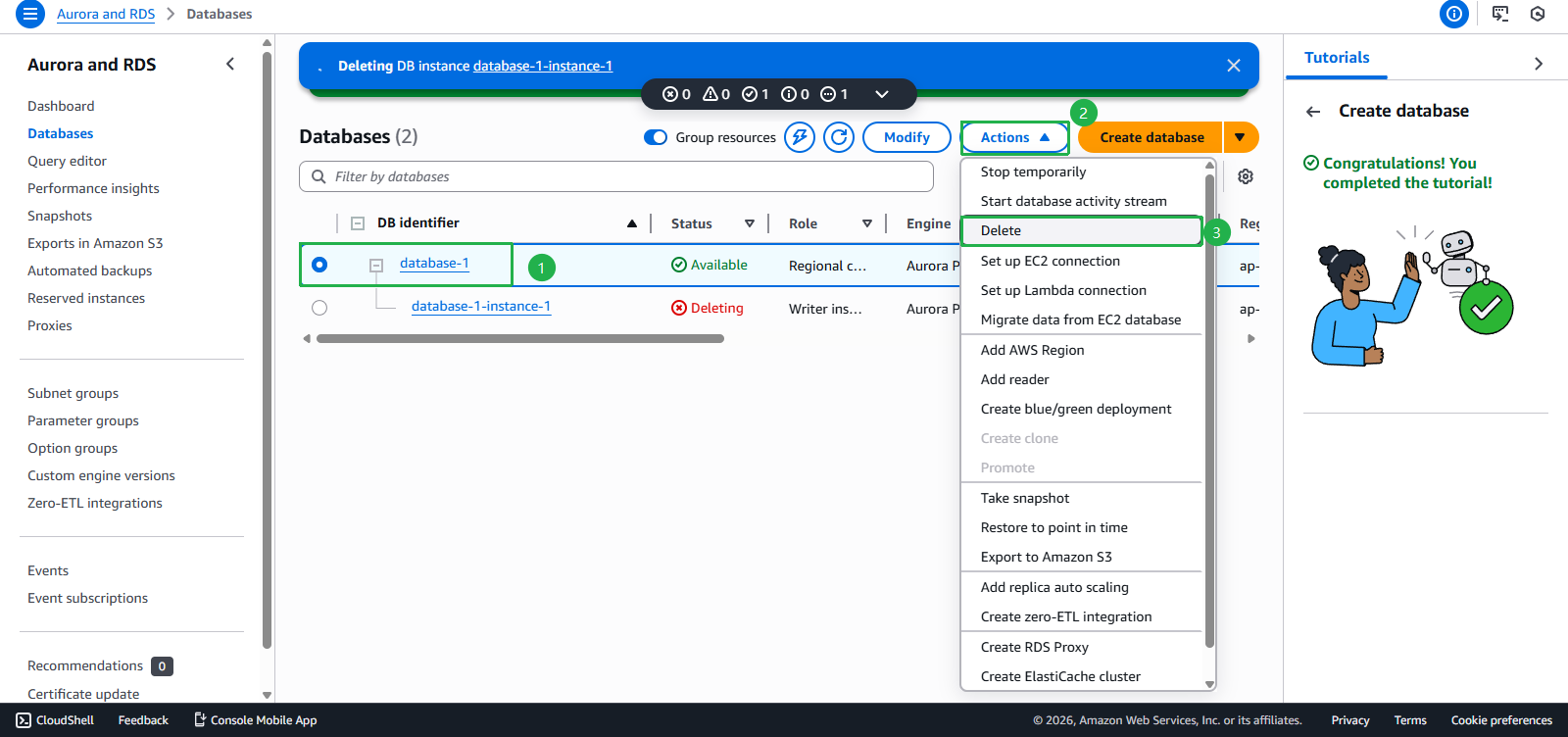
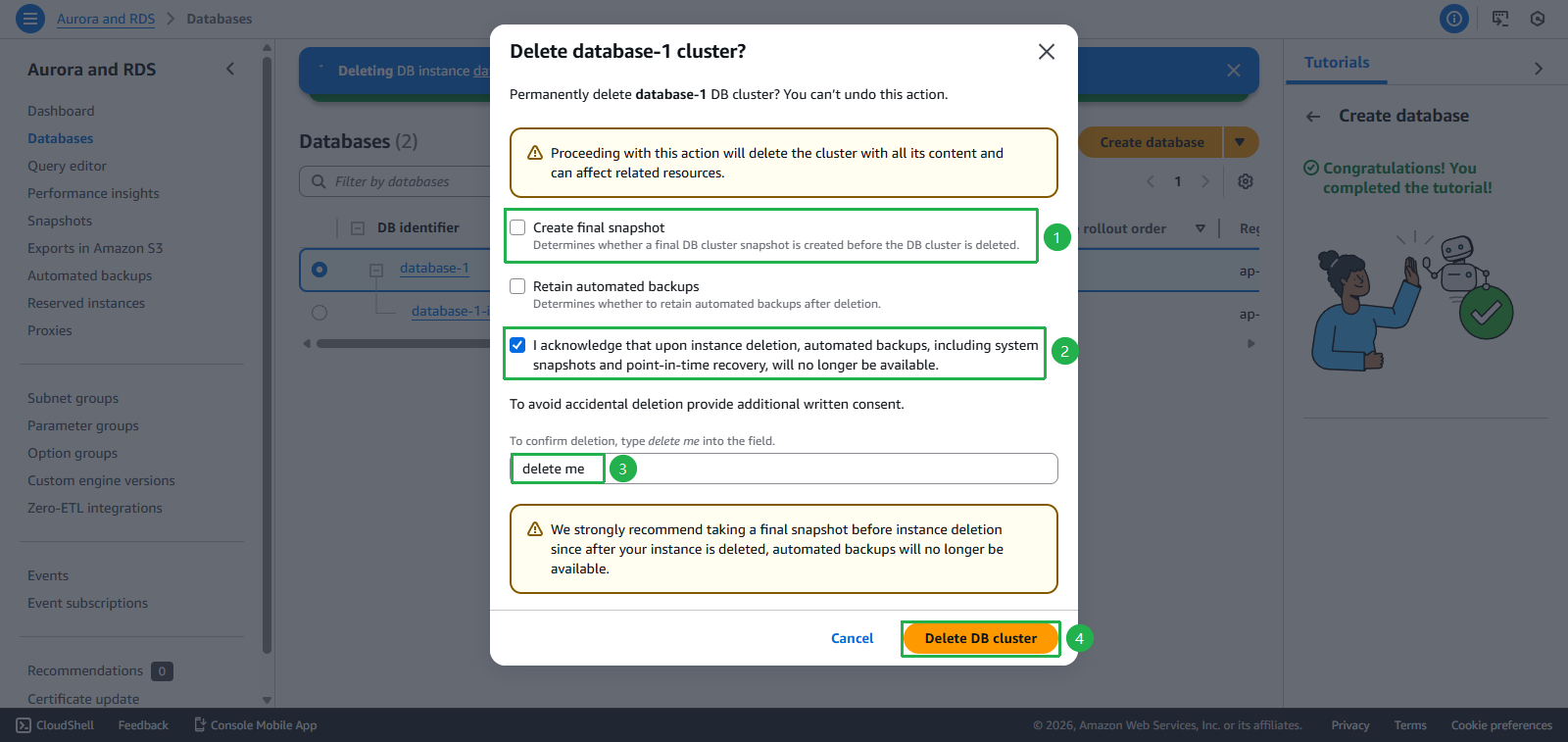
- Uncheck Create final snapshot
- Select Checkbox Acknowledgment
- Enter
delete me - Click Delete DB cluster
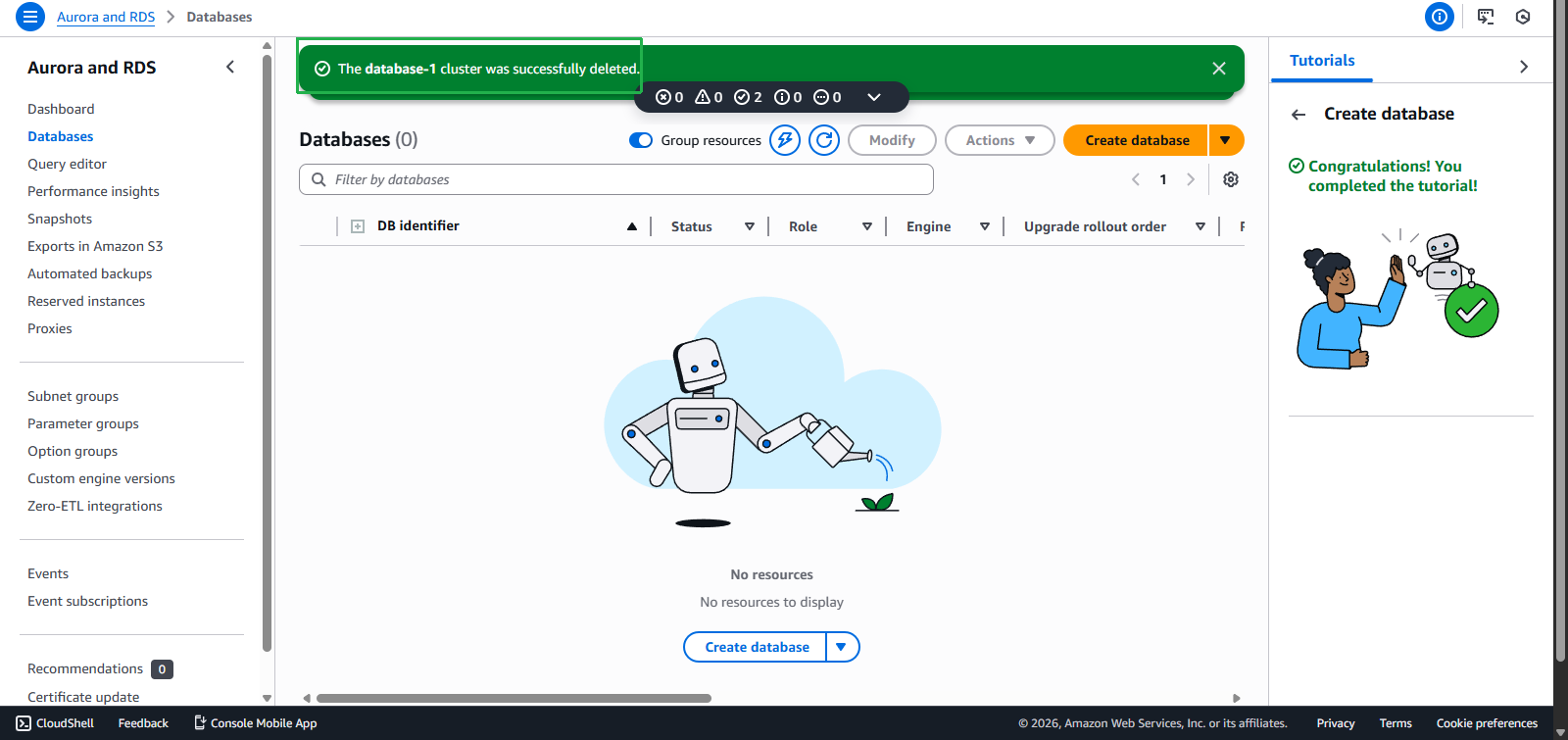
- Delete Successfully
- Congratulations! You have completed all tasks and received $200 credit
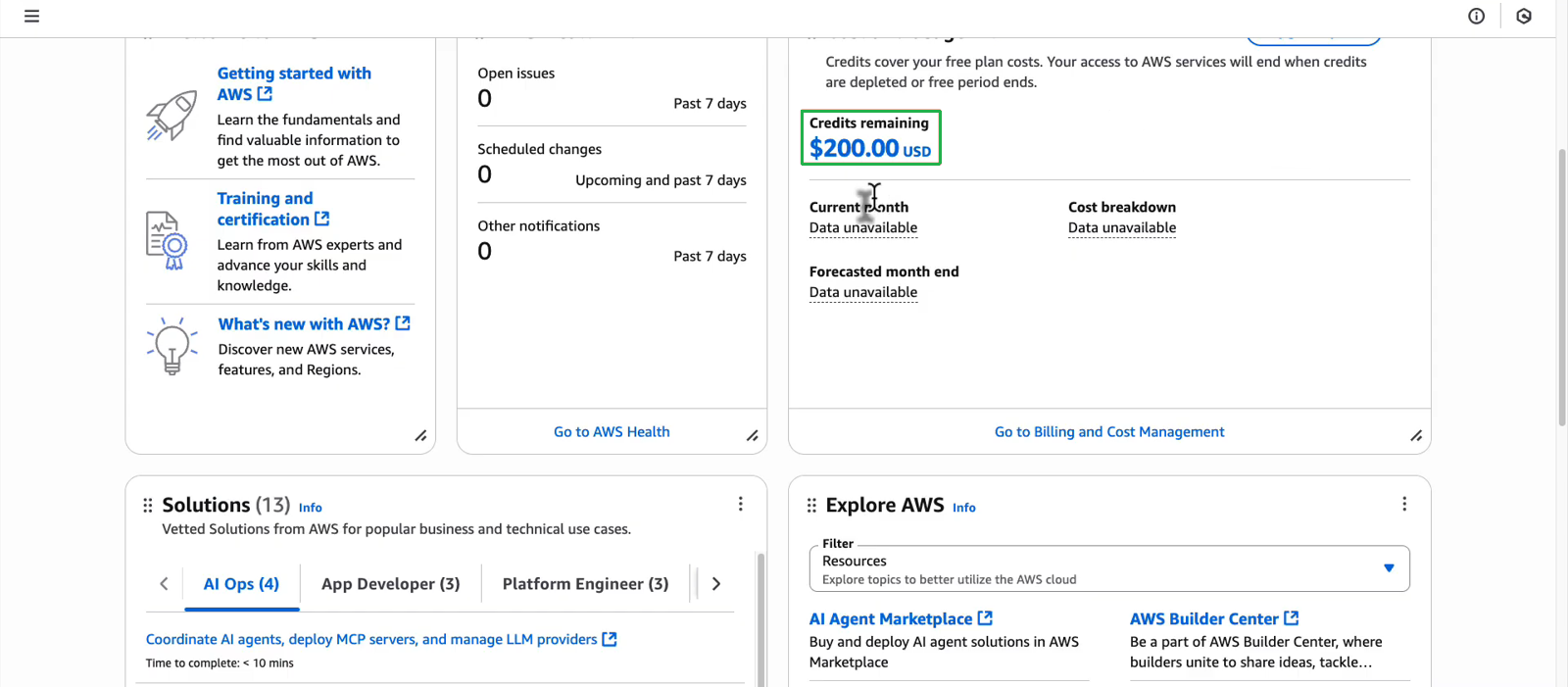
- Or check if you have received enough 200$ credit here!
- If you encountered an error in the Bedrock task and have been Supported successfully, please return to task Use a foundation model in the Amazon Bedrock to complete it, or if it hasn’t been resolved yet, you can continue with the following sections